
Straight to the install page
One scan opens your app's store page, so people don't search, mistype the name or install a lookalike.
Nobody types an app name into a store search from a poster or a TV ad. A QR code takes them straight to your app's page on the App Store or Google Play, where installing is one tap. This guide explains how to point one code at both stores, where app download codes work best, and how to see which placements bring in installs.
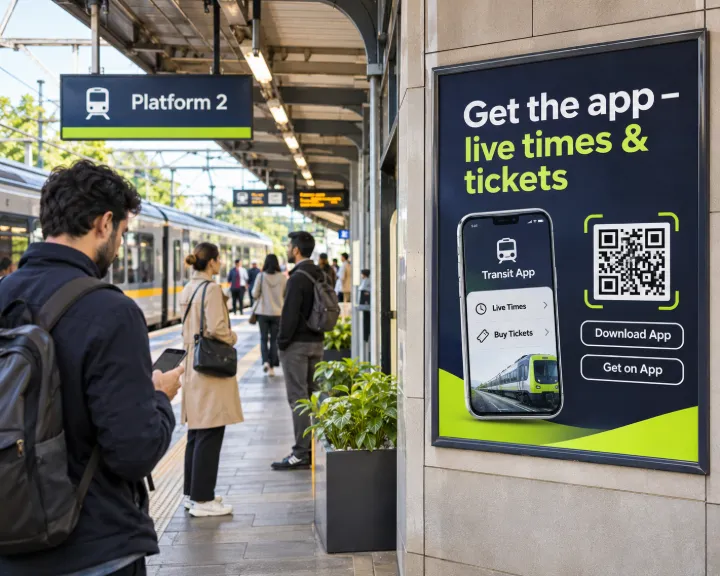
A QR code connects something people already hold or look at, like a box, a receipt or a screen, to the place where they install your app.
One scan opens your app's store page, so people don't search, mistype the name or install a lookalike.
Dynamic codes count scans by placement, time and operating system, so you can see how many iPhone and Android users scanned.
Point a printed code at a new download page, a different store link or updated campaign parameters without reprinting.
Add your app icon or logo, your colours and a frame that says "Get the app".
Pick the type by what should happen after the scan. Types marked "Editable" are dynamic: you can change their content later and see scan statistics. QRCodeChamp doesn't detect whether the phone is an iPhone or an Android: one code opens one link. To cover both stores, use a separate code for each store, or one code that opens your own download page with both store badges.
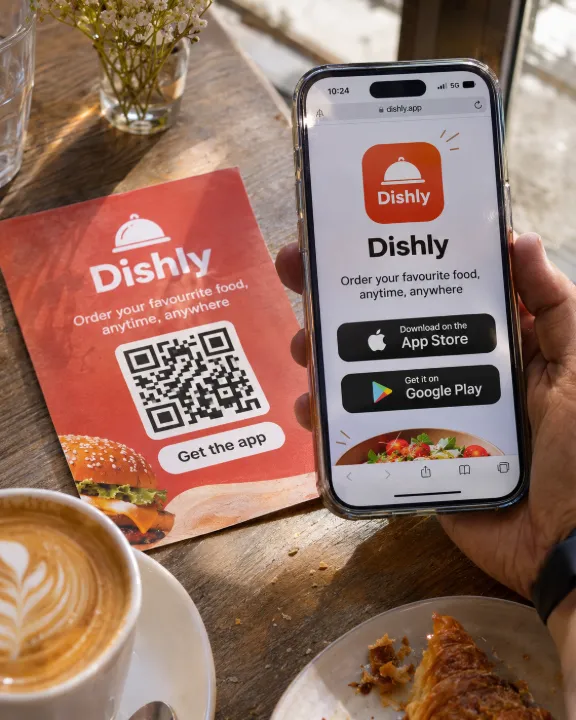
The simplest way to cover both stores with one code is a page on your own website that shows the App Store and Google Play badges side by side. A website QR code opens that page, and the visitor taps the store for their phone. You can also link a website QR code straight to your Google Play listing (play.google.com/store/apps/details?id= followed by your package name) and use it next to a separate App Store code.
Where to use it
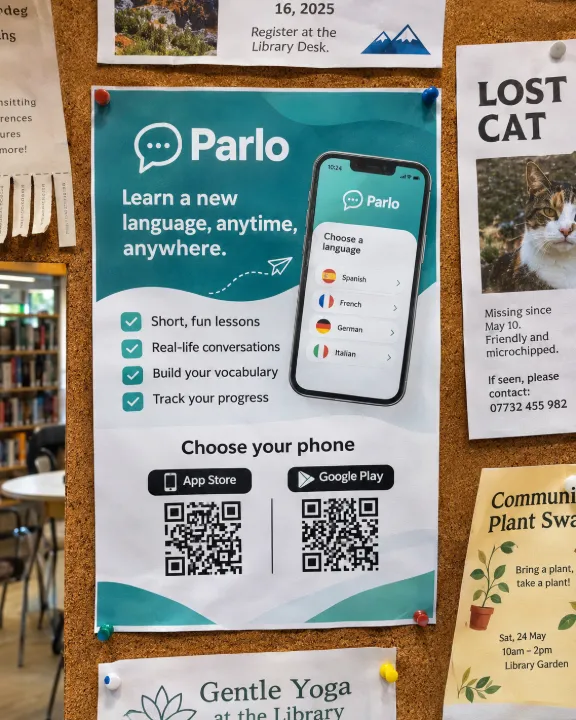
If your app is only on iPhone and iPad, or you print a separate code under each store badge, an iTunes QR code opens your App Store product page directly. Copy the link from the Share button on the App Store page or from Apple's App Store marketing tools: it starts with apps.apple.com. The iTunes QR code is also used for Apple Music and podcast links, so check that the link you paste is your app.
Where to use it
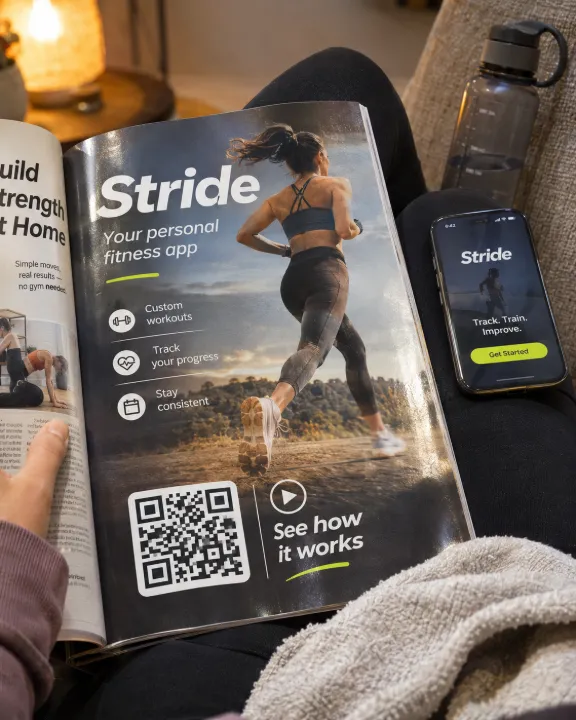
People install an app more readily when they can see what it does. A video QR code on a poster, print ad or product box plays a short walkthrough on the phone. Put a link to the store at the end of the video or in its description, and keep the video short with subtitles, because many people watch with the sound off.
Where to use it
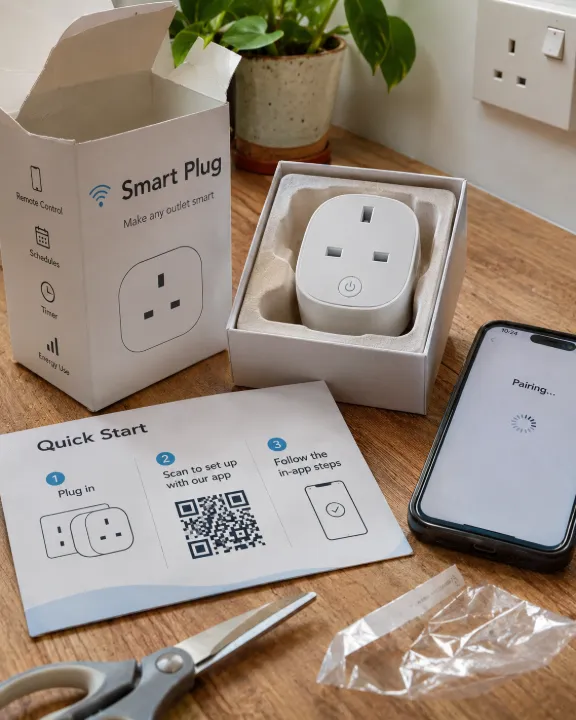
Smart home devices, wearables and other connected products often need an app to work. A PDF QR code on the box or the quick-start card opens the setup guide, including which app to install and where to find it. Upload a new version when the setup steps or the app change.
Where to use it
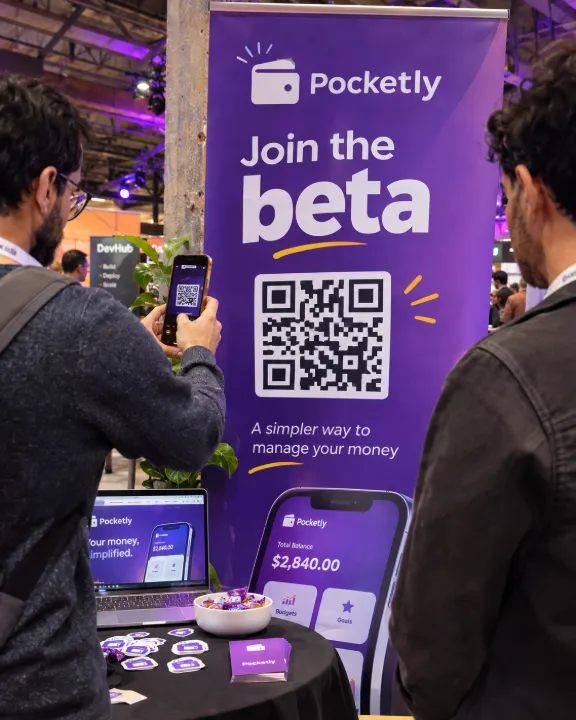
Before your app is in the stores, you can still collect interest. A Google Form QR code on an event stand or flyer opens a short form where people join your beta or ask to be told when the app launches. Only ask for what you need, such as an email address, and say how you will use it.
Where to use it
Put the code where people already have their phone in hand or have a moment to spare, and say what the app does for them.
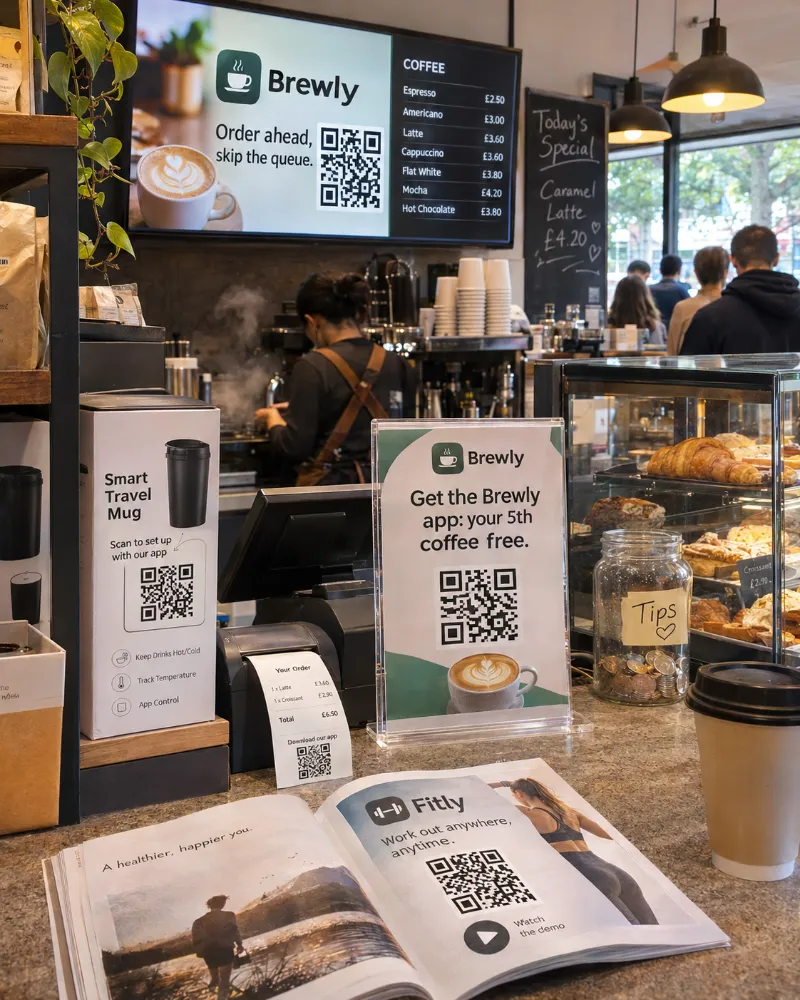
Opens your download page while customers wait to pay.
Invites customers to install your loyalty or ordering app after a purchase.
Opens the setup guide that tells people which app to install.
Shows how to pair the product with your app.
Opens the download page with campaign parameters, so you can measure installs.
Opens the download page while the ad is on screen. Show the code long enough to scan.
Opens your App Store page, next to a separate Google Play code.
Collects beta testers and launch sign-ups before the app is out.
For one code, make a page on your website with both store badges. For two codes, copy your App Store link (apps.apple.com) and your Google Play link (play.google.com/store/apps/details?id=…).
To see installs per placement, use an App Store Connect campaign link (with pt= and ct=) and add utm_source and utm_campaign to the Google Play link. Your stores' analytics then show where installs came from.
Open the website QR code generator, paste the link and sign in for free to save it. Make one code for each placement you want to compare.
Add a frame such as "Get the app", then scan a printed proof with an iPhone and an Android phone, with and without the app installed.
A good app download code is easy to trust, clear about which store it opens and tested on real phones.
Send people to the App Store, Google Play or your own website, never to an app file to download directly. Phones warn about apps from unknown sources for good reason, and people are right to be cautious.
Download the App Store and Google Play badges from Apple and Google, and don't recolour, translate or redraw them. Apple asks for a printed badge at least 10 mm high with clear space around it.
Apple's guidelines don't allow the App Store badge on some items, such as disposable food packaging and decals on vehicles. Read the current guidelines before printing; a plain QR code with your own text is fine where a badge isn't.
If you use two codes, label each one or put it under its store badge, so iPhone users don't scan the Google Play code by mistake.
People need several seconds to notice a code, unlock their phone and scan. Keep it on screen long enough and large enough to scan from a sofa.
Your QRCodeChamp dashboard counts scans. Installs are counted in App Store Connect and the Google Play Console, so compare both to see how many scans became downloads.
If the app is renamed, replaced or removed from a country, point the dynamic code at a page that explains what to do instead of a missing store page.
Not by itself: QRCodeChamp doesn't detect the type of phone, so one code always opens the same link. You have two options. Make one code that opens a page on your website showing both store badges, or print two codes, each labelled with its store.
On the App Store, open your app's page, tap Share and copy the link; it starts with apps.apple.com. For Google Play, use https://play.google.com/store/apps/details?id= followed by your app's package name, which you can find in the Play Console.
One code to your own download page is simpler to print and works on any phone. Two codes, one under each store badge, save visitors a tap but need clear labels. Either way, test them on both an iPhone and an Android phone.
QRCodeChamp shows scans for dynamic codes: how many, when, from which countries and on which operating system. To count installs, use an App Store Connect campaign link for the App Store and UTM parameters on your Google Play link, then check the reports in each store's console.
Yes, if you use the official badge artwork from Apple and Google and follow their guidelines: don't change the badges, keep clear space around them and check where badges may be used. The QR code itself can be designed with your own colours and logo.
Apple's App Store marketing tools create codes that open your App Store page. If your app is also on Google Play, or you want one code for your own download page, your own design or scan statistics per placement, create the code with QRCodeChamp.
With a dynamic code, such as a website QR code, you change the link in your dashboard and the printed code opens the new page. You need a free account, created by signing in with Google, to edit codes.
Yes, when the code opens an official store page or your own website. Print your app and company name next to the code, check public posters for stickers placed over it, and never link to an app file to install outside the stores.
Start with one code to your download page or store listing, and add a code for each placement you want to measure. Sign in for free to change the link after printing.