
Sign up while the interest is there
People register from the poster or flyer in one scan, instead of typing a long link later.
Most people decide to come to an event when they see the poster, the flyer or the invitation, and forget by the time they reach a computer. A QR code on that print opens your registration form or ticket page on the spot. This guide shows how to set up QR codes for sign-up, what to put on the day for arrival and check-in, and what QR codes can and can't do for tickets.

A QR code doesn't take bookings or sell tickets itself. It shortens the step between seeing your event and signing up for it.
People register from the poster or flyer in one scan, instead of typing a long link later.
Send people to your Google Form, Eventbrite page, Meetup event or website. Sign-ups and tickets stay in that tool.
Point a printed code at the waiting list when you sell out, or at next year's event when this one is over.
Give each poster run or flyer batch its own dynamic code and compare their scans in your dashboard.
Pick the type by what the person should do after scanning: sign up, save the date, find the venue or read the programme. Types marked "Editable" are dynamic: you can change their content later and see scan statistics. The others are static: the content is stored inside the code itself, so it can't change after printing.

If you sell tickets or take bookings on Eventbrite, Meetup, Ticket Tailor or your own website, a website QR code on the poster opens that event page directly. Paste the event's own link, not your homepage, so people land on the register button. Because it is a dynamic code, you can point it at a waiting list when the event is full, or at the recording afterwards.
Where to use it
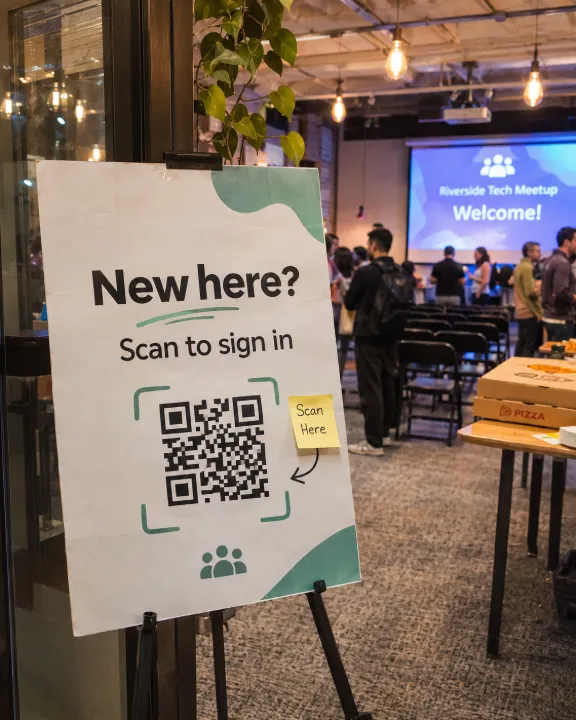
For free meetups, club nights, workshops and school events, a Google Form is often all you need. A Google Form QR code on the notice opens the sign-up form; a second one at the entrance can serve as a simple sign-in sheet, and a third at the end of a session can collect feedback. Only ask for the details you need, and tell people what you'll use them for.
Where to use it
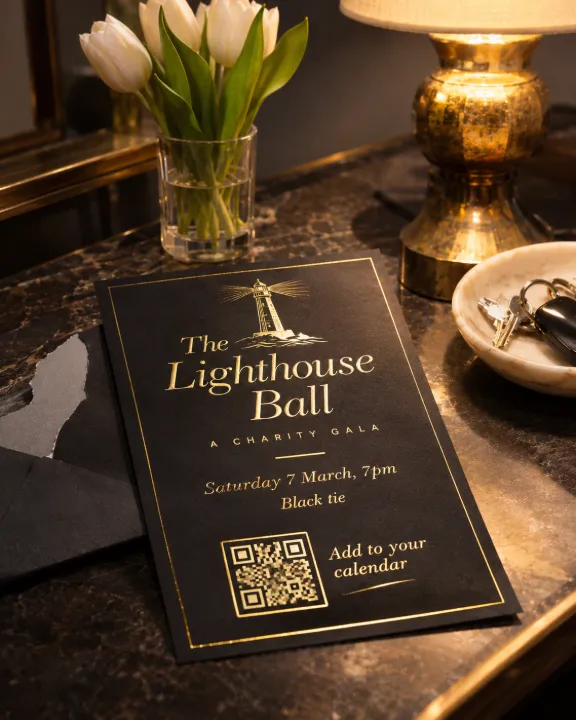
Registered people still miss events when the date only lives in an email. An event QR code on the confirmation email, invitation or save-the-date card adds the name, date, time and venue to the phone's calendar in one step. Put it next to the registration code, not instead of it: saving the date doesn't book a place.
Where to use it
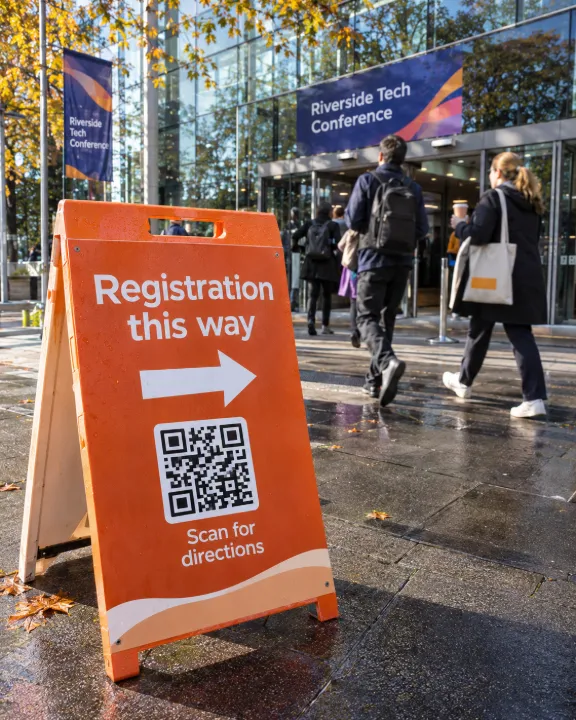
Conference centres, campuses and community buildings often have several entrances. A location QR code in the joining instructions or on a sign at the car park opens the exact entrance in the phone's maps app, so attendees arrive at registration, not at the loading bay.
Where to use it

Schedules change on the day: a speaker drops out, a session moves room. A PDF QR code on badges, the registration desk and room signs opens the current programme. Upload a new version when something changes, and the printed codes open it straight away.
Where to use it
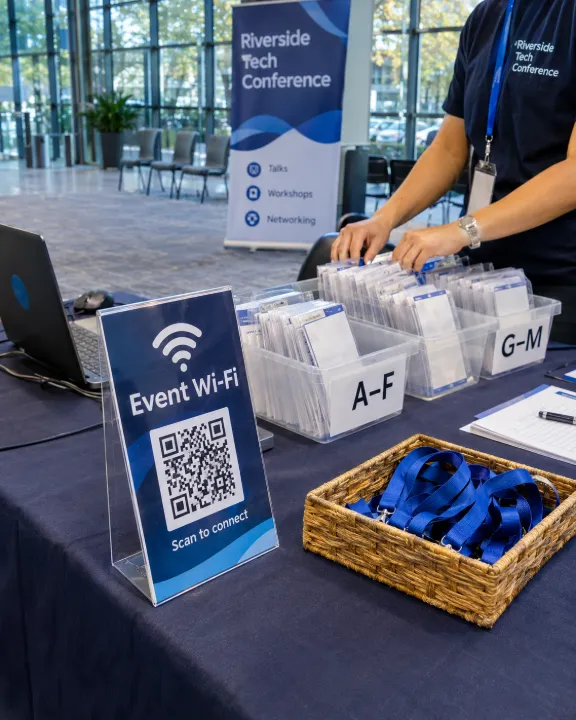
Attendees ask for the Wi-Fi first. A Wi-Fi QR code on the registration desk and in each room connects them in one scan, so volunteers don't spend the morning reading out a password. Use a guest network that is separate from the venue's own systems.
Where to use it
Each stage of an event has its own question: how do I sign up, when is it, where is it, what's on. Put the matching code where people ask it.
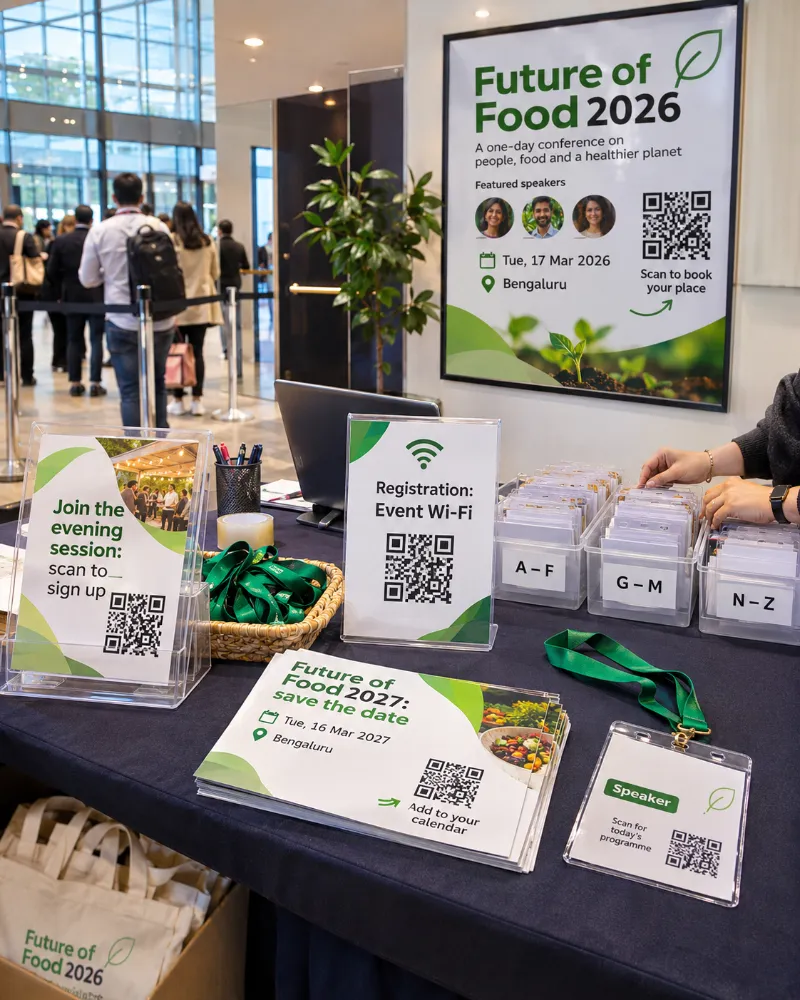
Opens the registration or ticket page while people are looking at the poster.
Opens a short sign-up form for a free event.
Adds the date, time and venue to the calendar.
Opens the right entrance in the maps app.
Lets walk-ins register or sign in on their phone.
Connects attendees to the event Wi-Fi.
Opens the current programme and room list.
Collects feedback while people are still in the room.
Create the event on your ticket platform or make a Google Form with only the details you need. Open its public link in a private browser window to check anyone can reach it.
Paste the link into the website or Google Form QR code generator. Sign in for free to save it as a dynamic code, so you can change the link later.
Add your event colours and a frame that says "Scan to register", and print the event name and a short web address under the code for people who can't scan.
Print a proof at the final size, scan it from where people will stand, and check the code's scans in your dashboard against your sign-ups.
A registration code only helps if people trust it, can scan it and land on a form that works on a phone.
QRCodeChamp creates one code per link; it doesn't issue a unique ticket per attendee or scan tickets at the door. For paid or capacity-limited events, use a ticket platform that sends each attendee their own ticket and has its own check-in app.
Keep registration short, test it on a phone, and make sure it doesn't ask people to sign in to an account they may not have. In Google Forms, options such as "Limit to 1 response" require a Google sign-in.
Collect the minimum personal details, say how you'll use them, and follow the data protection rules that apply where you are, especially for events with children.
Posters in public spaces can have fake QR stickers placed over them. Print your event name and web address next to the code, and check posters for stickers you didn't put there.
Printed posters stay up. When registration closes, point the dynamic code at a waiting list, a "sold out" page or next year's event, not a dead link.
Some people don't have a smartphone, have no signal or prefer to ask. Have a printed list or a person at the desk for them.
Set up your registration page or Google Form first, copy its public link, and paste it into the website or Google Form QR code generator. Download the code, add a label such as "Scan to register", and test the printed version on a few phones.
No. QRCodeChamp creates QR codes that open a link, form, file or other content, and doesn't keep attendee lists or ticket records. Ticket platforms such as Eventbrite issue each attendee their own ticket code. You can use QRCodeChamp for the codes on your promotion, signs and badges that lead to that platform.
For informal events, a Google Form QR code at the entrance works as a self sign-in sheet. It isn't a ticket check: a photo of the code can be shared, and anyone can fill in the form. For paid or capacity-limited events, use your ticket platform's check-in app, which scans each attendee's own ticket.
A Google Form is enough for free events where you only need names and numbers. A ticket platform is better when you take payments, limit capacity, send tickets or check people in at the door. Either way, the QR code just opens the registration page.
Use a dynamic code, then change its link in your dashboard to a waiting list form or a page that says the event is full. The posters and flyers already printed keep working.
Yes, for dynamic codes. The dashboard shows how many times the code was scanned, when, on which devices and from which countries. It doesn't show who scanned or whether they registered, so compare scans with the sign-ups in your registration tool.
No. One code opens one thing. Use a registration code on the poster to sign people up, and an event QR code on the confirmation email or invitation so they can save the date. Many ticket platforms also include an add-to-calendar link in their confirmation emails.
Yes. You can create and download QR codes for free. Sign in with Google for free to save dynamic codes, change their links after printing and see their scan statistics.
Start with one code on your poster that opens your registration page, then add codes for the date, the venue, the programme and the Wi-Fi. Sign in for free to change the link when plans change.