

No searching for your business
The code opens your review form directly, so customers don't have to look you up on Google first.
Most happy customers mean to leave a review and then forget. A QR code that opens your review form, shown at the right moment, removes the searching and typing that stops them. This guide covers how to set it up, where to place it and the rules to follow.
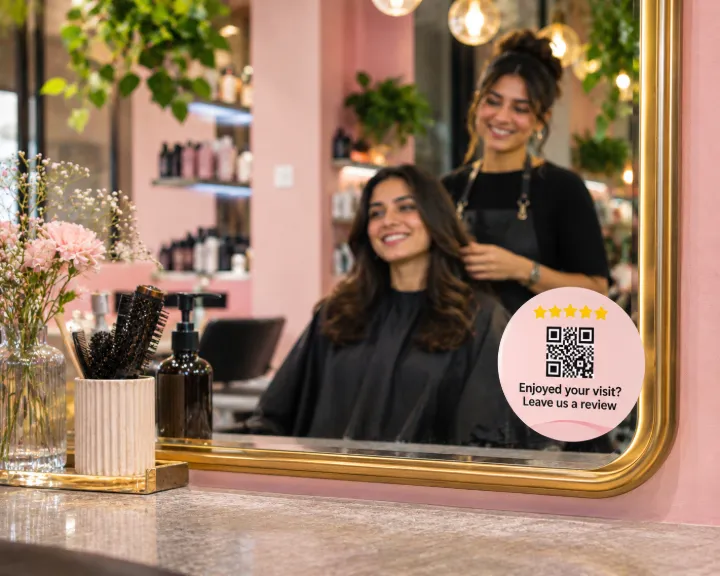
Asking is the easy part. The hard part is the moment between "I'll do it later" and actually opening the review form.
The code opens your review form directly, so customers don't have to look you up on Google first.
Put the code where the visit ends: on the receipt, at the counter or in the bill folder.
With dynamic codes you can compare scans from the counter card, the receipt and the thank-you card.
A dynamic website code can point to a different review site later, without reprinting.
Use the Google Review code for your Google profile, and a website code for review sites that have their own link. Types marked "Editable" are dynamic: you can change their content later and see scan statistics.
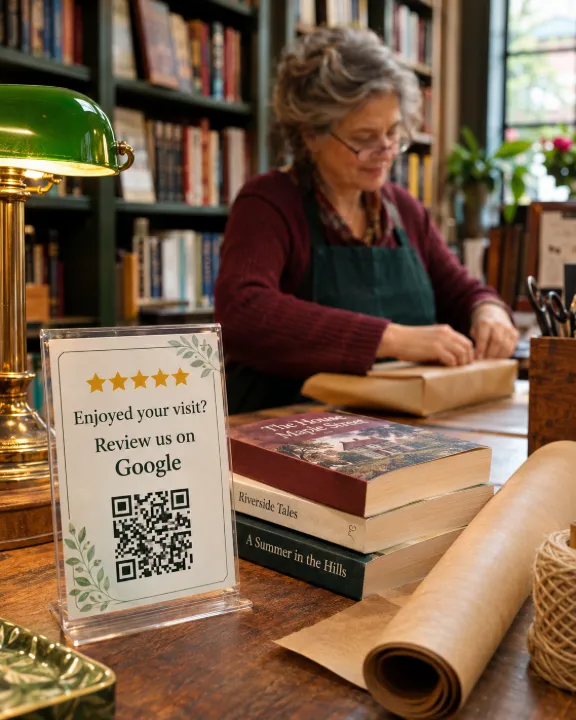
A Google Review QR code takes customers straight to the form where they choose stars and write a review. Put it where the visit ends, with a short line such as "Enjoyed your visit? Leave us a review". Give every customer the same code and the same request.
Where to use it

If your reviews live somewhere else, such as your online shop, a booking site or an app store, a website QR code can open that review page. Save it as a dynamic code so you can switch to another platform later without reprinting.
Where to use it
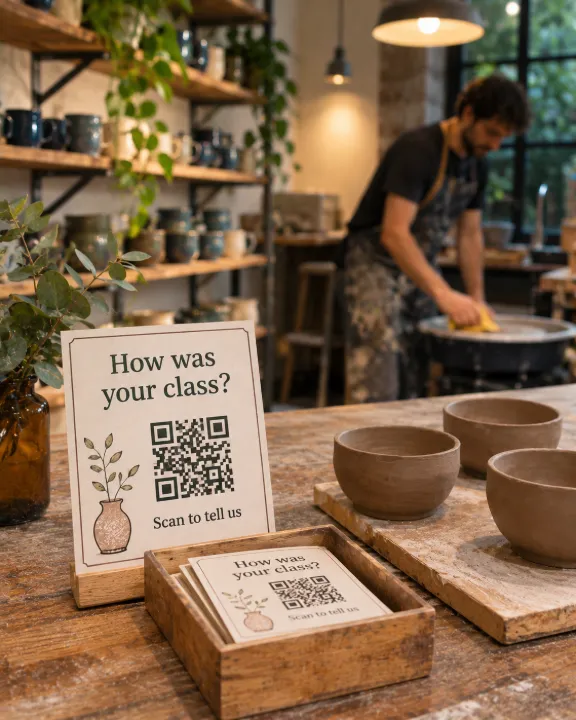
Public reviews are short. When you want detail, such as what to improve or how a new service went, a Google Forms QR code opens your own survey. Use it alongside the review request, offered to everyone, not as a filter in front of it.
Where to use it
The best spot is where the customer has just experienced the good part: the end of the meal, the finished haircut, the opened parcel.
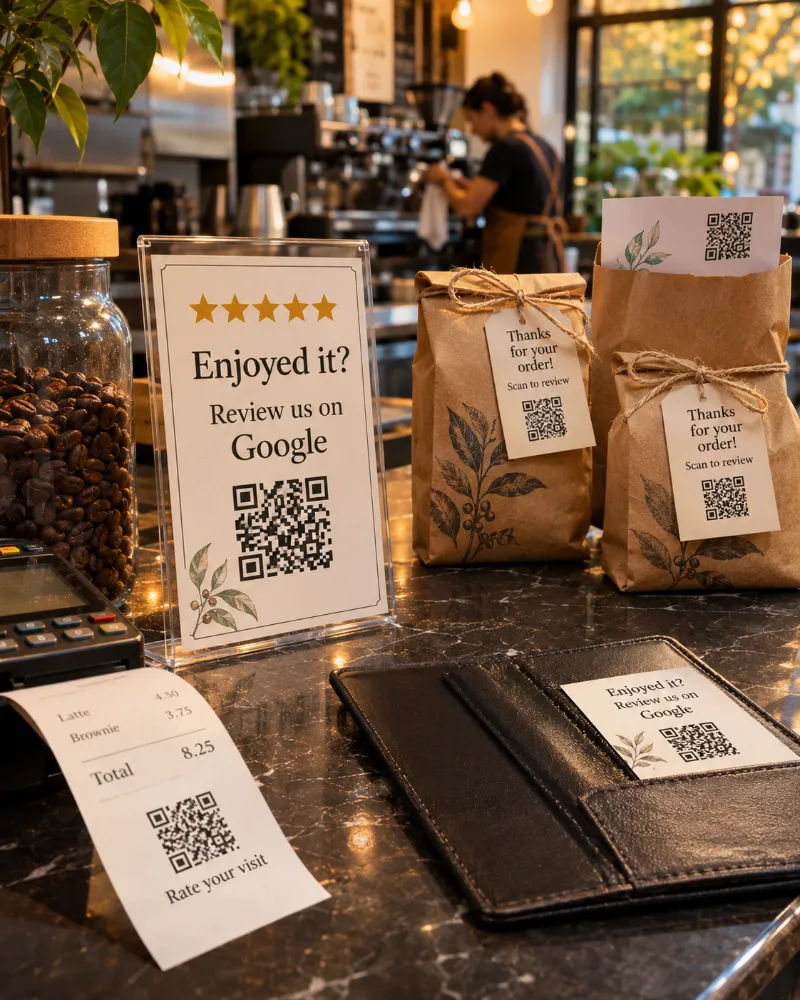
Seen while the customer pays, at the end of the visit.
Goes home with the customer, so they can scan later.
Reaches restaurant guests right after the meal.
Asks online buyers for a review on your shop's page.
Reminds salon and clinic clients after their visit.
Collects detailed feedback while it is fresh.
In your Google Business Profile, use the option to ask for reviews and copy the review link it gives you.
Open the Google Review QR code generator and paste the link, or use a website QR code for another platform's review page.
Choose a frame and write a short line such as "Leave us a review". Then download SVG for print.
Put the code where the visit ends, and scan it with a few phones to check it opens your review form.
More reviews come from asking consistently and making it easy. These points also keep you within review platform rules.
Google's review policy doesn't allow businesses to ask only the customers they expect to be happy. Show the same code to everyone.
Discounts or gifts in exchange for reviews break Google's rules and can get reviews removed. Ask without an incentive.
Sending unhappy customers to a private form and happy ones to Google ("review gating") isn't allowed. Offer a feedback form alongside the review link, not instead of it.
Customers review the whole experience, so ask when it is finished: at payment, on the receipt or in the parcel.
A short line such as "Reviews help other people find us" gives customers a reason to scan.
Thank people for good reviews and answer criticism calmly. Customers notice when a business listens.
Copy the review link from your Google Business Profile, paste it into the Google Review QR code generator, then design and download the code. When customers scan it, your Google review form opens on their phone.
Where the visit or purchase ends: the checkout counter, the receipt, the bill folder, an appointment card or a thank-you card in an order. Test a few spots with dynamic codes and keep the ones that get scanned.
Yes, asking is fine. What Google's policy doesn't allow is offering incentives for reviews or asking only the customers you expect to leave a positive review. Check Google's current review policy for the details.
No. Filtering customers so only happy ones reach the review form is known as review gating, and Google doesn't allow it. You can offer a feedback form, but give everyone the review link as well.
Yes. If the review site has a link to its review page, a website QR code can open it, for example for your online shop, a booking site or an app store.
Yes, with a dynamic QR code and a free account. The dashboard shows how many times each code is scanned, so you can compare placements. It doesn't show who left a review.
Make a code that opens your review form, print it where the visit ends, and ask every customer the same way. Sign in for free to see how often it is scanned.