
More product detail at the shelf
Sizes, materials, ingredients, compatibility and reviews fit on a phone screen, not on a 5 cm price label.
A shelf label only has room for a name and a price. A QR code next to it can show the sizes, colours, ingredients, care instructions or a short demo video, right where the shopper is deciding. This guide covers the QR codes that work best in shops, where to put them on the shop floor and how to keep them easy to scan.
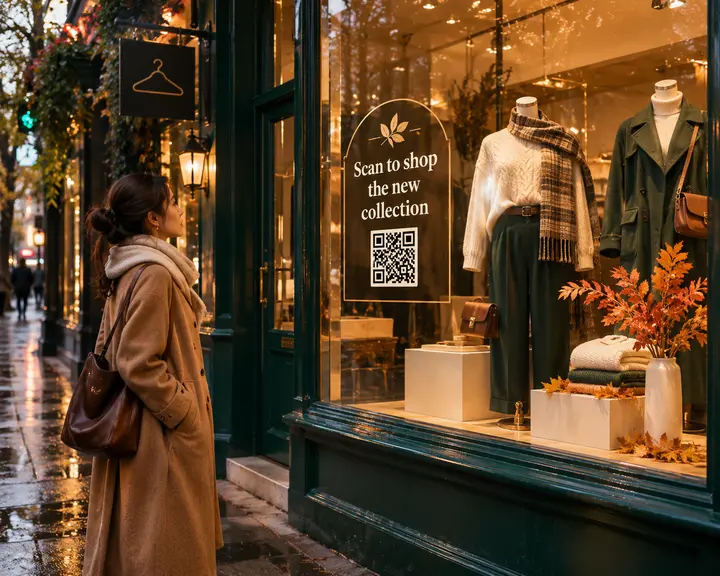
A QR code doesn't replace your shop assistants or your price labels. It answers the questions shoppers have when nobody is free to help.
Sizes, materials, ingredients, compatibility and reviews fit on a phone screen, not on a 5 cm price label.
Point a dynamic code at a new page when the offer, the stock or the product changes. The printed tag stays on the shelf.
Give the window, the shelf and the till their own codes and compare their scans in your dashboard.
Send shoppers to the product page, other colours or an out-of-stock size they can order online.
Pick the type by what the shopper should do after scanning. Types marked "Editable" are dynamic: you can change their content later and see scan statistics. The others are static: the content is stored inside the code itself, so it can't change after printing.
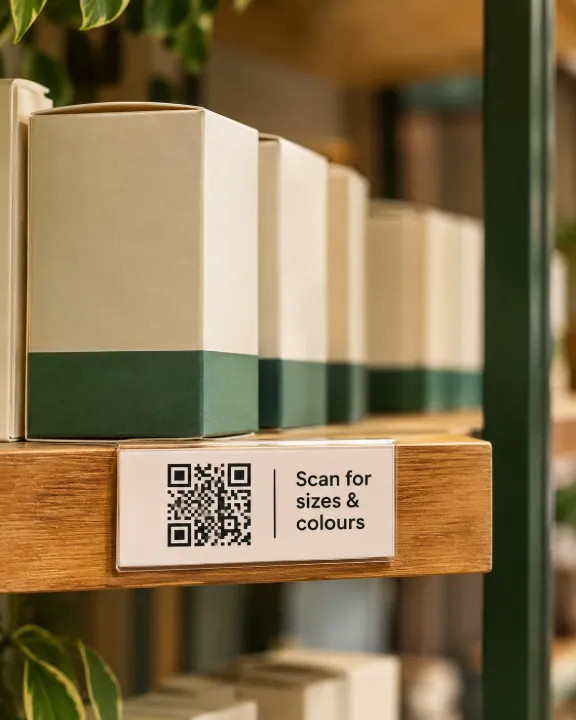
A website QR code on the shelf label or swing tag opens that product's page, with the sizes, colours, specifications and reviews you can't fit on a tag. Link each code to its own product rather than to your homepage, so the shopper lands on what they are holding. If a size is sold out in the shop, the same page lets them order it online.
Where to use it
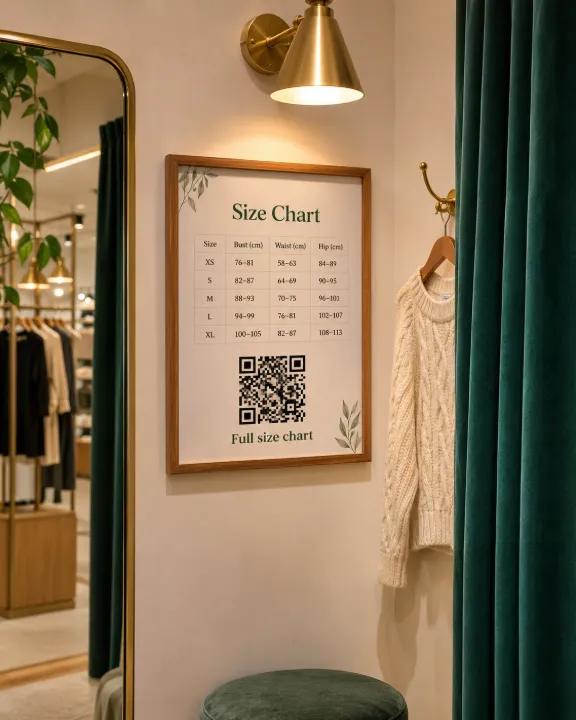
Some information is too long for a label but too useful to leave out: a full size chart in the fitting room, a care guide for furniture or textiles, or a manual for an appliance. A PDF QR code opens the document on the shopper's phone. It is a dynamic code, so you can upload a new version when the catalogue changes and keep the printed code.
Where to use it
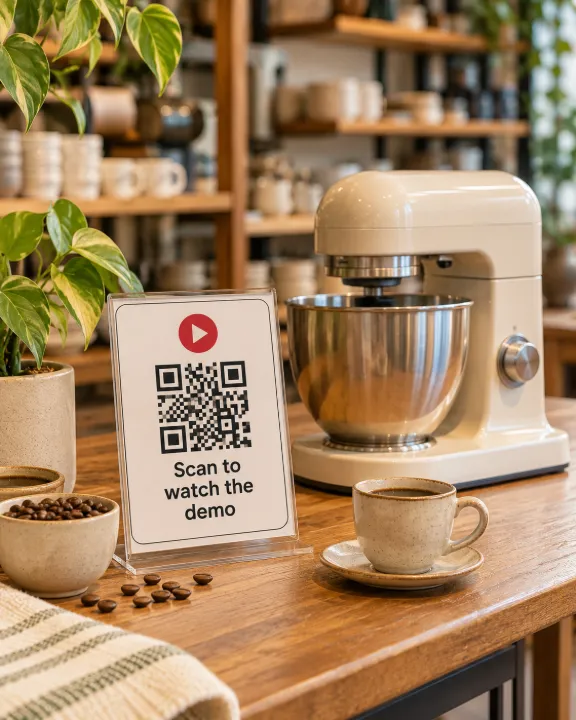
Shoppers trust what they can see working. A video QR code on a demo stand or endcap display plays a short clip of the product in action: how a gadget is set up, how a fabric drapes or how a tool is used. Keep the video short and add subtitles, because many people watch with the sound off in a shop.
Where to use it
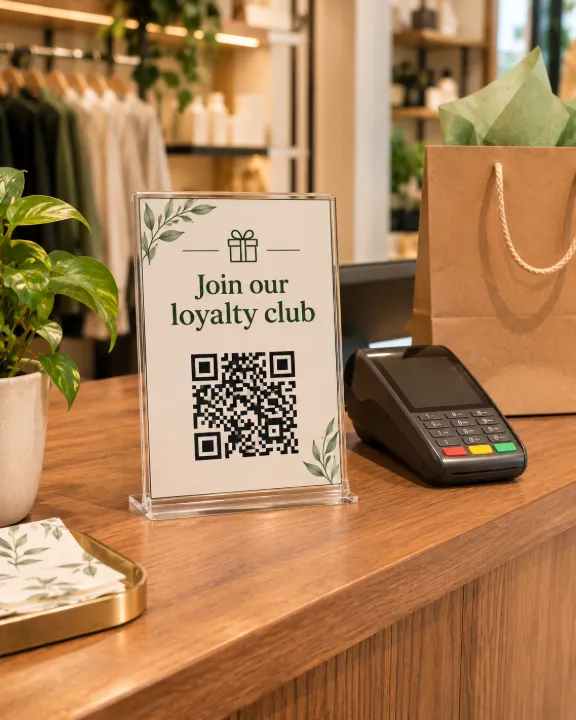
The checkout is where shoppers are already thinking about their purchase, which makes it a good moment to invite them to your loyalty club or mailing list. A Google Form QR code on a counter card opens your sign-up form, so they can join while they wait instead of filling in a paper slip. The same type works for customer feedback or product requests.
Where to use it
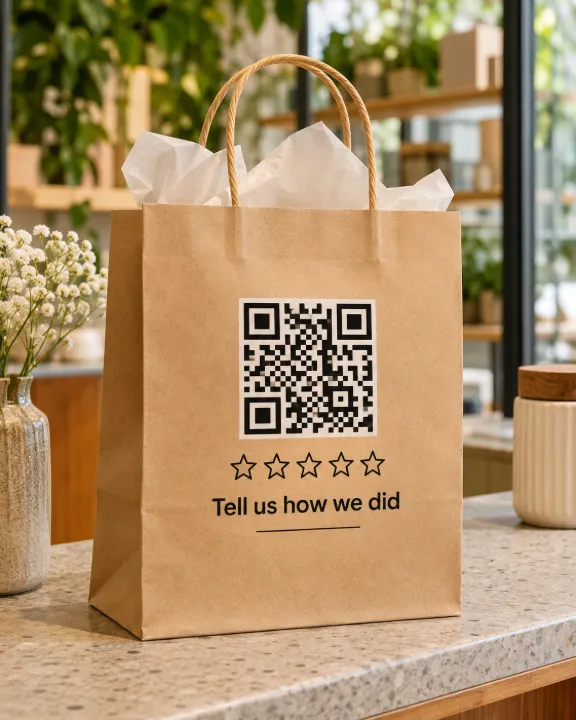
Happy shoppers rarely look up your shop later to leave a review. A Google Review QR code on the counter, the receipt or the shopping bag opens the review form directly, so they don't need to search for your shop first. Ask every customer the same way: Google's rules don't allow you to ask only happy customers or to offer something in return.
Where to use it
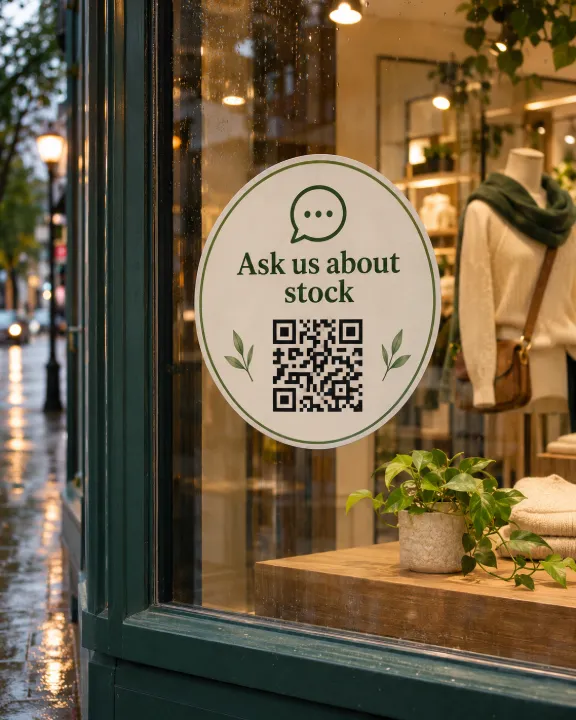
"Do you have this in a medium?" A WhatsApp QR code in the window or on a counter card opens a chat with your shop number, with a message already started. Shoppers can ask about stock, reserve an item or check opening hours, even when the shop is closed.
Where to use it
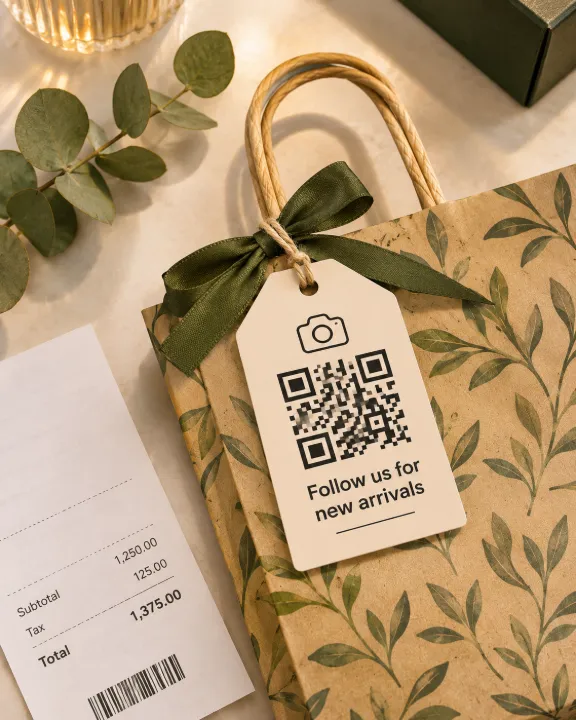
New arrivals, restocks and sale dates reach your followers first. An Instagram QR code on the shopping bag, the receipt or a fitting-room mirror opens your profile while the shopper still has your products in hand, so following you takes a few seconds.
Where to use it
Place each code at the moment the shopper has that question: product details at the shelf, sizes in the fitting room, the review at the till.
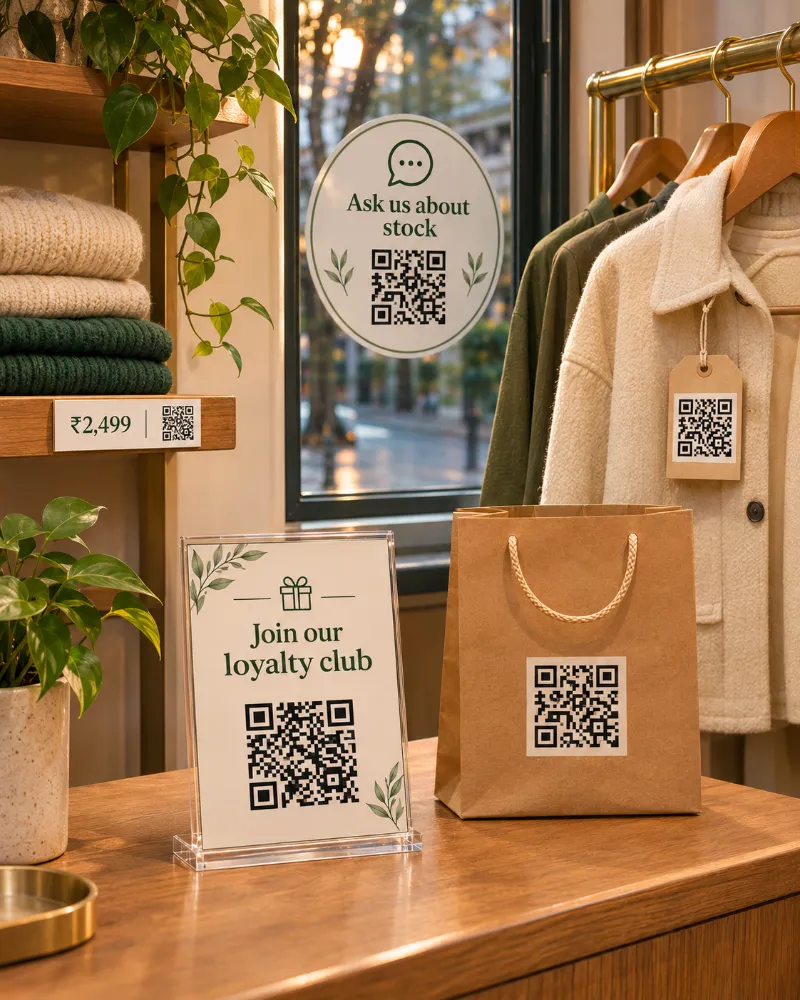
Opens the product page with sizes, specs and reviews.
Shows other colours and sizes, including ones to order online.
Opens the size chart while the shopper is trying things on.
Plays a short demo of the product in use.
Lets passers-by ask about stock, even when you're closed.
Signs shoppers up to your loyalty club while they wait.
Asks for a review after the purchase.
Opens the offer details or event sign-up page.
Find the product page, video or PDF each code should open. One product, one page works better than a single code for the whole shop.
Open the website QR code generator and paste the link. Sign in for free to save it, so you can change the link later.
Add your colours and a short call to action such as "Scan for sizes". Keep the code dark on a light background.
Download SVG for printing, put a test label on the shelf and scan it in the shop's lighting with a few phones before printing the rest.
Shop floors have glare, small labels and busy shoppers. These points keep your codes easy to use.
"Scan for sizes and colours" or "Scan to watch the demo" tells shoppers why to scan. A code with no label is easy to ignore.
Put the code next to the product it belongs to, between waist and eye height, not at the end of the aisle or on the bottom shelf.
On a shelf label scanned from close by, keep the code around 2 × 2 cm (0.8 × 0.8 in) or larger. Codes on posters and windows need to be bigger.
Glossy labels and acrylic holders reflect shop lights. Use matte labels where you can and test the code under your own lighting.
Make sure every code still opens the right page, and look for stickers placed over your codes by someone else. Replace any you don't recognise.
The page behind the code should load quickly and be easy to read on a small screen, because the shopper is standing in the aisle.
Create a website QR code that opens the product's page, download it as SVG and add it to your label design next to the price. Print one test label, scan it on the shelf in your shop's lighting, then print the rest.
For shelf labels and swing tags, yes: a code that opens the exact product is more useful than one that opens your homepage. For the window, the counter or a poster, one code for the whole shop is fine. The bulk QR code generator creates up to 25 codes at once.
Yes, if you use a dynamic code such as the website, PDF or video QR code. Change the link or file in your dashboard and the printed code opens the new content. You need a free account, created by signing in with Google, to edit codes.
Around 2 × 2 cm (0.8 × 0.8 in) or larger usually works for a label that shoppers scan from close by. Codes scanned from further away, such as on posters or windows, need to be bigger. Always test the printed size with a few phones.
Not a normal QR code that opens a web page. Checkouts scan product barcodes such as EAN and UPC. The retail industry, led by GS1, is working towards checkouts that can also read 2D codes such as the GS1 Digital Link QR code by the end of 2027 ("Sunrise 2027"). Our barcode generator creates EAN, UPC and GS1 Digital Link codes, but the product numbers (GTINs) come from GS1.
QRCodeChamp creates QR codes, not a payment system. If you already use a payment service with a payment link, a website QR code can open it. Card terminals and checkout systems stay the same.
Yes, for dynamic codes. The dashboard shows scans over time, devices and countries. Use a separate code for each display or shop if you want to compare them.
Print codes directly on labels and signs rather than using loose stickers where you can, add your shop's web address under the code, and check your displays regularly. Remove any sticker you didn't put there.
Start with one product and its shelf label, then add codes for the fitting room, the window and the till. Sign in for free to change the links after printing and see how often shoppers scan.