

An audio guide on every phone
Visitors play the commentary for the objects they choose, with their own headphones, instead of queuing for a hire handset.
A label has room for a title and a few lines of text. A QR code next to it can play the curator's audio commentary, show a captioned video, open the full story in large print or in another language, all on the visitor's own phone. This guide covers the QR codes that work in museums, galleries, heritage sites and exhibitions, where to put them on labels and panels, and how to keep them accessible.
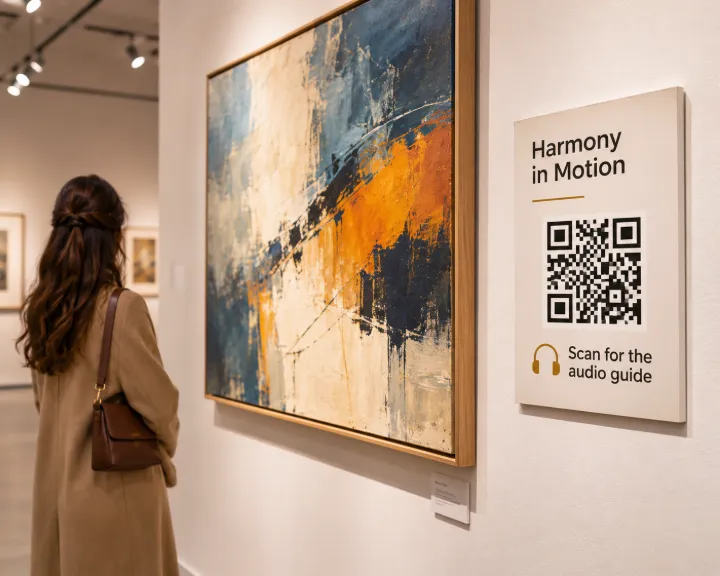
A QR code doesn't replace good labels or a guided tour. It adds a layer of interpretation for visitors who want more, on a device they already carry.
Visitors play the commentary for the objects they choose, with their own headphones, instead of queuing for a hire handset.
When research, loans or translations change, update the file behind a dynamic code. The printed label stays on the wall.
Link to extended text, large print, captioned video, sign language or another language without crowding the gallery wall.
Keep each exhibition's codes in its own folder, and see which ones are scanned so you know which content visitors use.
Pick the type by what the visitor should get after scanning. Types marked "Editable" are dynamic: you can change their content later and see scan statistics. The others are static: the content is stored inside the code itself, so it can't change after printing.
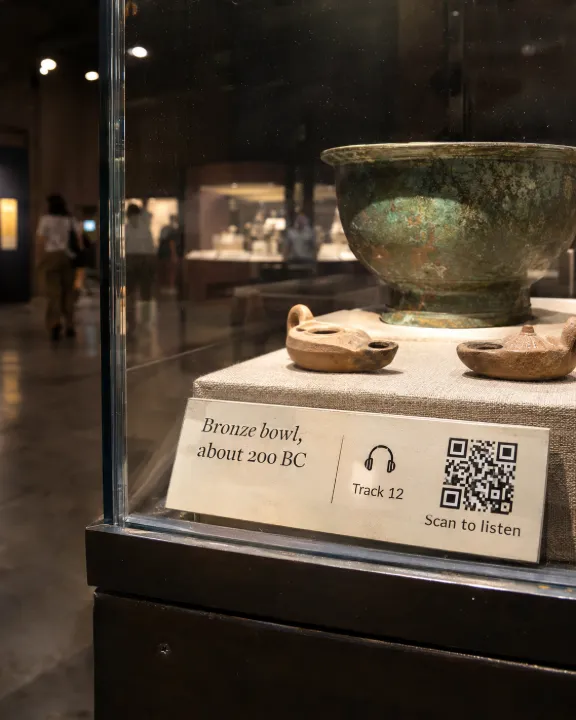
Record a short commentary for each object or room and upload it to an audio QR code. The visitor scans the label and the file plays in the phone's browser, with no app to install. Keep each track short, start it with the object's name so people know they scanned the right one, and offer a written transcript for visitors who can't listen. As a dynamic code, you can upload a new recording later without changing the label.
Where to use it
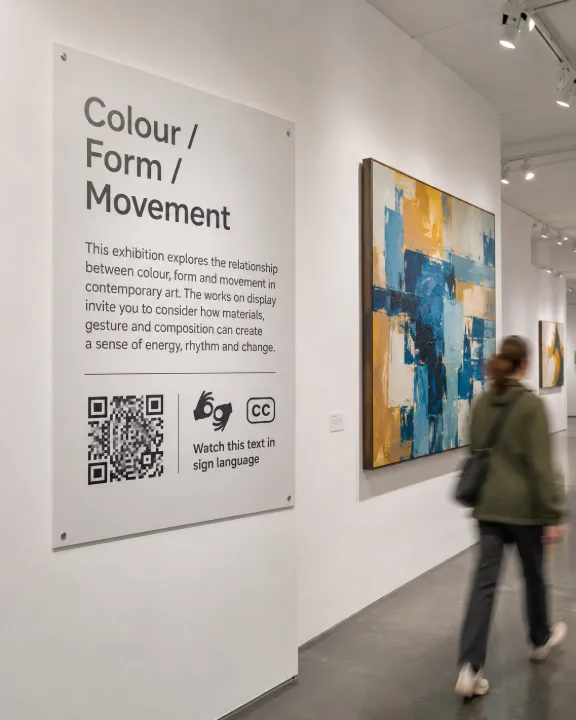
Some objects are best explained by seeing them in use, or by hearing from the artist. A video QR code opens a film you host on YouTube, Vimeo or your own website. Add captions to every video with speech, and consider a recorded sign language version of key texts, made with Deaf visitors, for those who use it as their first language.
Where to use it
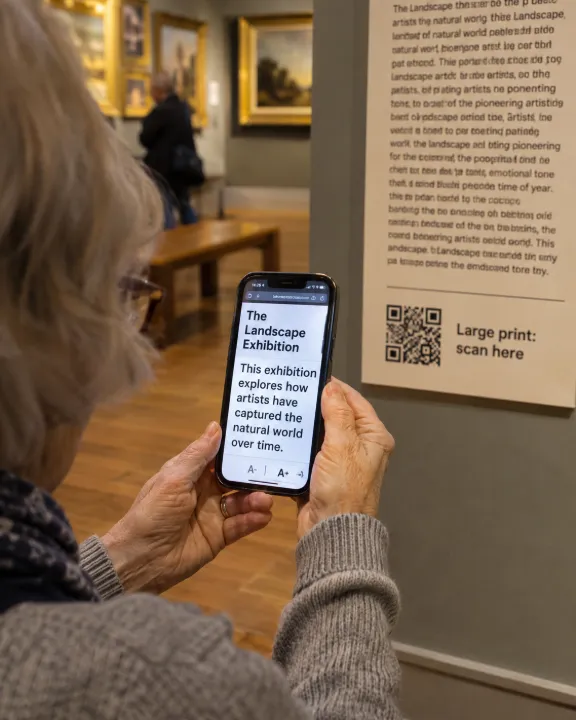
Wall space is limited and label type is often small for visitors with low vision. A PDF QR code on the room panel opens the extended text or a large-print version on the visitor's phone, where they can zoom in or use their phone's text-to-speech. At the entrance, the same type opens a floor plan with toilets, lifts and seating marked. Keep printed large-print guides available too.
Where to use it
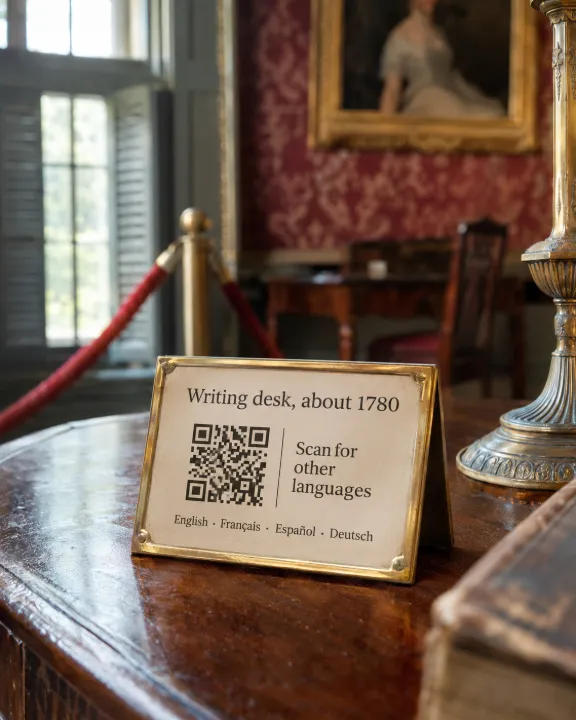
A website QR code can open the object's page in your online collection, with more images and its history. It also works for translations: one code that opens a page where visitors choose their language keeps the label tidy, instead of a row of codes for every language. On posters and leaflets, the same type opens tickets, events or the online shop.
Where to use it
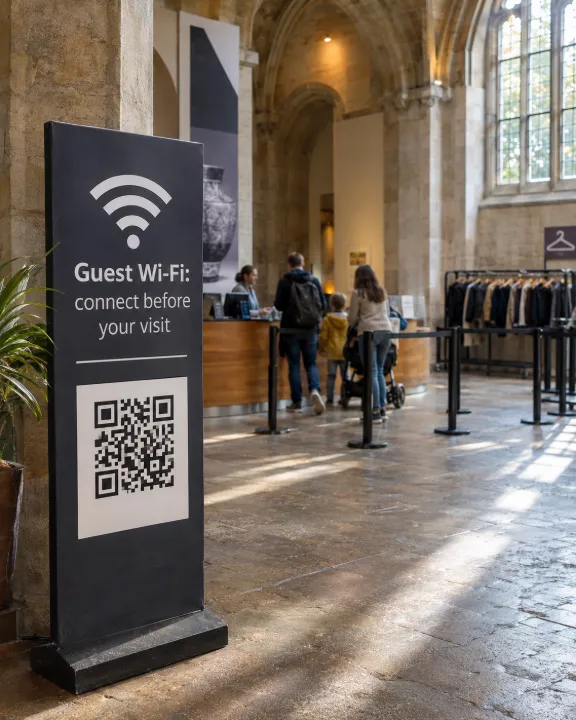
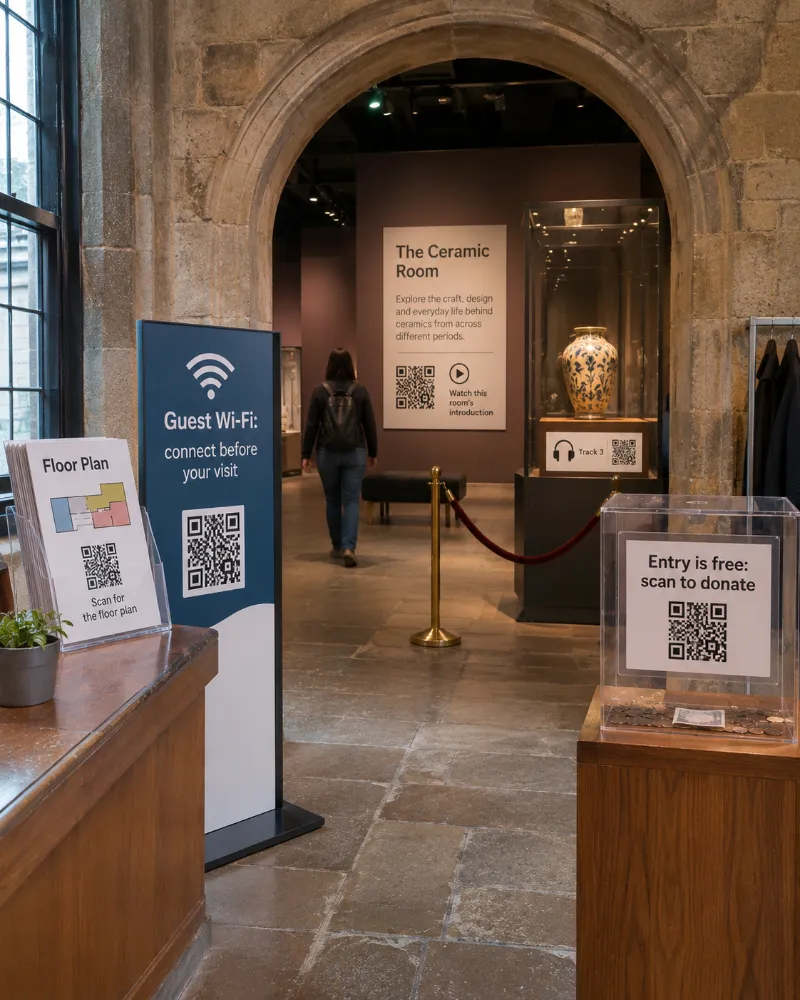
Basement galleries, castles and stone buildings often have weak mobile signal, and audio and video need a connection to play. A Wi-Fi QR code at the entrance connects visitors to your guest network before they reach the galleries. Test every code in the room where it hangs, not just at your desk.
Where to use it
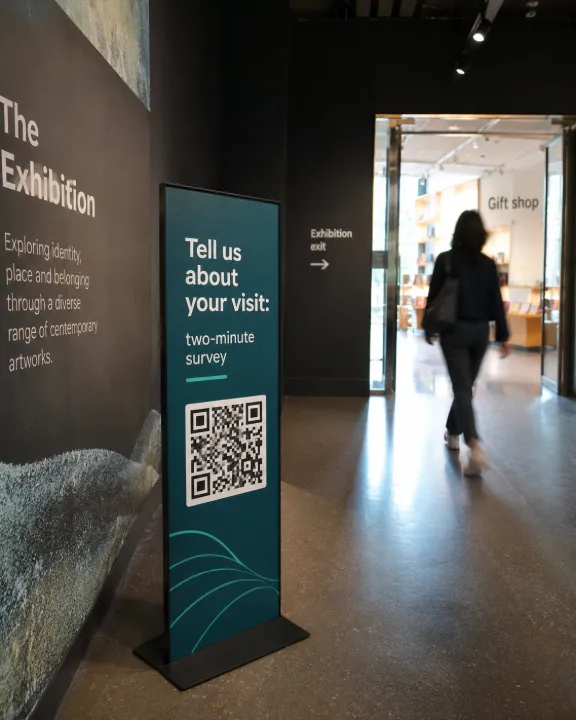
A short survey at the end of an exhibition tells you what visitors enjoyed and what they missed. A Google Form QR code by the exit or on café tables opens your form. Keep it to a few questions, make it anonymous, and only collect contact details if visitors choose to join your mailing list.
Where to use it
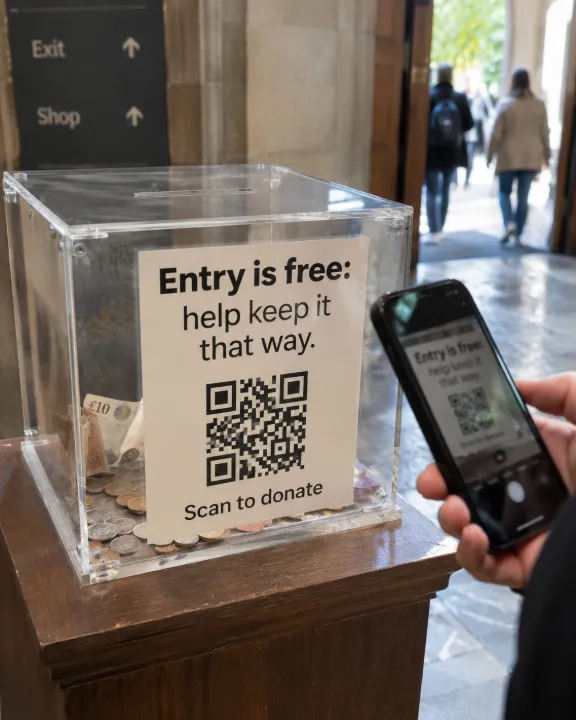
Many visitors no longer carry cash. A PayPal QR code next to the donation box opens your PayPal donation link, so they can give on their phone. QRCodeChamp only creates the code: the payment happens in PayPal, under your own account and its rules.
Where to use it
Put each code where the visitor has that question: the audio at the object, the floor plan at the entrance, the survey at the exit.
Plays the commentary or audio description for that object.
Opens a captioned or sign language version of the panel text.
Opens the extended or large-print text to read at the visitor's pace.
Opens the object's online collection page or a translated label.
Connects visitors to guest Wi-Fi before they reach low-signal galleries.
Opens the floor plan with lifts, toilets and seating.
Opens tickets, the events programme or the online shop.
Opens a short, anonymous visitor survey.
Lets visitors donate on their phone.
Write a script for one object, record it as an MP3 and keep the script as a transcript for visitors who can't listen.
Open the audio QR code generator and upload the file. Sign in with Google for free to save it, so you can replace the recording later.
Choose a frame that says "Scan to listen", add a track number, and put the code in the same spot on every label so visitors know where to look.
Download SVG for printing, then scan a proof in the room itself, under the gallery lights and on the gallery's signal, with a few different phones.
A QR code is only useful if every visitor can find it, scan it and use what it opens. These points come from museum accessibility guidance.
"Scan to listen", "Scan for large print" or "Watch in sign language" tells visitors what they will get before they take out their phone.
Add a code where it gives real extra interpretation for that object or room, not on every label by default, and not just for marketing.
Keep codes at a height that wheelchair users and children can scan. Wellcome Collection, for example, puts the top line of wall labels between 1000 and 1350 mm (about 40 to 53 in) from the floor.
Print on a matte surface with a dark code on a light background, at least 2 × 2 cm (0.8 × 0.8 in). Put case labels outside the glass, where reflections and spotlights don't block the camera.
Caption videos, provide transcripts for audio, and use text pages that work with screen readers and zoom. The W3C's guidance on accessible audio and video is a good checklist.
Not every visitor has a smartphone, signal or headphones. Keep printed large-print guides at the entrance, and loan devices if you can.
Most often to extend a label: playing an audio commentary, showing a captioned video, opening longer text, a large-print version or a translation. Museums also use them at the entrance for Wi-Fi and floor plans, and at the exit for surveys and donations.
Yes. Upload the recording to an audio QR code and the file plays in the phone's browser when it is scanned. The built-in camera on most iPhone and Android phones scans QR codes, so visitors don't need to install anything.
Audio, video and web pages need a connection to load. Put a guest Wi-Fi QR code at the entrance so visitors connect before the galleries, test each code in the room where it hangs, and keep printed guides for anyone who can't get online.
Label each code with what it opens, mount it at a height seated visitors and children can reach, and avoid glare. Then make the content accessible: transcripts for audio, captions for video, sign language where you can, and text pages that work with zoom and screen readers.
In the same place on every label, for example the bottom corner, so visitors learn where to look. Keep it outside display cases where possible, on a matte surface, and close to the object it belongs to.
Yes, with a dynamic code such as an audio, video, PDF or website QR code. Upload a new file or change the link in your dashboard and the printed code opens it. You need a free account, created by signing in with Google. Wi-Fi codes are static, so reprint them if the password changes.
Use one website QR code that opens a page where visitors choose their language, or one PDF that contains each language. This keeps labels tidy, compared with printing a separate code for every language.
Yes, for dynamic codes. The dashboard shows how many times each code was scanned, when, on which devices and from roughly where. It doesn't show who scanned it, and it counts scans, not how much of a track was played.
Start with an audio track for one room, then add codes for large print, video, Wi-Fi and floor plans. Sign in for free to update the content when the exhibition changes.