

A guest guide you can keep current
Change opening times, the breakfast menu or local tips in one file. The code in every room opens the latest version.
Guests ask the same questions in every stay: the Wi-Fi password, check-out time, how the heating works, where to park and what's nearby. A QR code in the room or on the welcome card answers them on the guest's phone, day or night. This guide covers the codes that work in hotels, B&Bs, hostels and holiday lets, where to put them and how to keep guests safe from fake codes.
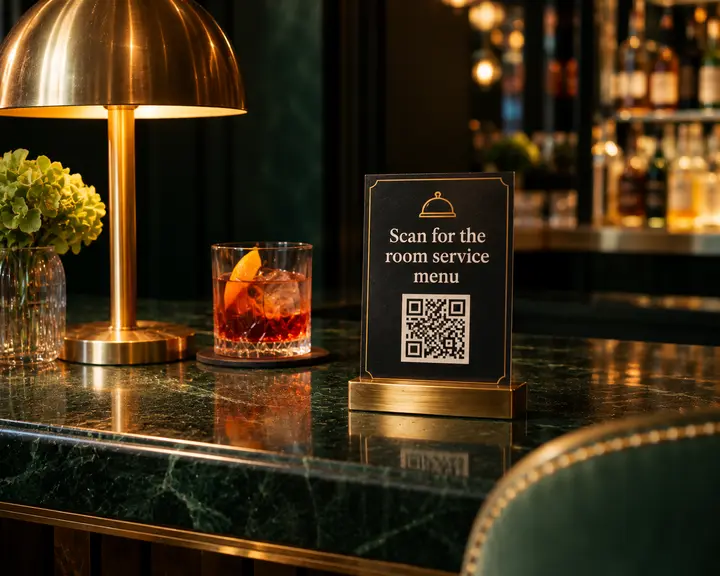
A QR code doesn't replace a warm welcome at reception or a host's message. It gives guests the answers they would otherwise ring, knock or message about.
Change opening times, the breakfast menu or local tips in one file. The code in every room opens the latest version.
Guests arriving late or leaving early can find check-in steps, Wi-Fi and check-out details without waiting for someone.
Send guests to your direct booking page, spa bookings or a WhatsApp chat with the front desk or host.
Dynamic codes count scans, so you can see whether guests open the guide, the map or the review card.
Pick the type by what the guest should do after scanning. Types marked "Editable" are dynamic: you can change their content later and see scan statistics. The others are static: the content is stored inside the code itself, so it can't change after printing.
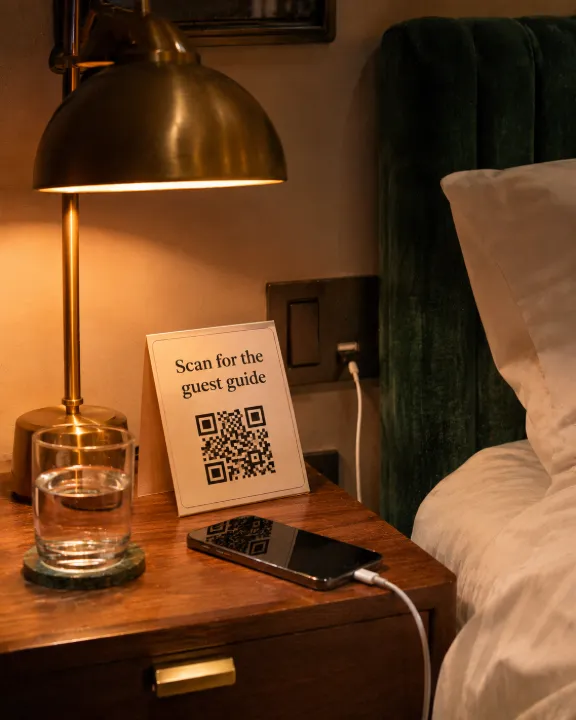
Printed compendiums and house manuals go out of date, get lost or end up with coffee on them. A PDF QR code on the desk card or the welcome book cover opens the full guide on the guest's phone: breakfast times, check-out, house rules, how things work, emergency numbers and your favourite local places. Because it is a dynamic code, you upload a new version when something changes and the printed codes stay the same.
Where to use it
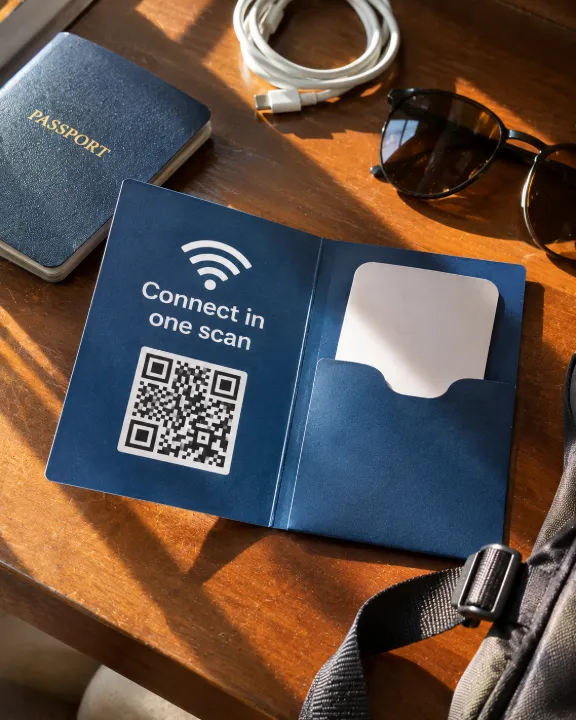
The Wi-Fi password is usually the first thing guests ask for. A Wi-Fi QR code on the key card sleeve or the room desk card connects their phone to the guest network in one scan. Make sure the guest network is separate from the one your staff, card terminals and property systems use.
Where to use it
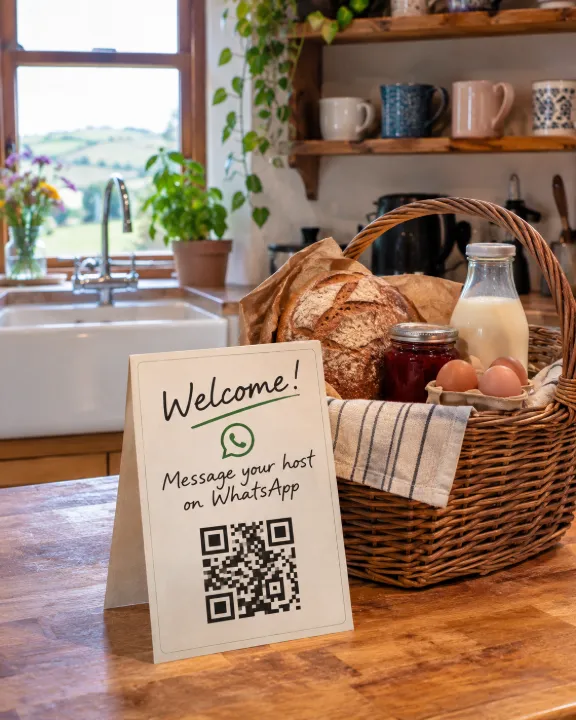
Many guests would rather send a message than call reception or a host they've never met. A WhatsApp QR code in the room directory or on the welcome card opens a chat with your number, with a message already started, such as "Hi, I'm staying in room 12". It is a simple concierge line for towels, taxis, restaurant tips and late arrivals.
Where to use it
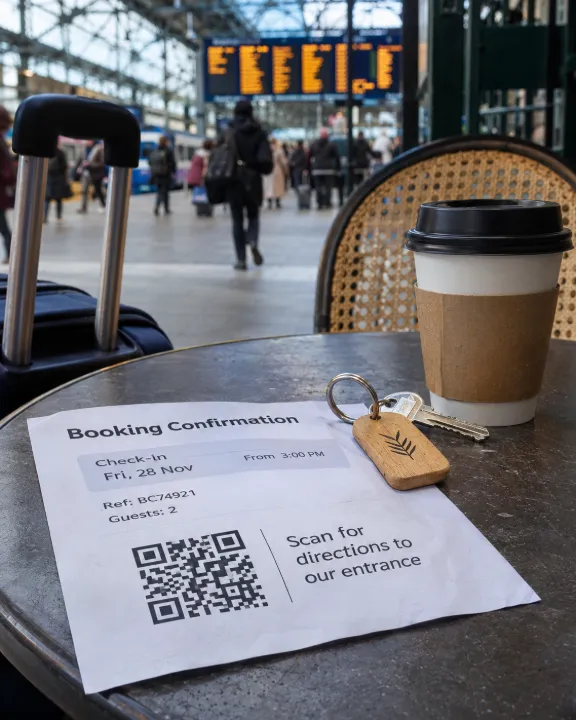
Hidden entrances, side-street car parks and key collection points cause stressful late-night arrivals. A location QR code in the booking confirmation or on the printed directions opens the exact spot in the phone's maps app, so guests arrive at the right door.
Where to use it
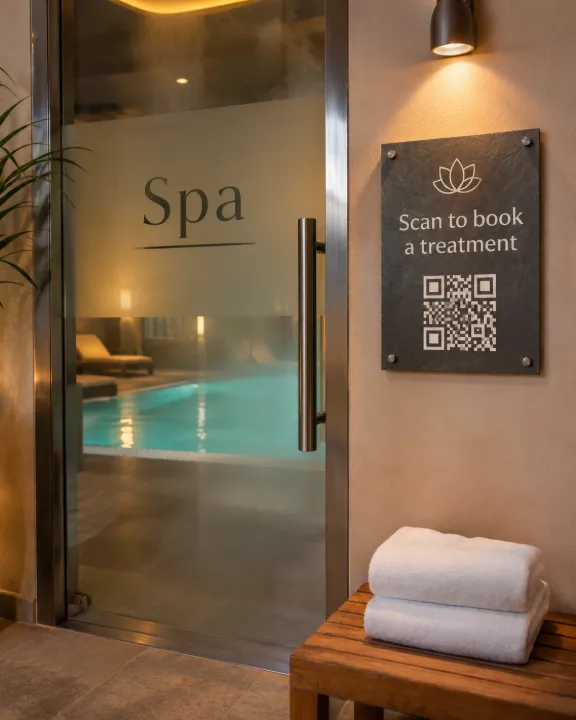
A website QR code on the check-out card or in the lobby opens your own booking page for the next stay, or your spa, tour or late check-out page. Trade bodies such as the American Hotel & Lodging Association advise travellers to book through a hotel's official website or phone line, so pointing guests to your real site is useful for them too. QRCodeChamp only creates the code: the booking page stays in the system you already use.
Where to use it
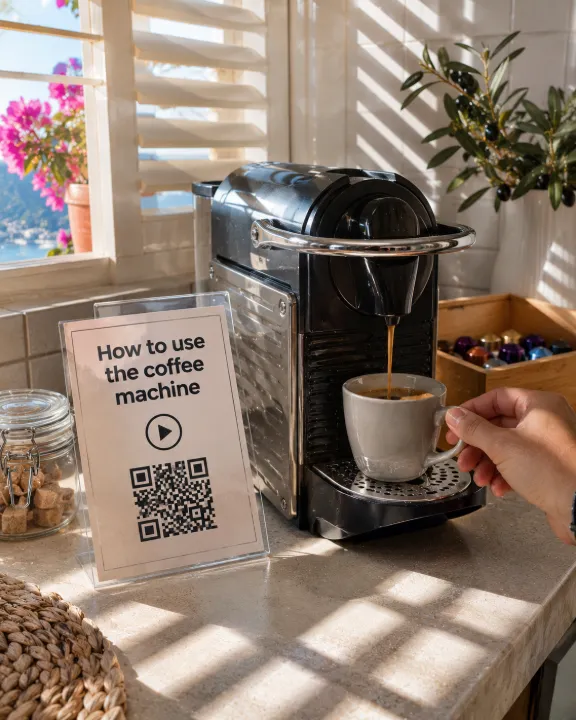
Self check-in, a tricky shower, the hot tub cover or an unfamiliar coffee machine are easier to show than to explain. A video QR code next to the appliance or on the self check-in sign plays a short clip you recorded, so guests don't have to message you at midnight.
Where to use it
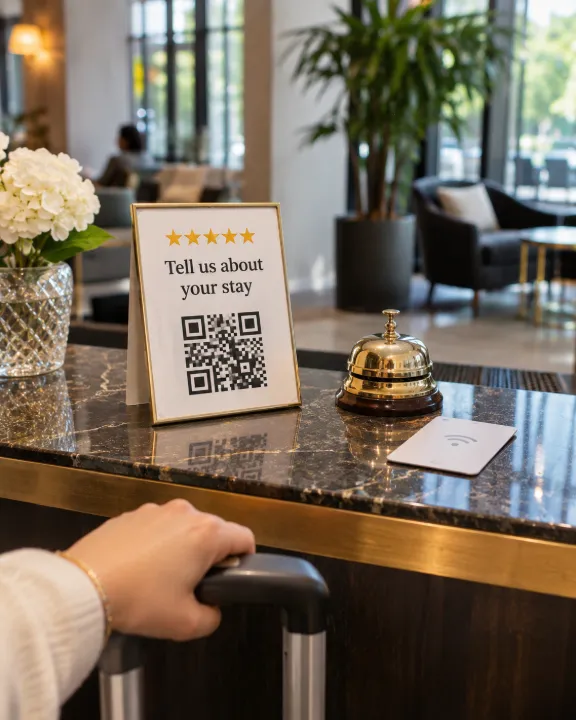
Check-out is when guests remember the stay best. A Google Review QR code on the check-out card or at reception opens your Google review form directly. Ask every guest the same way and never offer anything in return: Google doesn't allow incentivised reviews. Guests who booked through a booking platform will usually be asked to review there as well.
Where to use it
Put each code where the guest has that question: the Wi-Fi when they unpack, the guide by the bed, the review at check-out.
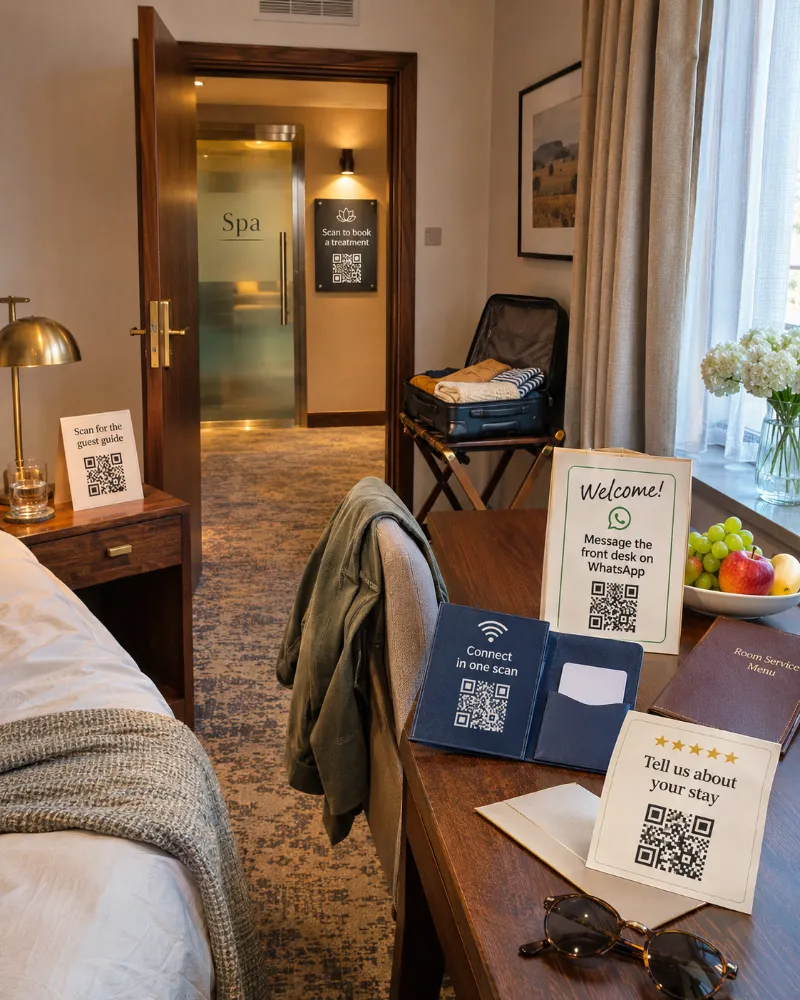
Connects the guest to Wi-Fi as soon as they arrive.
Opens the guest directory or house manual.
Opens the entrance, car park or key box in the maps app.
Shows how to check in or use the equipment.
Starts a chat with the desk or the host.
Opens the booking page for treatments, classes or tours.
Opens the house rules and check-out checklist.
Invites every guest to review the stay.
Include Wi-Fi help, check-in and check-out times, house rules, how appliances work, emergency numbers and local tips. Leave out door codes, key-safe codes and anything personal.
Export the guide with large text that reads well on a phone, then upload it to the PDF QR code generator. Sign in for free to save the code so you can replace the file later.
Choose a frame with a short line such as "Scan for the guest guide", and print your hotel or rental name and web address under the code.
Download SVG for printing, scan a printed proof with a few phones, then place a card in each room or by the door.
Guests trust codes they find in their room. These points keep that trust justified.
Run guests on their own network, apart from staff devices, card terminals, cameras and property systems. Use WPA2 or WPA3, give it its own password, and turn on client isolation if your router offers it, so guests' devices can't see each other.
Criminals stick fake codes over real ones to send people to scam pages, a trick known as quishing. Check signs, car park notices and room cards regularly, and remove any sticker you didn't put there.
Tell guests how you really take payment, for example at reception or through their booking. A printed code that asks for card details for parking, a deposit or a fine is a warning sign.
Anyone with the link can open an uploaded PDF. Send door, key-safe and alarm codes per booking through your usual messages instead.
Print your property name and web address next to each code, so guests can compare it with the address their phone shows before opening it.
Fire exits, emergency numbers and how to leave the building should stay printed in the room as well, for guests without a phone or signal.
Create a Wi-Fi QR code with your guest network name, password and security type, then print it on the key card sleeve or a room desk card. Guests scan it with their phone camera and join the network. It is a static code, so print a new one if you change the password.
Yes, if each room or property has its own network or password. Create one Wi-Fi code per network, or use the bulk generator to make up to 25 codes at once. If every room uses the same guest network, one code is enough.
Write the guide in a word processor or design tool, save it as a PDF and upload it to the PDF QR code generator. Print the code on a card in each room. If you already have a guide on your website or in a guidebook tool, a website QR code can open that instead.
Yes, if you use a dynamic code such as the PDF QR code. Upload the new version in your dashboard and the printed codes open it. You need a free account, created by signing in with Google, to edit codes.
No. Anyone who has the link can open an uploaded file, and guides get passed on. Send access codes to each guest through your booking messages and change them between stays.
Print your property name and web address next to each code, so guests can check that the address their phone shows matches. Print codes directly on cards rather than as loose stickers, and check regularly for stickers placed over them.
A PDF QR code works well for a room service or restaurant menu too. Our guide to QR codes for restaurants covers menus, table placement and print tips in detail.
Yes, for dynamic codes. The dashboard shows how many times a code was scanned, when, and on which devices. It doesn't show who scanned it. Use a separate code per property if you want to compare them.
Start with a guest guide or a Wi-Fi card, then add codes for directions, messages and reviews. Sign in for free to update the guide after printing.