
One folder per client
Keep each client's codes together in your dashboard, so the right code goes into the right artwork.
Agencies rarely make one QR code. They make dozens, for several clients at once, and each one has to match the brand, survive the print run and still work when the client changes a link. This guide covers the agency side of the job: organising codes by client, creating them in bulk, proofing them with print vendors, reporting on scans and handing them over at the end.
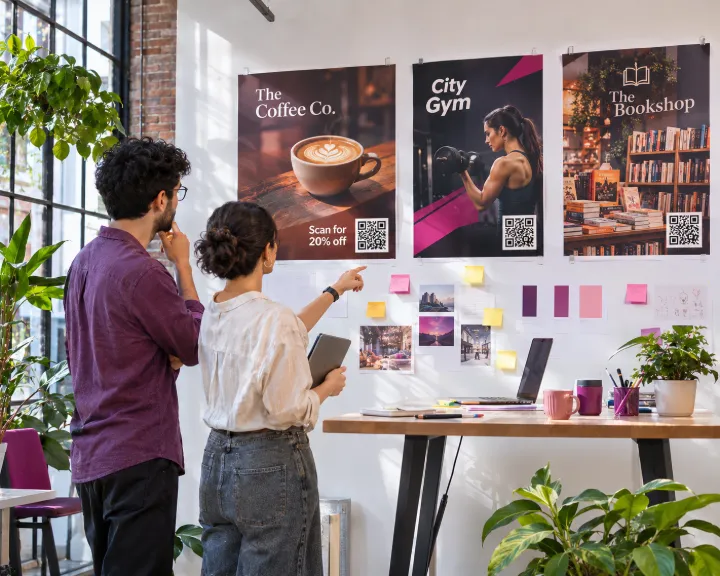
The hard part of QR codes in agency work isn't making them. It's keeping track of them across clients, campaigns and print runs.
Keep each client's codes together in your dashboard, so the right code goes into the right artwork.
Set colours, dot styles, a logo and a framed call to action to match each client's brand guidelines.
If a client's page moves or a link was wrong, change where a dynamic code goes. The printed code keeps working.
Dynamic codes count scans by date, device and location, so you can show clients which materials were used.
Pick the type by what the client's customer should do after scanning. Types marked "Editable" are dynamic: you can change their content later and see scan statistics. The others are static: the content is stored inside the code itself, so it can't change after printing. For anything that goes to print for a client, an editable type is the safer choice.
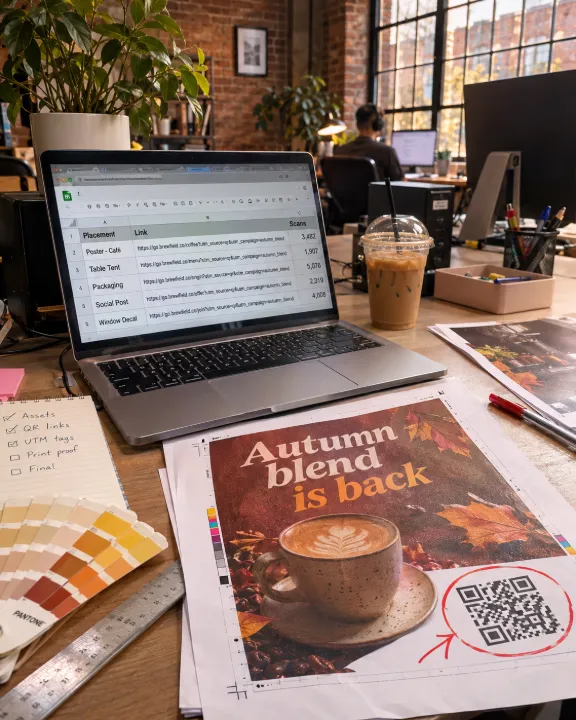
Most client codes open a landing page. Add UTM tags to the link before you create the code, using the client's own naming, so scans arrive in their analytics under the right campaign. Google Analytics treats the values as case-sensitive, so agree one lowercase naming scheme per client and stick to it. Save the code as dynamic, and you can still fix the link after the print run.
Typical client jobs
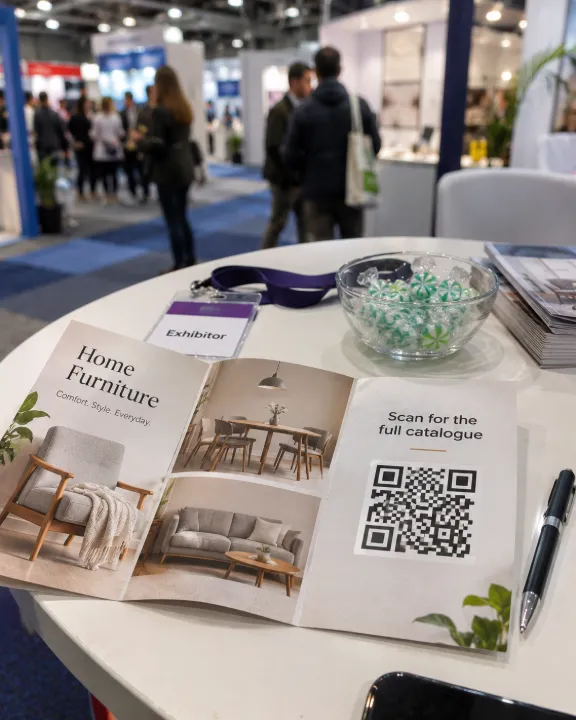
Clients change prices, menus and terms after the artwork is signed off. A PDF QR code on the printed piece opens the document you designed, and when the client sends a correction you upload the new version. The printed code opens the new file, and nothing goes back to the printer.
Typical client jobs
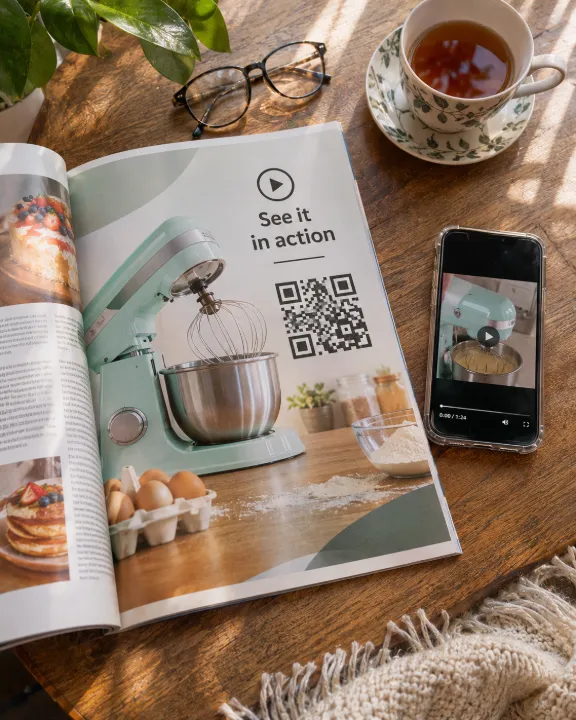
When a client has invested in a film or a product demo, a video QR code on the print ad, pack or display gets it watched by people holding the printed piece. If the client re-edits the film, swap in the new version.
Typical client jobs
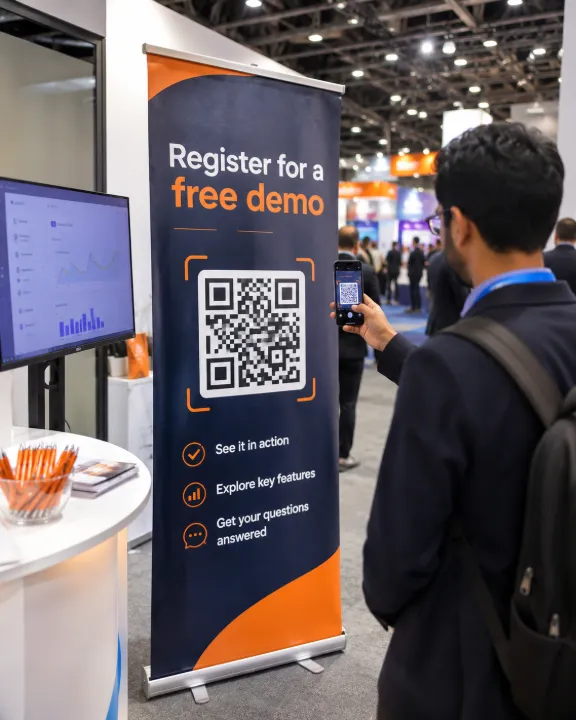
For lead generation, sign-ups and competitions, build the form in the client's Google account rather than yours, so the entries and the personal data belong to them from the start. A Google Form QR code on the flyer or stand opens it. Check the client's data protection notice and any competition rules before launch.
Typical client jobs
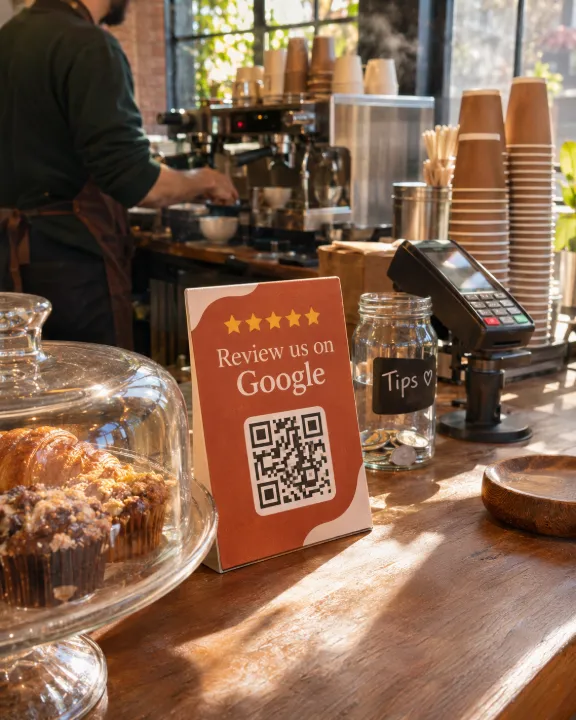
Restaurants, salons and clinics often ask their agency for review material. A Google Review QR code on a counter card or receipt opens the client's review form directly. Advise clients to ask every customer and never offer anything for a review, which Google's policies don't allow.
Typical client jobs
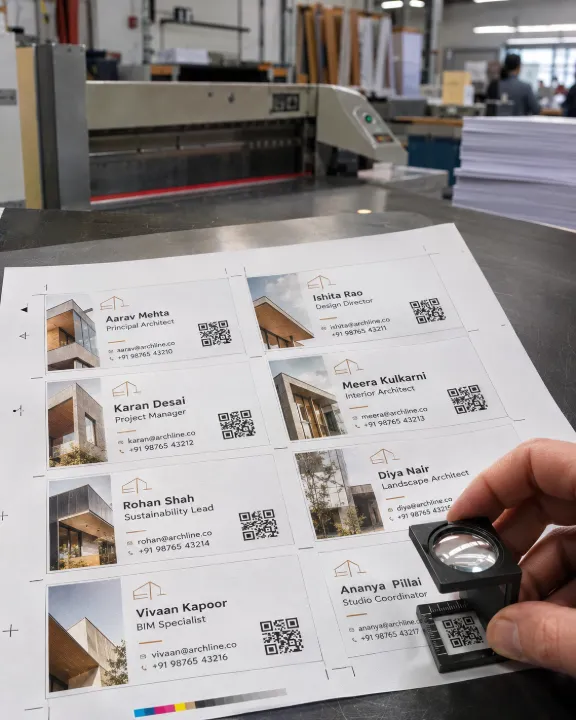
When a client orders new business cards for its staff, each person needs their own vCard code. The bulk generator creates vCard codes from a list, so you can produce a team's codes in one go and drop each into its card artwork.
Typical client jobs
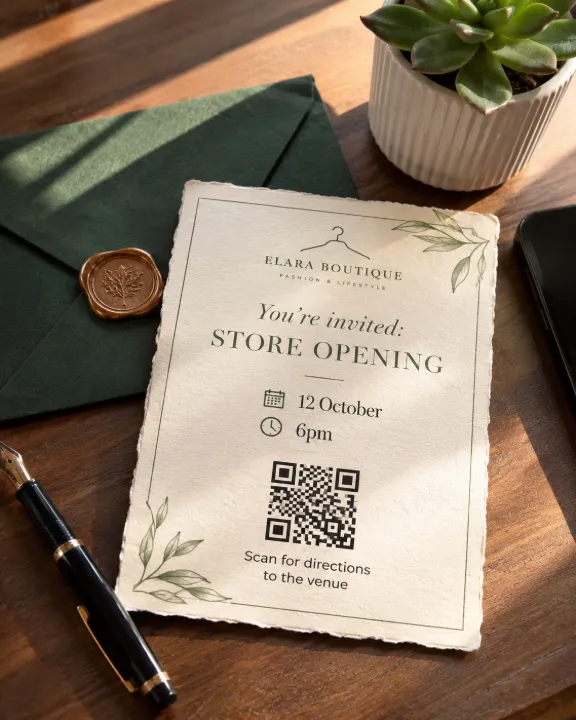
Store openings, launches and client events depend on people finding the place. A location QR code on the invitation or mailer opens the exact entrance in the phone's maps app, and you can move it if the venue changes.
Typical client jobs
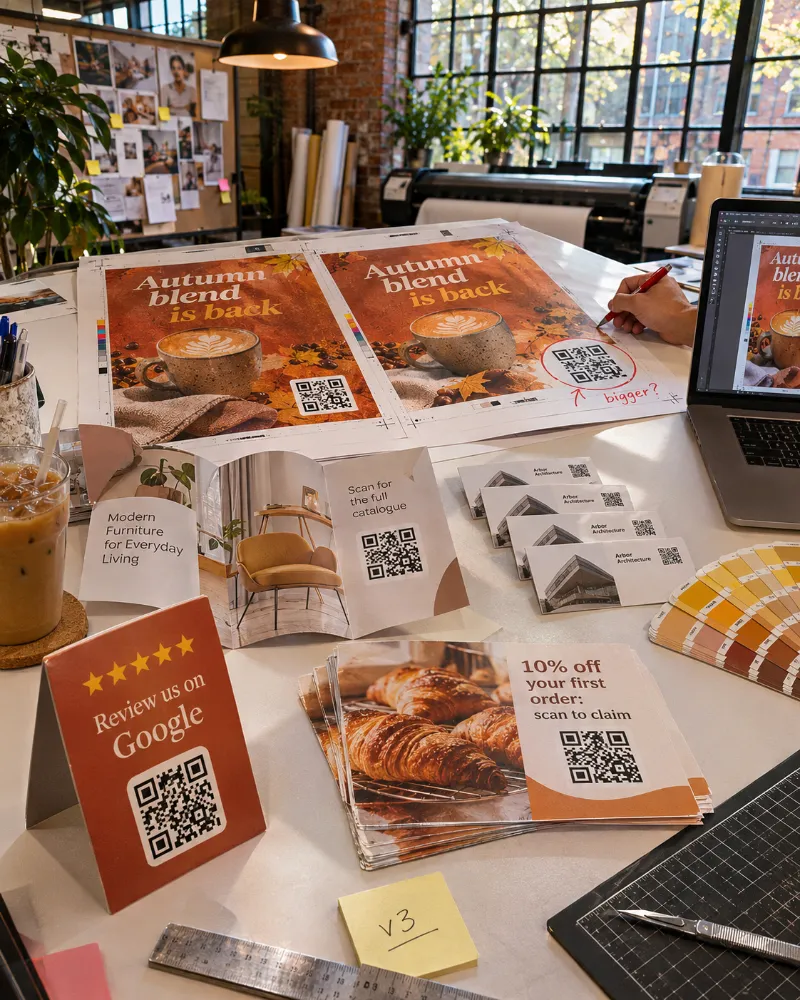
Most agency QR codes end up in a deliverable for a client. Plan the code when you plan the deliverable, not at the last proof.
UTM-tagged link the client's analytics can report on.
One code per mailing or region, made in bulk, to compare responses.
Corrections go in a new upload, not a reprint.
Plays the client's film or demo.
Leads go straight into the client's own form.
A simple, repeatable job for restaurant and retail clients.
A whole team's codes made in one bulk run.
Opens the venue in maps and can move if plans change.
If the client wants to own the codes long term, create them under a Google login the client controls. Otherwise create them in your agency account and agree in writing what happens at the end of the contract.
Create a folder for the client in the dashboard, and name each code by campaign, placement and version, for example spring-sale-poster-a.
Add UTM tags to each landing page link, then create the codes one by one or up to 25 at a time with the bulk generator. Sign in before you generate so they are saved.
Apply the client's colours and logo, download SVG for the print vendor, and scan a printed proof at final size with several phones before the client signs off.
These habits save agencies from the two worst QR code problems: a printed code that doesn't scan, and a code nobody can edit any more.
Scan the exported file and a printed proof, at final size, on iPhone and Android. Check that the code opens the right page, not just that it scans. Use our QR code scanner to read the content.
The QR code standard (ISO/IEC 18004) expects an empty margin around the code, four modules wide. Tell designers and print vendors not to crop it, and keep a dark code on a light background.
Pale brand colours, busy backgrounds and large logos make codes harder to scan. If a style fails a proof, darken the code before you shrink the logo.
SVG stays sharp at any size and is easy to place in print artwork. Give the vendor the file you proofed, and ask them not to recreate or resize the code by eye.
There is no team access, white-label option or transfer between accounts. Dynamic codes stay in the account that created them and open through a QRCodeChamp link, so decide early who will hold that account after the project.
Never send a Google password by email or chat. If several people need to edit a client's codes, the account owner decides how access is handled, with 2-step verification switched on.
Create one folder per client in the dashboard and use a consistent naming scheme for each code, such as campaign, placement and version. Then you can find the right code for any artwork, and see each client's codes together.
QRCodeChamp has no team seats or user roles: each account belongs to one Google login. How that login is managed is up to its owner. Never pass passwords around by email or chat, and keep 2-step verification on.
Codes can't be moved between accounts. Static codes and downloaded files work on their own, so you can simply hand them over. Dynamic codes stay in the account that created them, so if the client needs to own and edit them later, create them under the client's Google login from the start.
No. Dynamic codes open through a QRCodeChamp link before they redirect to the client's page. If a client needs codes that only point to their own domain, use a static code that links straight to their website, knowing that it can't be edited after printing.
No. You can create codes one at a time, or up to 25 at once with the bulk generator by pasting a list or uploading a CSV file.
Add them to the landing page link before you create the code, for example ?utm_source=poster&utm_medium=qr&utm_campaign=spring-sale. Google recommends always setting source, medium and campaign, and its values are case-sensitive, so use the same lowercase names the client uses elsewhere.
For each dynamic code, the dashboard shows total scans, scans over time and by time of day, device type, operating system, browser, and the countries and cities scans came from. There is no report export, so copy the figures into your own report. It doesn't show who scanned.
Send SVG. It is a vector format, so it stays sharp at any print size. Send the exact file you proofed, keep the empty margin around the code, and ask for a printed proof before the full run.
Start with a folder for one client and a code for their next print job. Sign in for free to save codes, fix links after printing and see scan statistics.