

Connect print to online
Send people from a flyer, a poster or packaging straight to the right web page, instead of asking them to type a long URL.
A QR code turns a business card, a shop window, a product box or a receipt into a direct link to your website, reviews, menu, contact details or Wi-Fi. Customers scan it with their phone camera, with no app and no typing. This guide covers the QR code types that work best for businesses, where to place them, and how to print them so they scan.
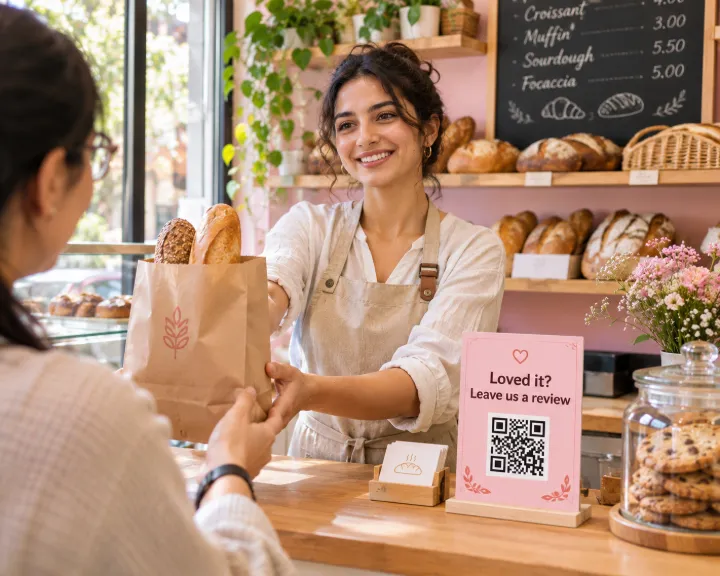
QR codes connect the printed things customers already see to the online places you want them to go.
Send people from a flyer, a poster or packaging straight to the right web page, instead of asking them to type a long URL.
With a dynamic QR code, you can point the code to a new page later. The printed code stays the same, so you don't need to reprint.
Dynamic QR codes record scans, so you can see when, in which countries and on which devices people scan each code.
Add your colours, your logo, a frame and a call to action, so the code looks like part of your design.
Customers use their own phone to open a menu, join Wi-Fi or save your contact details, without handling shared items.
Save codes to your dashboard, group them in folders by campaign, client or location, and create up to 25 codes at once with the bulk generator.
Pick the type by what the customer should do after scanning. Types marked "Editable" are dynamic: you can change their content later and see scan statistics. The others are static: the content is stored inside the code itself, so it can't change after printing.
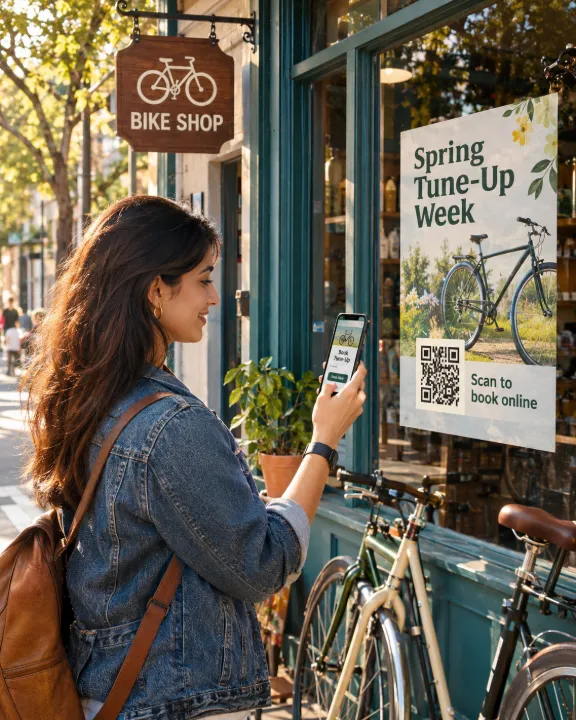
A website QR code is the most flexible choice for marketing. Put it on a flyer, a poster or a product box, and it opens the exact page you choose: an offer, a booking form, a product page or your online shop. Save it as a dynamic code, and you can change that page later without reprinting.
Where to use it
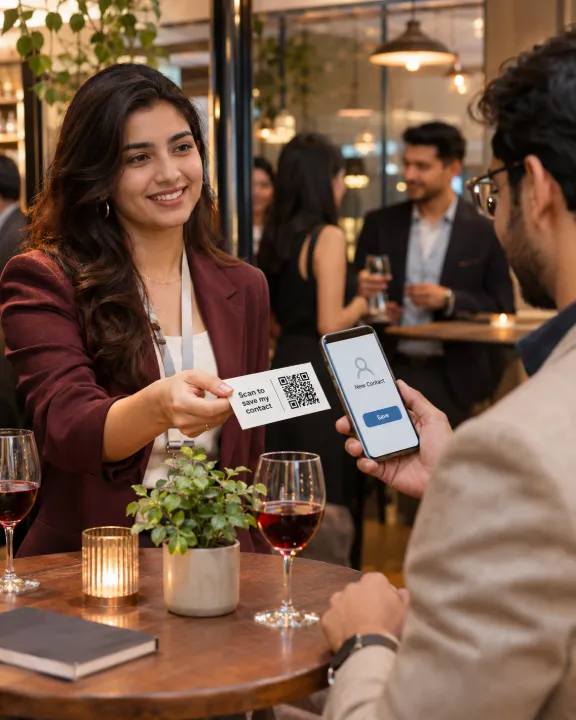
Typing a name, phone number and email address from a business card takes time and leads to mistakes. A vCard QR code on the card adds all your details to the phone's contacts in one scan, so new clients and partners can reach you later.
Where to use it
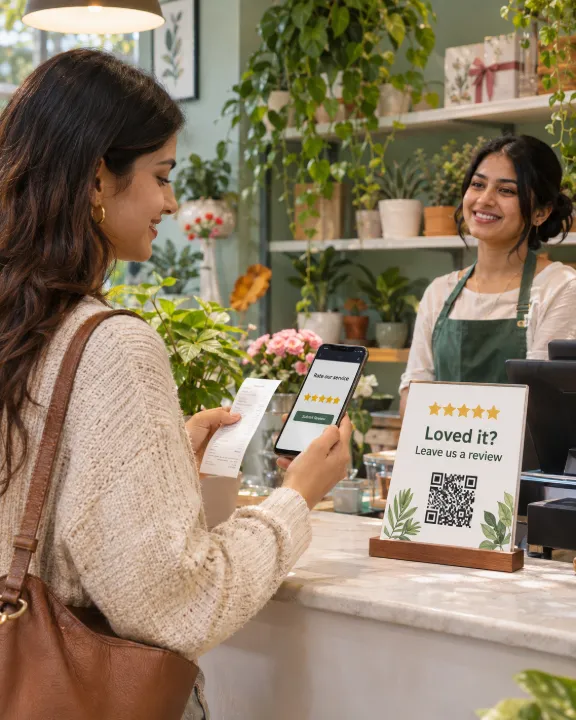
Asking for a review works best when it is quick. A Google Review QR code on a receipt, a counter sign or a thank-you card opens your review form directly, so customers don't have to search for your business on Google first.
Where to use it
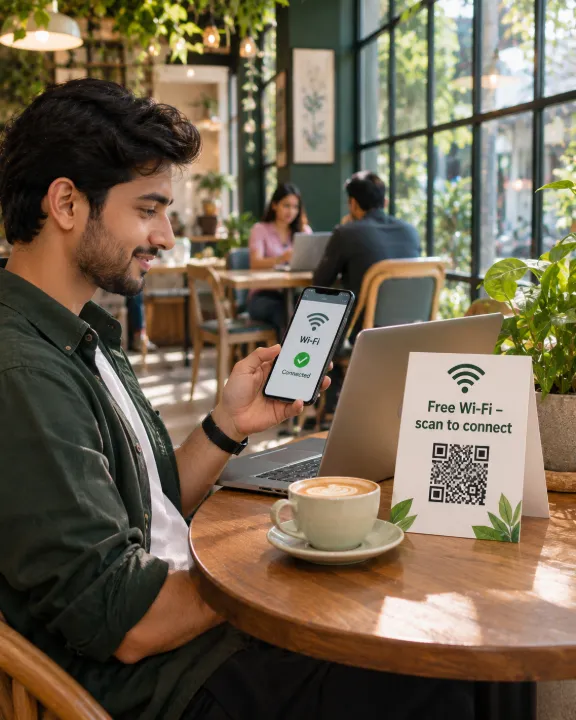
Guests ask for the Wi-Fi password all the time, and long passwords are easy to mistype. Put a Wi-Fi QR code on table tents, at reception or in rooms, and guests join the network with one scan, so staff don't have to repeat the password.
Where to use it
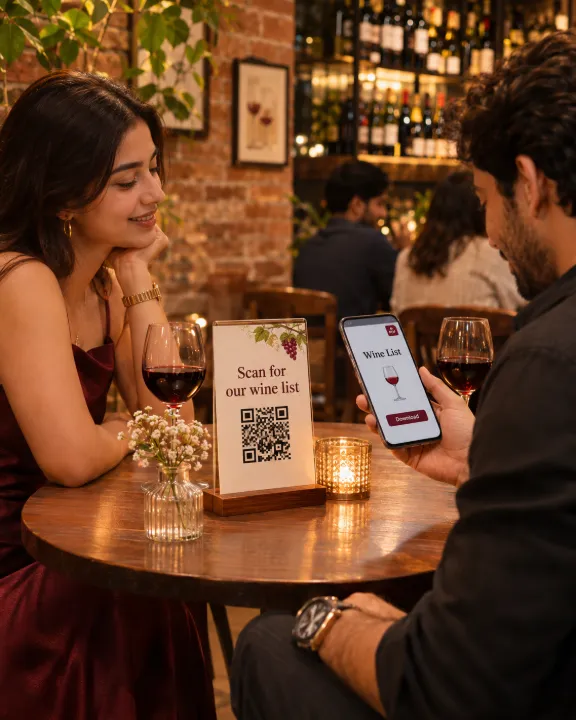
Upload a PDF, and the QR code opens a page where customers can view or download it on their phone. It works well for menus, catalogues, price lists and product manuals. Because a PDF QR code is dynamic, you can upload a new version when prices change, and the printed code stays the same.
Where to use it
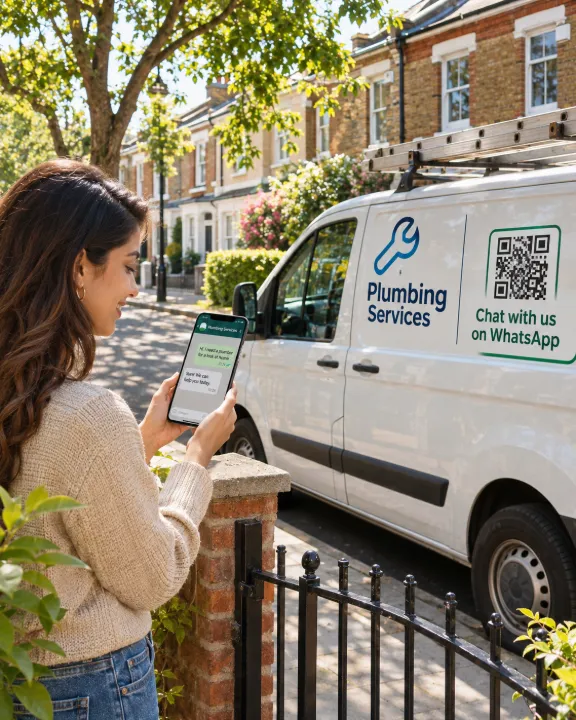
For many questions, a quick message is easier than a phone call. A WhatsApp QR code opens a chat with your business number, with a message already filled in, such as "Hi, I would like a quote". Put it on vans, shop windows, flyers and support signs.
Where to use it
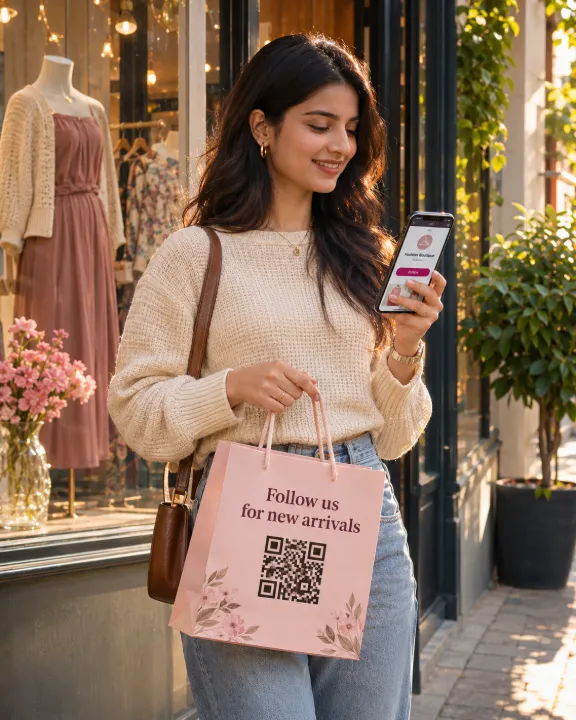
Customers who like your shop are happy to follow you, but they rarely search for your profile later. A social media QR code on a counter sign, a shopping bag or a packaging insert opens your business profile straight away, so following you takes a few seconds.
Where to use it
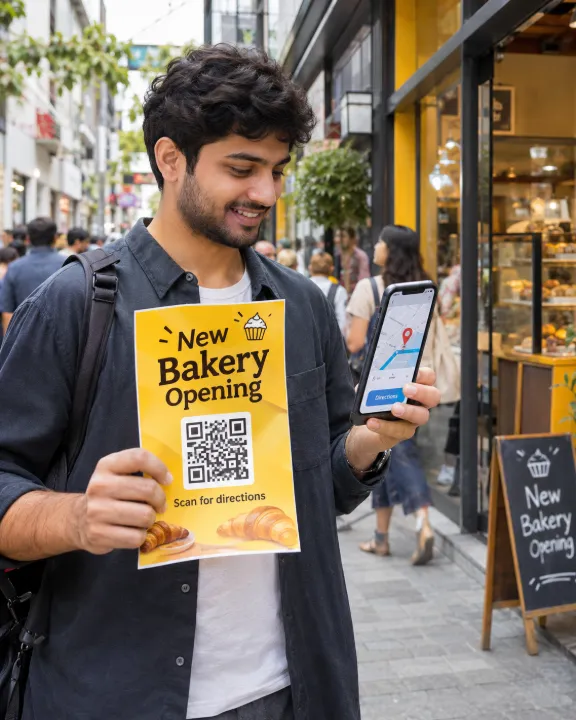
An address on a flyer still has to be typed into a map app. A location QR code opens your place in the phone's maps app, so customers can get directions to your shop, office or event in one scan.
Where to use it
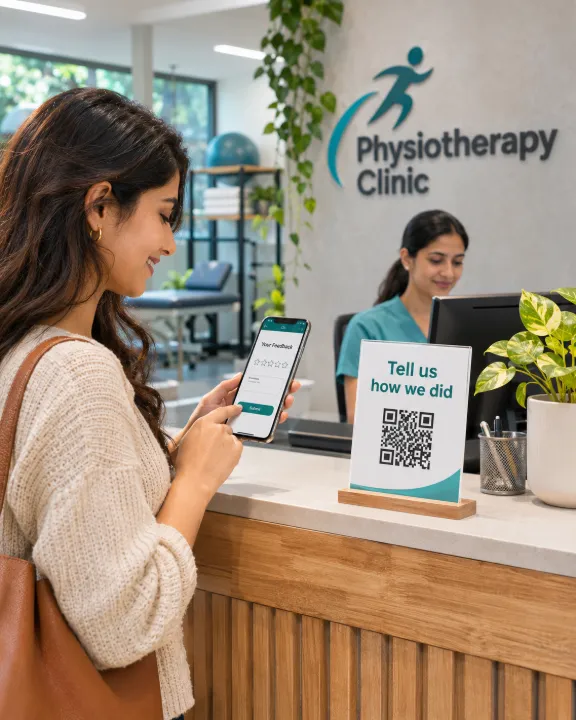
Paper forms get lost and are slow to type up. A Google Forms QR code opens your form on the customer's phone, so you can collect feedback after a visit, event registrations or newsletter sign-ups without handing out paper.
Where to use it
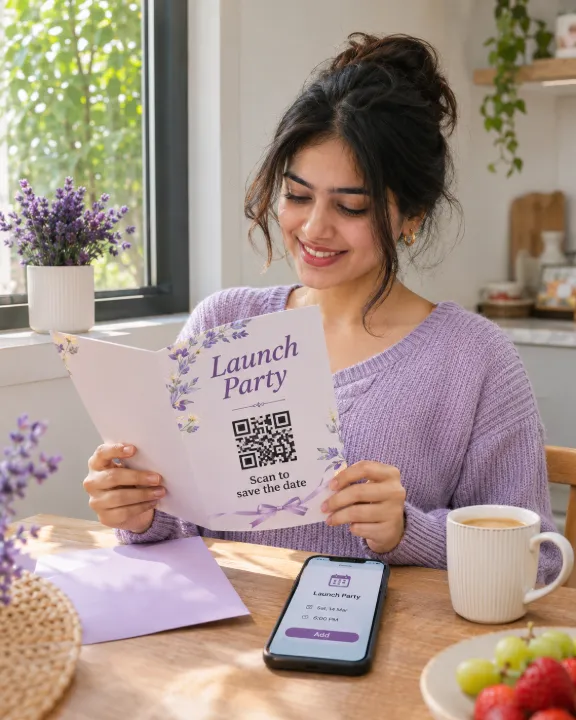
People forget dates they only saw on a poster. An event QR code shares the event name, date, time and place, so guests can add your launch, workshop or sale to their calendar right away.
Where to use it
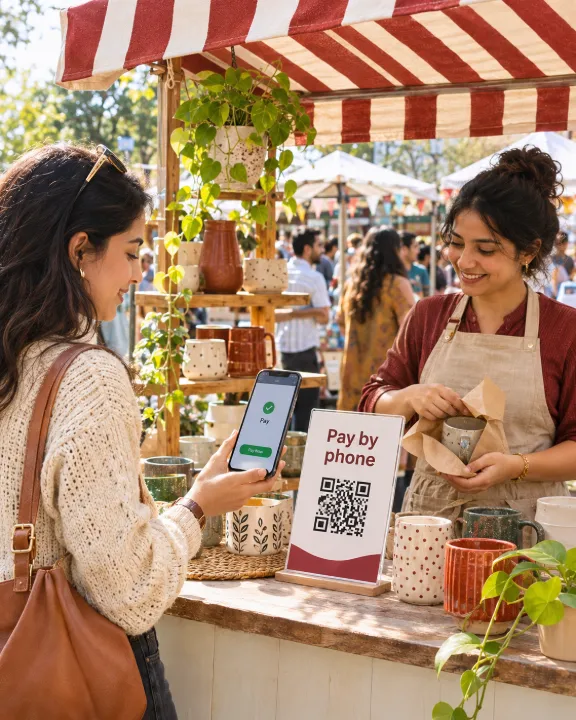
At a market stall or a pop-up shop, not every customer has cash. A PayPal QR code opens your PayPal payment page on the customer's phone, so they can pay, leave a tip or send a deposit without you sharing account details out loud.
Where to use it
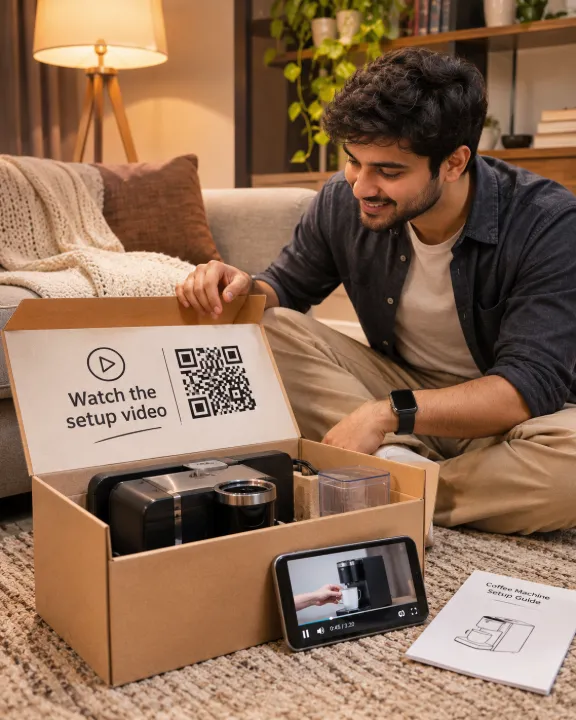
Some products are easier to show than to explain. A video QR code on a box, a manual or a showroom display plays your setup guide, product demo or welcome video on the customer's phone.
Where to use it
Place a QR code where a customer has a question or a next step. Here are common spots and the QR code type that fits each one.
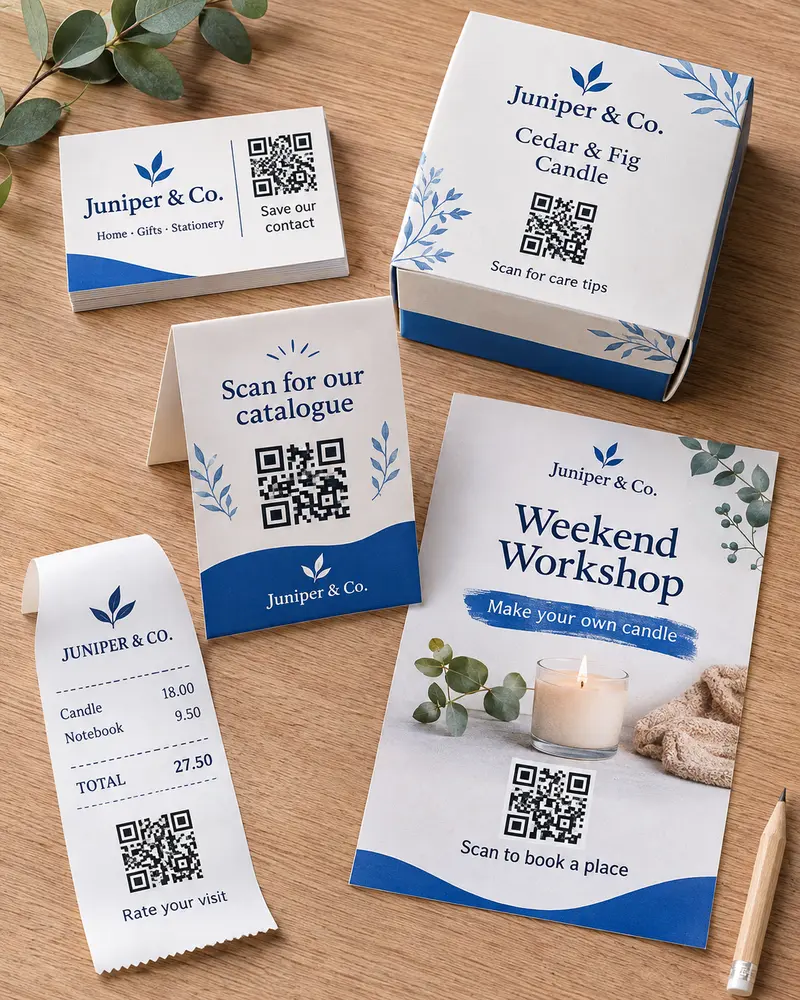
Saves your contact details without typing.
Opens instructions, ingredients, warranty sign-up or reorder pages.
Shows opening hours, the online shop or current offers, even when you're closed.
Asks for a review while the visit is still fresh.
Opens the menu or price list on the customer's phone.
Connects guests to Wi-Fi in one scan.
Takes people to the offer or sign-up page the flyer promotes.
Starts a chat for quotes or bookings.
Collects visitor details and questions in a form.
Pick the type that matches your goal, such as Website, vCard, Wi-Fi or Google Review.
Enter the link, upload the file or fill in the details. The preview updates as you type.
Change the colours and shapes, add your logo, and choose a frame with a short call to action like "Scan for the menu".
Download the code as PNG, JPG, SVG or WEBP. Sign in to save it, edit it later and see its scan statistics.
A QR code only works if people notice it, trust it and can scan it. Check these points before you print.
Add a short call to action next to the code, such as "Scan to see the menu" or "Scan for 10% off". People scan more when they know what will open.
Keep the code at least about 2 × 2 cm (0.8 × 0.8 in) on small items, and make it larger when people scan from a distance. A common rule of thumb is a code width of about one tenth of the scanning distance.
Use a dark code on a light background. Very light colours, inverted colours and busy backgrounds make codes harder to scan.
Keep an empty margin around the code. Text or graphics that touch the code can stop it from scanning.
Almost every scan happens on a phone, so the page the code opens should load fast and be easy to read on a small screen.
Scan the final design with a few phones, in the lighting where it will be used. Use our QR code scanner to check the content.
Download SVG for printed material. It stays sharp at any size, while PNG and JPG can blur when enlarged.
Give each campaign or location its own dynamic code, so the scan statistics show which one works best.
Every kind of business can use QR codes. These are some ideas to start with.
Shoppers often want more than a price label can hold. A QR code on a shelf label, a tag or a window display opens product details, sizes, reviews or a how-to video, and a code on the receipt asks for a review while the visit is still fresh.
A QR code on a table stand opens your menu on the guest's phone, and you can update dishes and prices without reprinting. Add a Wi-Fi code so guests connect without asking, and a review code on the bill to collect feedback before they leave.
The package is the one printed item every online customer opens. A QR code on the box or an insert card plays a setup video, opens a reorder page or invites customers to follow your shop for new products and offers.
People pass for-sale signs at any hour. A QR code on the sign, brochure or window card opens the full listing or a video tour, and a vCard code saves the agent's details straight to the buyer's phone.
Hotels, guesthouses and tour operators answer the same questions every day. A QR code in rooms and at reception connects guests to Wi-Fi, opens a digital guide with house rules and opening times, and shows directions on a map.
Posters, flyers, print ads and invitations are hard to measure. Give each one its own dynamic QR code and compare scans to see which channel brings people in. For events, an event QR code adds the date to the guest's calendar.
Businesses use QR codes to open their website, share a menu or brochure, collect Google reviews, save contact details, connect guests to Wi-Fi, start a WhatsApp chat, take payments and gather feedback. The code goes on printed items such as business cards, packaging, receipts, posters and signs.
Yes. You can create and download static QR codes on QRCodeChamp for free without an account. Dynamic QR codes, which you can edit and track, need a free account that you create by signing in with Google.
A static QR code stores the content inside the code, so it can't change after printing. A dynamic QR code opens a short link that you control, so you can change where it goes later and see scan statistics.
Yes, if it is a dynamic QR code. Open it in your dashboard, change the link or file, and the printed code opens the new content. Static codes such as Wi-Fi and vCard codes can't be changed. You would need to print a new code.
Yes, for dynamic QR codes. The dashboard shows scans over time, unique users, countries, devices, operating systems and browsers. Static QR codes can't be tracked because they don't pass through a link.
Yes. You can change the colours and shapes, add your logo and choose a frame with a call to action. Keep enough contrast between the code and the background, and scan-test the design before printing.
On small items such as business cards, aim for at least about 2 × 2 cm (0.8 × 0.8 in). For posters and signs that people scan from further away, make the code larger. A common guide is a code width of about one tenth of the scanning distance.
SVG is the best choice for print because it is a vector format and stays sharp at any size. PNG works well for websites, emails and documents. You can download QR codes as PNG, JPG, SVG or WEBP.
A static QR code keeps working as long as the content it points to is available, because the content is inside the code. A dynamic QR code works as long as it is active in your account. If you move it to the trash or make it inactive, it stops opening its content.
Yes. The bulk QR code generator creates up to 25 QR codes at once. Upload a CSV file or paste your data, for example one link per product, branch or staff member, and download the codes. Download the sample CSV to see the format. Log in first if you want the codes saved to your dashboard.
Choose a type, add your brand, and download your QR code in a few minutes. Sign in for free to edit your codes later and see how often they are scanned.