
Leaflets that stay up to date
Upload a new version of a leaflet or aftercare sheet when guidance changes. The printed code opens the latest file.
Patients take home leaflets, appointment cards and aftercare sheets, and often lose them or have questions later. A QR code on that paper opens the full leaflet, a how-to video or your booking page on their phone. This guide covers the QR codes that work in clinics, practices and pharmacies, where to put them, and how to keep them safe and private.
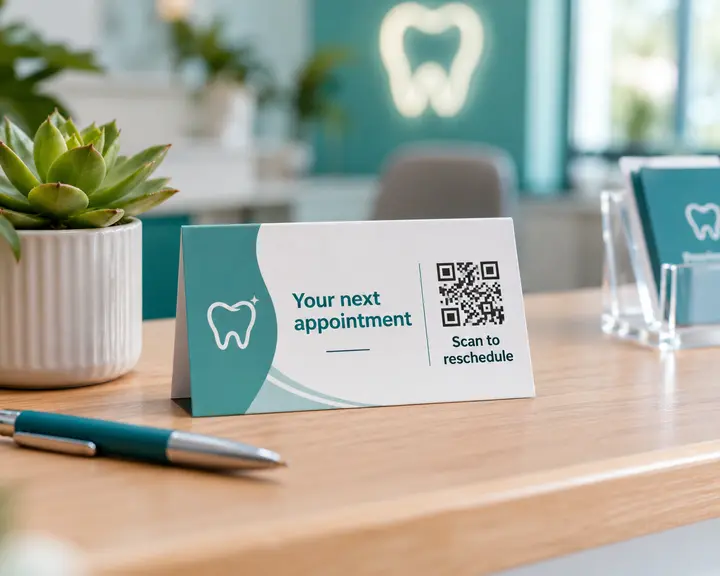
A QR code doesn't replace a conversation with a doctor, nurse or pharmacist. It gives patients a reliable place to look things up afterwards.
Upload a new version of a leaflet or aftercare sheet when guidance changes. The printed code opens the latest file.
Patients can open instructions, exercise videos and contact details on their phone whenever they need them.
Send patients to the appointment, repeat prescription or patient portal pages you already use.
Dynamic codes count scans, so you can see which leaflets and posters patients actually open.
Pick the type by what the patient should do after scanning. Types marked "Editable" are dynamic: you can change their content later and see scan statistics. The others are static: the content is stored inside the code itself, so it can't change after printing. Only link to information that is safe to be public, or to your own secure systems.
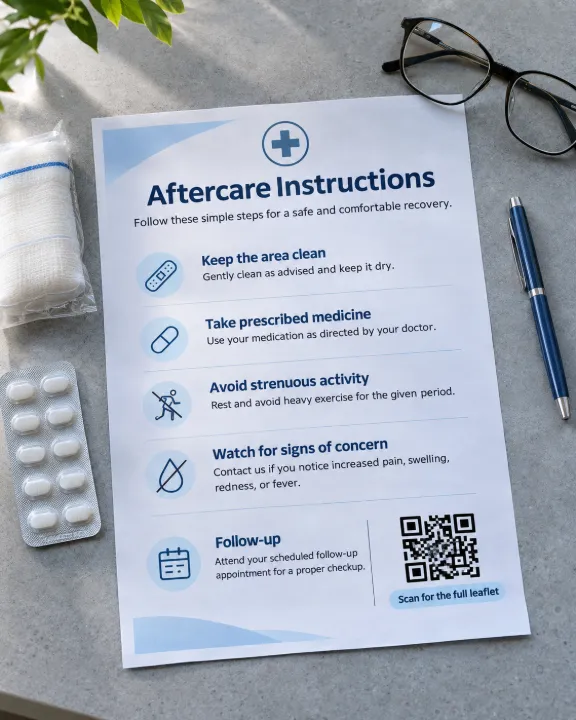
Printed leaflets run out, get outdated and are often too small to read. A PDF QR code on an aftercare sheet, medicine bag or waiting room poster opens the full leaflet on the patient's phone, where they can zoom in and keep it. Because it is a dynamic code, you upload a new version when guidance changes. Keep paper copies for patients who prefer them.
Where to use it
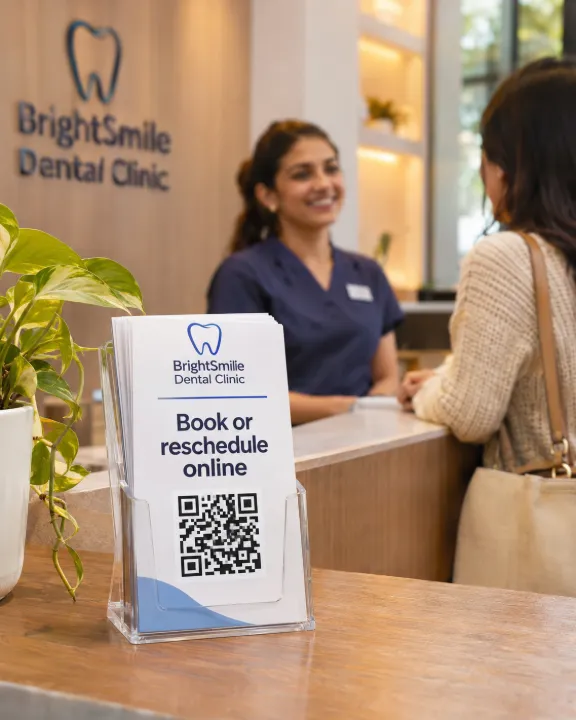
Phone lines are busiest when patients try to book or move appointments. A website QR code on the appointment card or at reception opens your online booking, repeat prescription or patient portal page. QRCodeChamp only creates the code: the page and the patient data stay in the system you already use.
Where to use it
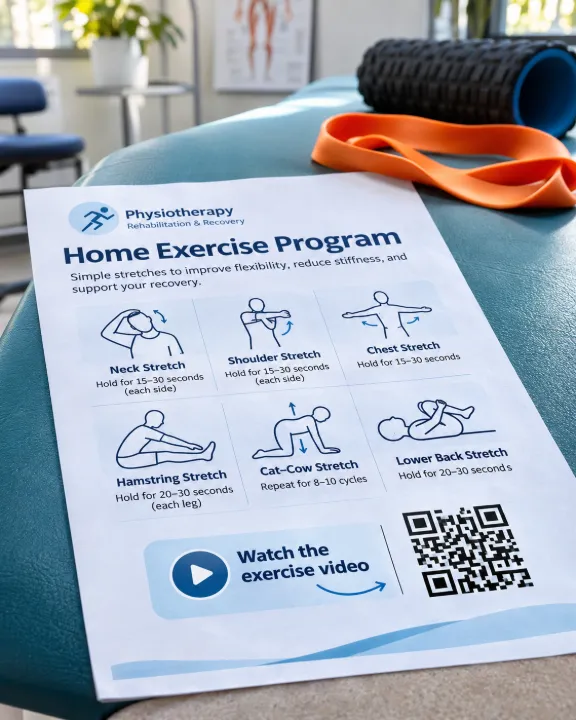
Some instructions are easier to follow when you can see them: physio exercises, using an inhaler, changing a dressing. A video QR code on the handout plays a short demonstration at home, as often as the patient needs. Use videos you made or that come from a trusted health organisation.
Where to use it
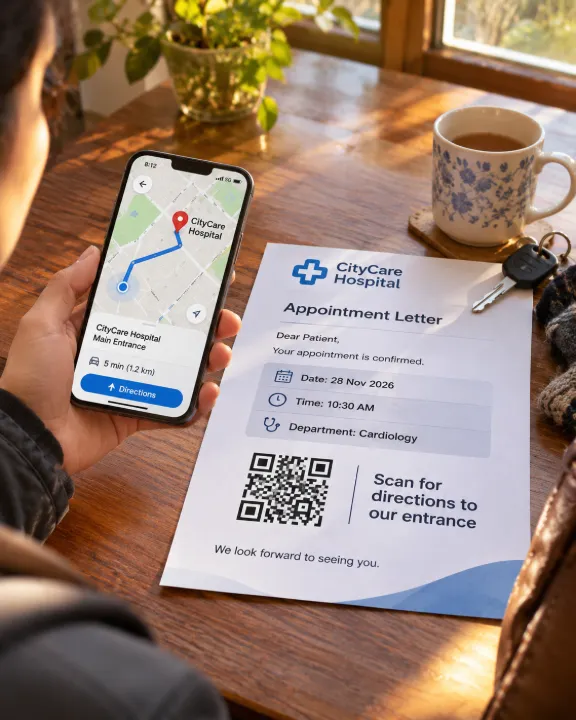
Large sites, shared buildings and hidden car parks make patients late and anxious. A location QR code on the appointment letter opens the exact entrance in the phone's maps app, not just the street address.
Where to use it
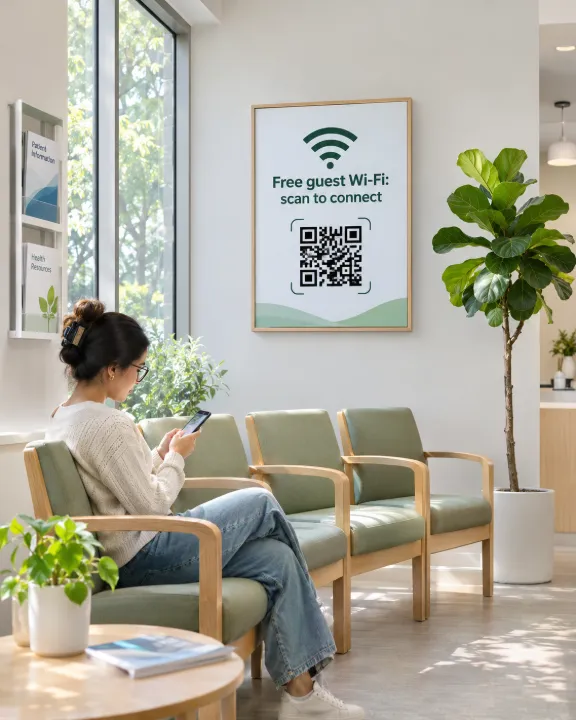
Waits can be long, and patients often need to look something up or message family. A Wi-Fi QR code on the waiting room wall connects them to your guest network in one scan, without asking at reception.
Where to use it
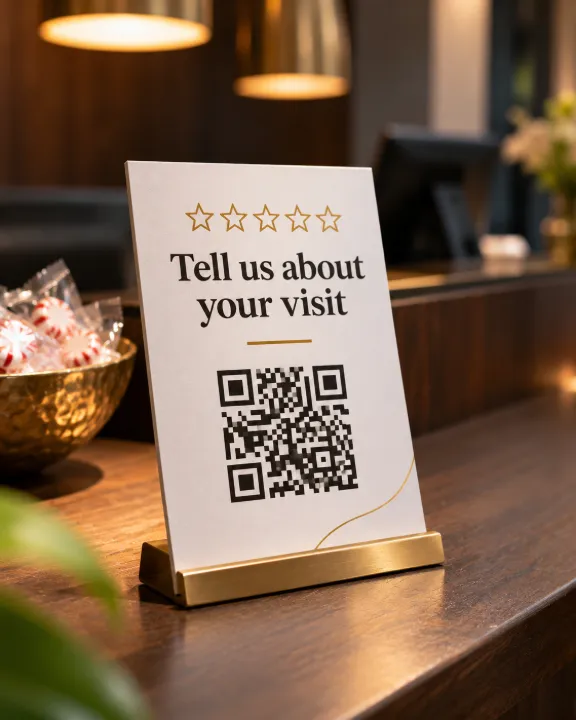
Reviews help new patients choose a practice. A Google Review QR code at reception opens your review form directly. Ask every patient the same way, never offer anything in return, and don't reveal any patient details when you reply to a review.
Where to use it
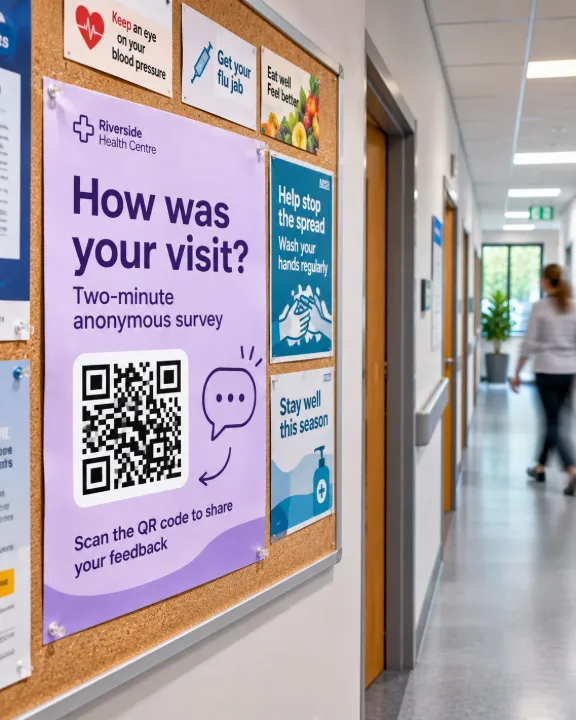
A short survey about waiting times, cleanliness or how clearly things were explained helps you improve. A Google Form QR code in the waiting room opens your survey. Keep it anonymous and don't ask for health details: a general-purpose form is not the place for them.
Where to use it
Put each code where patients have that question: the leaflet at the counter, the booking at reception, the directions in the letter.
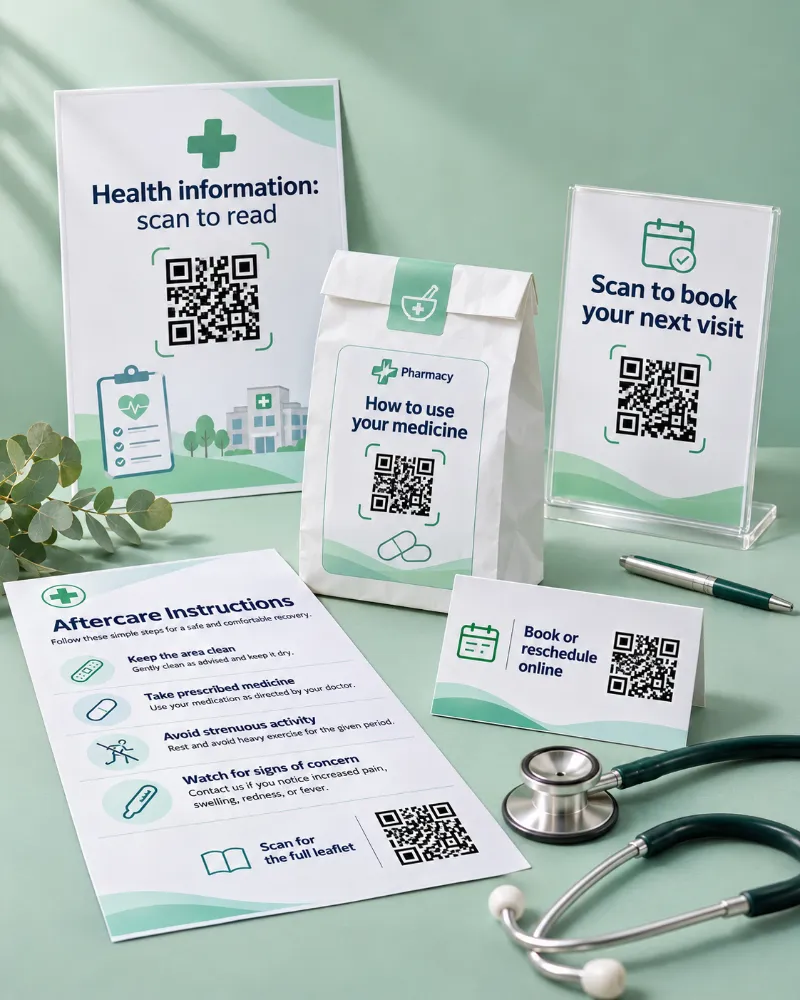
Opens the full instructions to read again at home.
Opens your booking page to confirm or move the appointment.
Shows how to use an inhaler, injector or device.
Opens the right entrance or car park in the maps app.
Connects patients to the guest Wi-Fi.
Opens health campaign or practice information leaflets.
Invites every patient to review the practice.
Opens a short, anonymous feedback survey.
Use a general leaflet or aftercare sheet with no patient names or personal details, and save it as a PDF.
Open the PDF QR code generator and upload the file. Sign in for free to save it, so you can replace the file later.
Choose a frame and a short line such as "Scan for the full leaflet", and print your practice's web address under the code.
Download SVG for printing, scan a printed proof with a few phones, and keep paper copies for patients who prefer them.
In healthcare, trust matters as much as convenience. These points keep your codes useful and safe.
Names, dates of birth, test results and record numbers don't belong in a QR code or in an uploaded file. Link to your own secure systems for anything personal.
Anyone who scans the code can open the file behind it. Upload general leaflets and practice information, never individual patient documents.
Not every patient has a smartphone or is comfortable scanning. Offer printed leaflets and a phone number as well.
Print your practice name and web address next to each code, and check posters regularly for stickers placed over them by someone else.
Many patients have poor eyesight or are unwell. Use a dark code on a light background, at least 2 × 2 cm (0.8 × 0.8 in), with a clear label.
Check that leaflets and videos still match current guidance, and update the dynamic code when they change.
Yes, when they only open public information or your own secure systems. Print your practice name and web address next to each code, check posters for stickers placed over them, and never put patient details into a code.
No. Anyone who scans a QR code can read what it contains, and anyone with the link can open an uploaded file. Use QR codes for general information, and send patients to your secure patient portal for anything personal.
No. QRCodeChamp creates QR codes; it is not a system for health records or personal health information. Use it for public leaflets, videos, directions and links to the booking and portal systems you already use, which handle patient data under your own data protection rules.
Save the leaflet as a PDF, open the PDF QR code generator, upload it and download the code. Add it to the printed sheet, poster or medicine bag with a short label such as "Scan for the full leaflet".
Yes, if you use a dynamic code such as the PDF QR code. Upload the new version in your dashboard and the printed code opens it. You need a free account, created by signing in with Google, to edit codes.
Yes. Many patients are happy to scan a code, but some don't have a smartphone, have poor eyesight or simply prefer paper. Offer both.
Show your practice name and web address next to the code, so patients can see where it leads. Print codes directly on materials where possible, and remove any sticker you didn't put there.
Yes, for dynamic codes. The dashboard shows how many times a code was scanned, when, and on which devices. It doesn't show who scanned it.
Start with one leaflet or aftercare sheet, then add codes for booking, directions and Wi-Fi. Sign in for free to update the content after printing.