

Ask while it is fresh
People remember the details best at the end of the visit, the meal or the session. A code at that spot catches them before they leave.
The best time to ask how something went is right after it happened, but nobody types a survey link from a poster. A QR code opens your feedback form, email or chat in one scan, while the visit, delivery, class or event is still fresh. This guide covers which code to use, where to put it, how to write a survey people finish, and how to handle the answers responsibly.
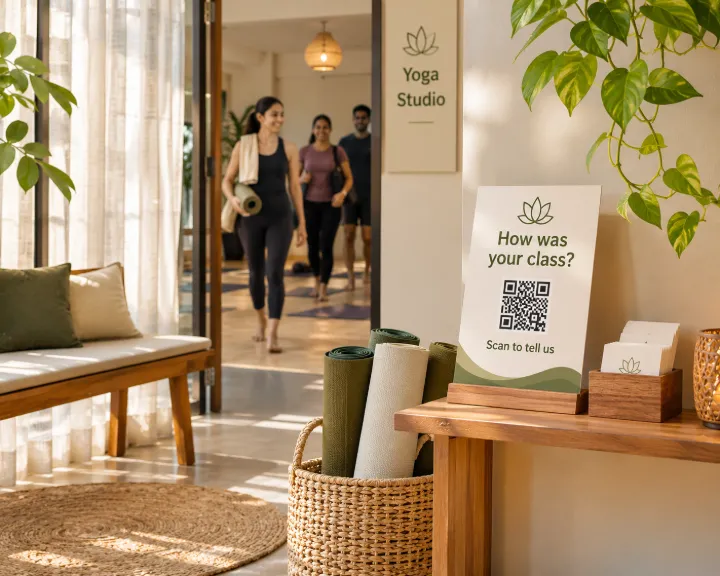
Feedback is private: it comes to you, so you can fix things. It is different from a public review, which other customers read before choosing you.
People remember the details best at the end of the visit, the meal or the session. A code at that spot catches them before they leave.
The code opens your Google Form, survey tool, inbox or WhatsApp. Answers go straight there, not through another system.
With a dynamic code you can switch to a new form or survey link later. The printed cards and posters keep working.
Give each placement its own dynamic code and compare scans from the table, the receipt and the exit sign.
Pick the code by how you want people to answer: a structured survey, a free-text message or a quick chat. Types marked "Editable" are dynamic: you can change their content later and see scan statistics. The others are static: the content is stored inside the code itself, so it can't change after printing.
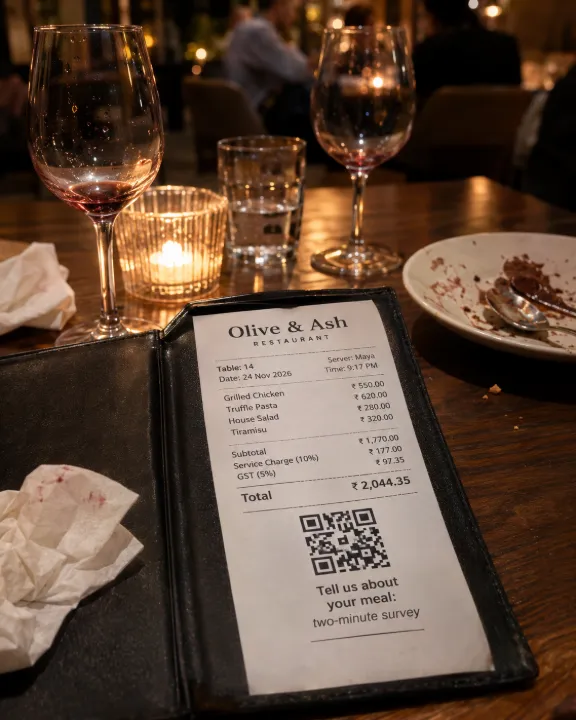
A Google Form QR code opens your survey on the phone, with no app to install. Keep it to a few questions about one experience, such as today's visit or this delivery. In the form's settings you choose whether to collect email addresses; switch that off when you promise anonymous answers. Answers arrive in your form, where you can view them as a summary or in a spreadsheet.
Where to use it
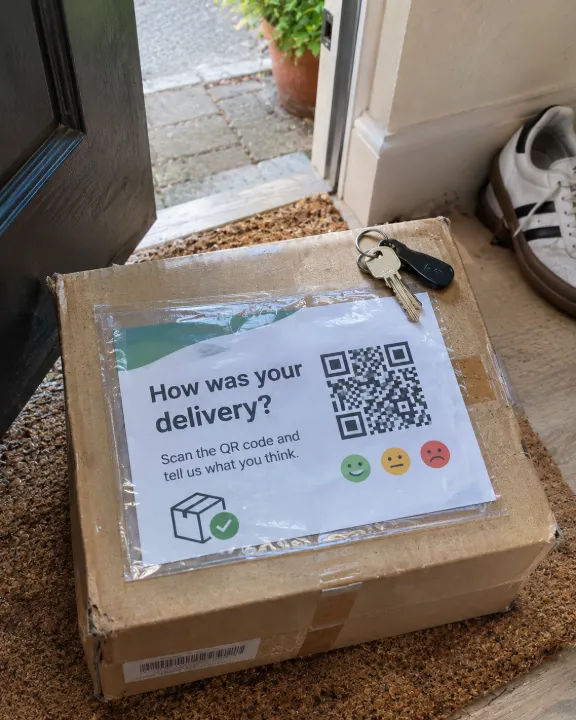
If your feedback lives in Microsoft Forms, another survey service, your booking system or your own website, a website QR code opens that link. QRCodeChamp only creates the code: the survey, the answers and the privacy settings stay in the tool you use. Save it as a dynamic code so you can move to a different tool later.
Where to use it
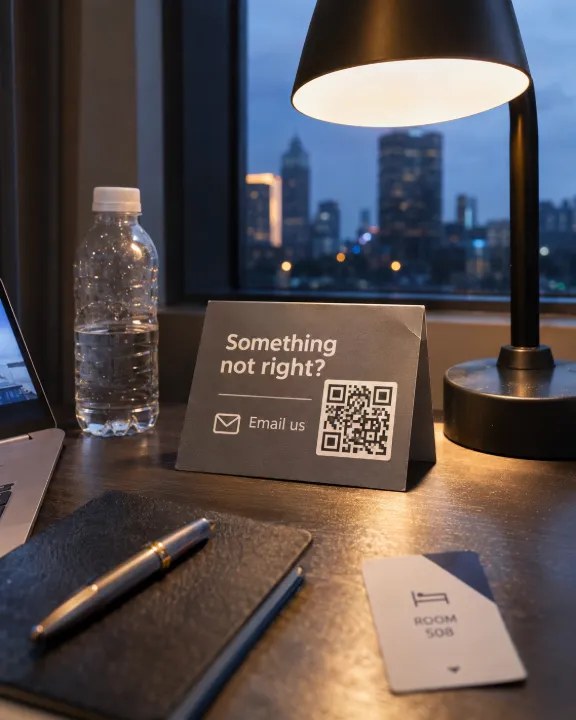
Some feedback doesn't fit a survey: a complaint, an idea or a long story. An Email QR code opens a new message to your feedback address with a subject such as "Feedback about my stay" already filled in. Use a shared address that someone checks, and reply to what comes in.
Where to use it
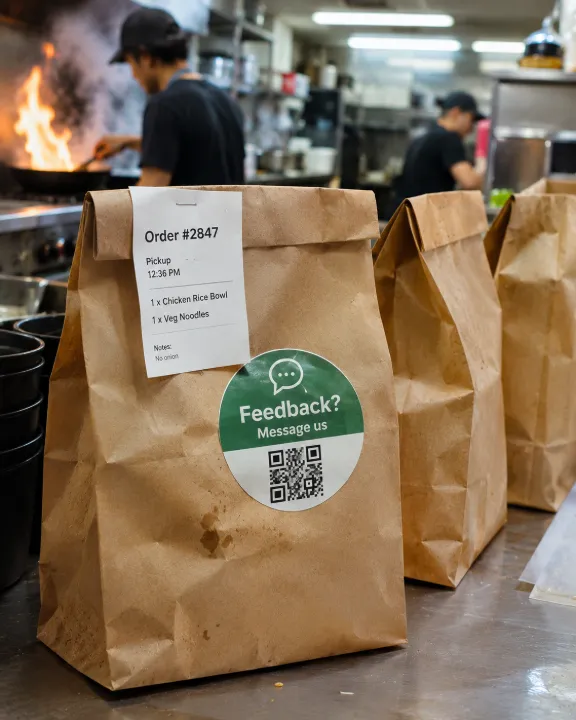
Many customers find a message easier than a form. A WhatsApp QR code opens a chat with your business number and a starter line such as "Feedback about my order:". You get the comment and can answer straight away. The customer's number is visible to you, so this is not an anonymous option.
Where to use it
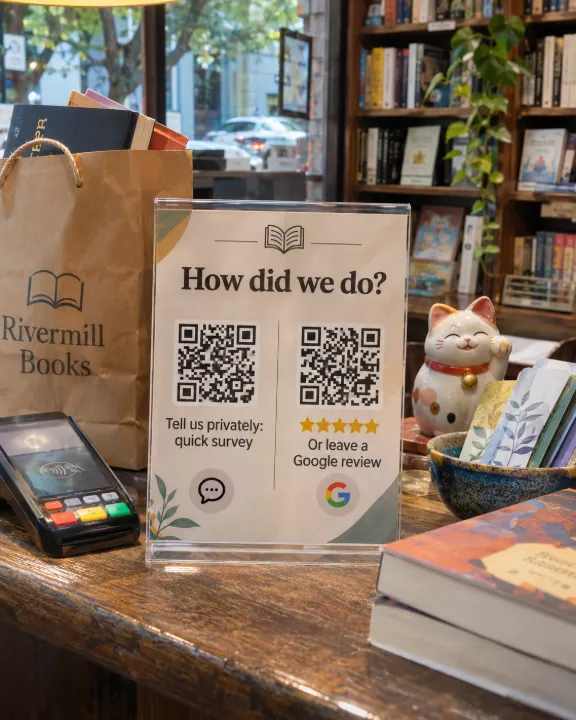
Private feedback and public reviews do different jobs, and you can ask for both. Google's policy doesn't allow businesses to discourage negative reviews or ask only happy customers for one. So don't use the survey as a filter that sends satisfied customers to Google and everyone else to a private form. Show both codes to everyone, or put the review link in the form for every respondent.
Where to use it
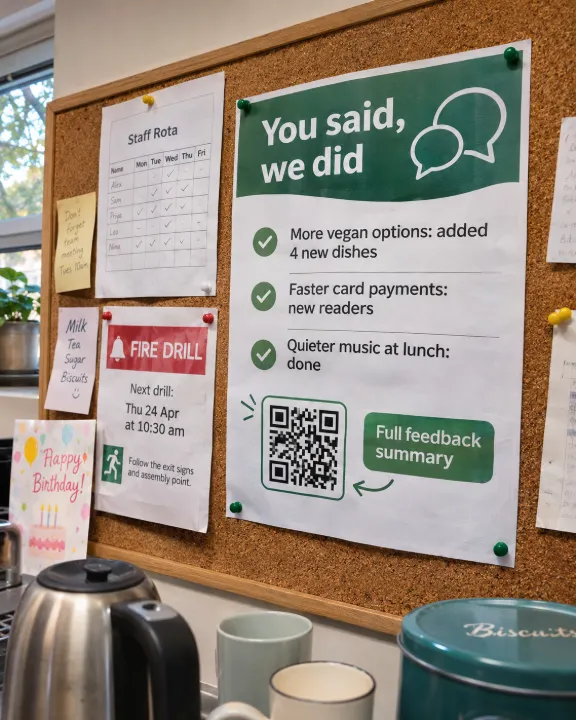
People answer surveys more willingly when they see that someone reads them. A PDF QR code on a noticeboard or at reception opens a one-page "You said, we did" summary of the changes you made. Upload a new version after each round of feedback; the printed code stays the same.
Where to use it
Place the code where the experience ends and people have a minute: at the table after the meal, at the exit, in the parcel or on the handout.
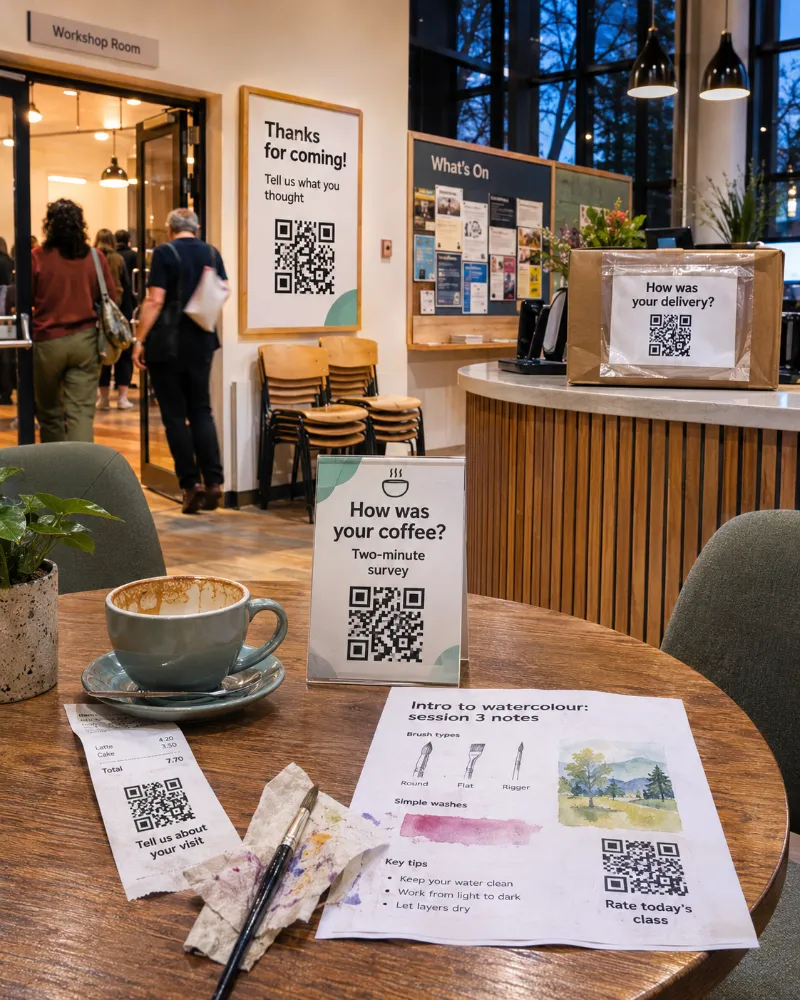
Guests answer while they wait for the bill.
Goes home with the customer for a later answer.
Asks about the delivery right after it arrives.
Catches visitors at the end, while details are fresh.
Everyone can answer before they leave the room.
Lets guests report a problem during the stay, not after.
Opens a quick chat for comments and questions.
Gives employees an anonymous way to suggest changes.
In Google Forms, ask a few clear questions about one experience. Decide whether answers are anonymous and set "Collect email addresses" to match.
Use the form's Send option and copy the link. Open the form in a private browser window to check that anyone can open it.
Paste the link into the Google Form QR code generator. Sign in for free to save it as a dynamic code you can change later.
Add a frame with a line such as "How did we do? 1-minute survey", download SVG for print and scan a printed proof with a few phones.
The code gets people to the survey. Whether they finish it, and whether the answers are useful, depends on the survey itself.
Ask only what you will act on, and tell people the time it takes on the sign. Put the most important question first.
A question like "Was the staff friendly and fast?" asks two things at once. Split it, and use neutral wording that doesn't suggest the answer.
Rating scales are quick to answer and compare. One optional free-text question, such as "What could we do better?", gives you the reasons.
Don't collect email addresses, names or account logins in an anonymous survey, and remember that free-text answers can still identify someone in a small team or class.
If you do ask for contact details, for example to reply to a complaint, make it optional, explain why and link to your privacy notice. Data protection laws such as the GDPR apply to personal data in survey answers.
Feedback forms must not decide who gets asked for a public review. Offer the review link to everyone, whatever their survey answers.
Print your business name next to the code and check posters regularly for stickers placed over it. Never ask for passwords or payment details in a feedback form.
Read the answers regularly, fix what you can and tell people what changed. Respondents who see results are more willing to answer next time.
Create your survey in Google Forms or another survey tool and copy its share link. Paste the link into the Google Form or Website QR code generator, add a short label such as "How did we do?", then download and print the code.
Feedback is private: it comes to you so you can improve. A review is public: it appears on a platform such as Google for other customers to read. Use a feedback QR code to learn, and a review QR code to help new customers find you.
No. Google's policy doesn't allow businesses to discourage negative reviews or ask only satisfied customers for reviews, which is known as review gating. Offer the review link to everyone, alongside the feedback form, not after a filter.
In Google Forms, set "Collect email addresses" to not collect, and don't ask for names or other details that identify someone. Check the settings of other survey tools the same way. Tell people the survey is anonymous only when it really is.
If you collect personal data, such as an email address, a phone number or a name, data protection laws like the GDPR usually require you to tell people who you are, why you collect it and how long you keep it, at the time you collect it. A link to your privacy notice in the form is the usual way. Check the rules that apply to you; this isn't legal advice.
Where the experience ends and people have a moment: on the table or bill folder, the receipt, the delivery note, the event exit or the last slide of a class. Use a separate dynamic code for each spot to see which one gets scanned.
Yes, with a dynamic code such as the Google Form or Website QR code. Sign in with Google for free, save the code and change the link in your dashboard. Email and WhatsApp codes are static, so print a new code if the address or number changes.
Yes, for dynamic codes. The dashboard shows how many times a code was scanned, when, on which devices and from which locations. It doesn't show who scanned it or what they answered; your survey tool shows the answers.
Write a short survey, put the code where the experience ends and ask everyone the same way. Sign in for free to change the survey later and see how often each code is scanned.