

No long links to type
Students open the form, video or document in one scan, instead of copying a web address from the board.
Schools and universities print a lot: worksheets, noticeboards, letters home, open day banners. A QR code on that paper takes students, parents and visitors straight to the form, video, map or document they need, without typing a long web address. This guide covers the QR codes that work in classrooms and on campus, where to put them and how to use them safely.

A QR code doesn't replace teaching or your school's systems. It removes the small barrier between a printed page and the right online resource.
Students open the form, video or document in one scan, instead of copying a web address from the board.
Point a dynamic code at this year's timetable or reading list, and keep the same poster or handout next year.
Letters and newsletters can open the trip form, the calendar or the payment page you already use.
Dynamic codes count scans, so you can tell which posters and handouts students and parents actually open.
Pick the type by what the student, parent or visitor should do after scanning. Types marked "Editable" are dynamic: you can change their content later and see scan statistics. The others are static: the content is stored inside the code itself, so it can't change after printing.
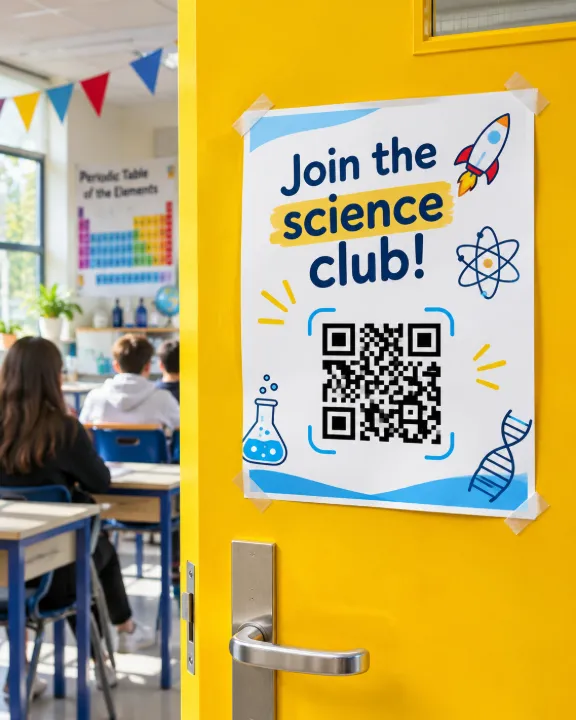
Open day registrations, club sign-ups, quick quizzes and end-of-course feedback all work well as a Google Form. A Google Form QR code on a banner, door or handout opens the form on the phone, so nobody has to copy a link. Only ask for the information you need, and follow your school's data protection rules, especially for younger students.
Where to use it
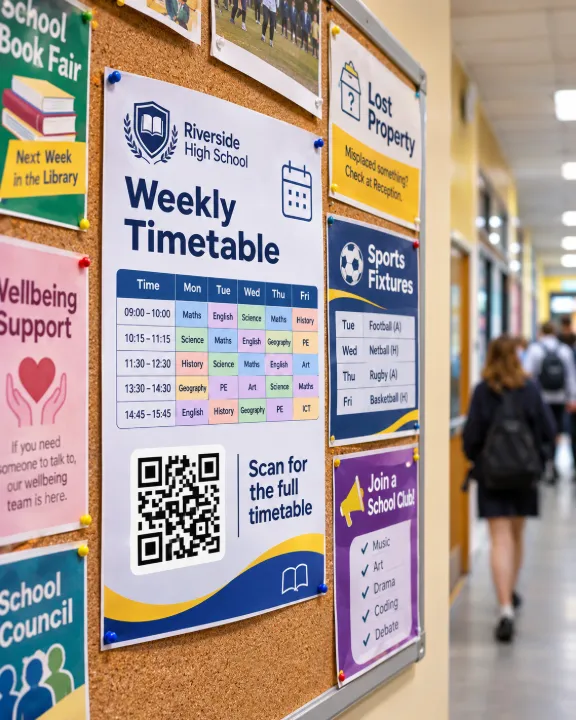
Worksheets get lost and reading lists change. A PDF QR code on the handout or noticeboard opens the document on the student's phone, and as a dynamic code it can open next term's version without reprinting the poster.
Where to use it
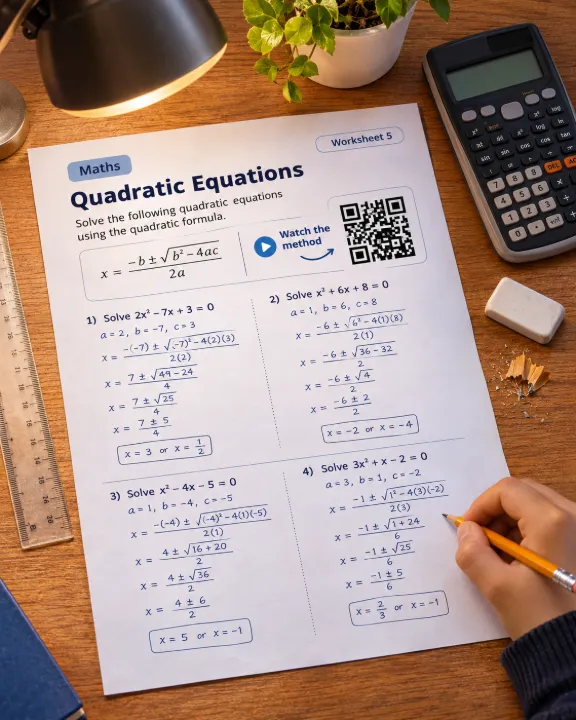
A short video can explain a method, show an experiment or recap a lesson for students who were absent. A video QR code on the worksheet or lab bench plays it on the phone, so students can watch it again when they practise.
Where to use it
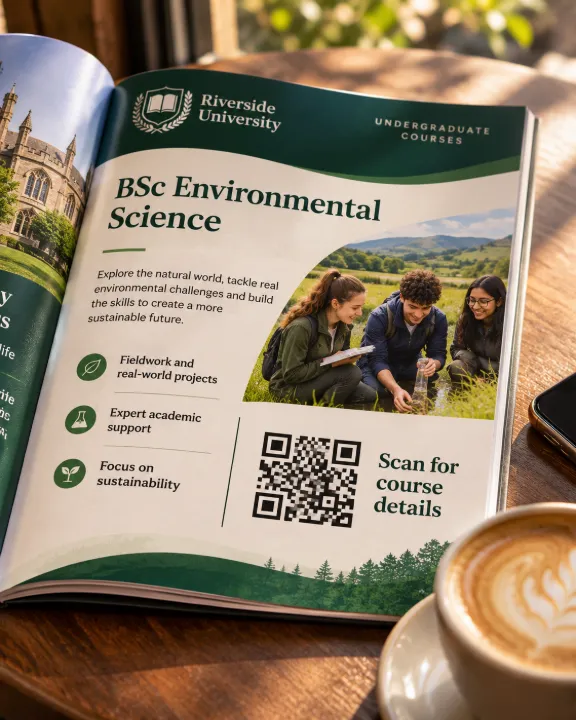
A website QR code in the prospectus or on a classroom wall opens a course page, your learning platform or an application page. Students and applicants land exactly where they need to be, instead of searching your website.
Where to use it
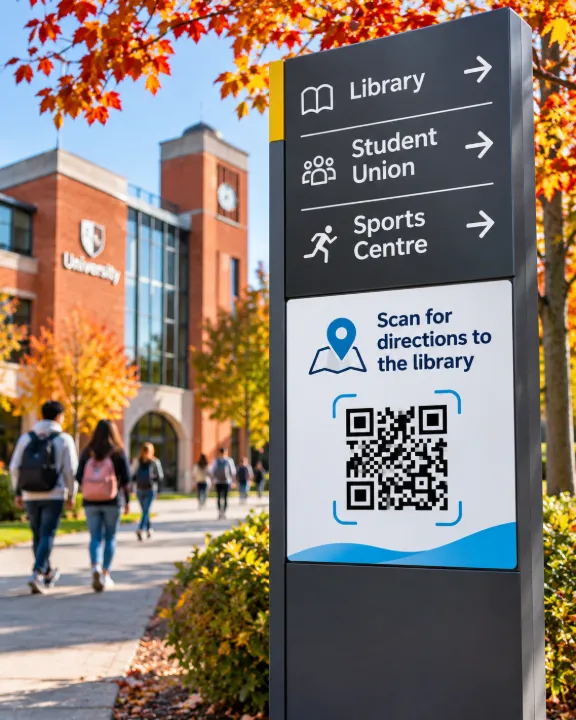
Campuses are confusing for new students, parents and open day visitors. A location QR code on a sign or letter opens the exact building or entrance in the phone's maps app.
Where to use it
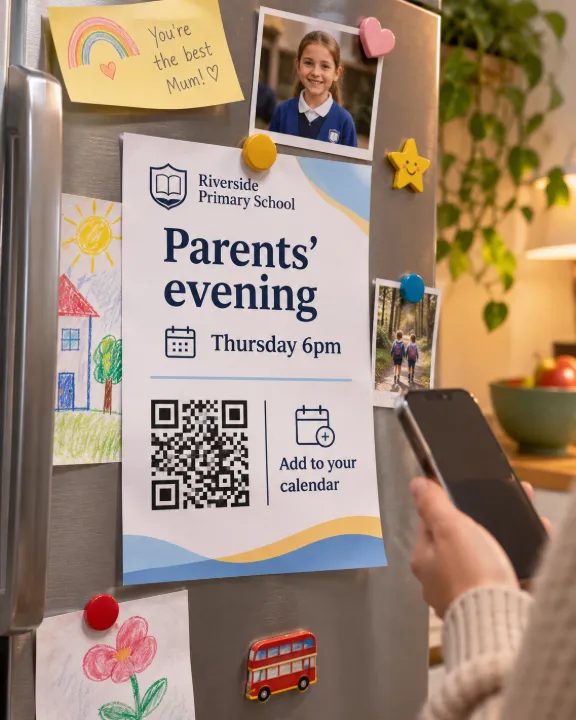
Parents' evenings, open days and exam dates are easy to forget when they are only in a letter. An event QR code adds the date, time and place to the phone's calendar in one step.
Where to use it
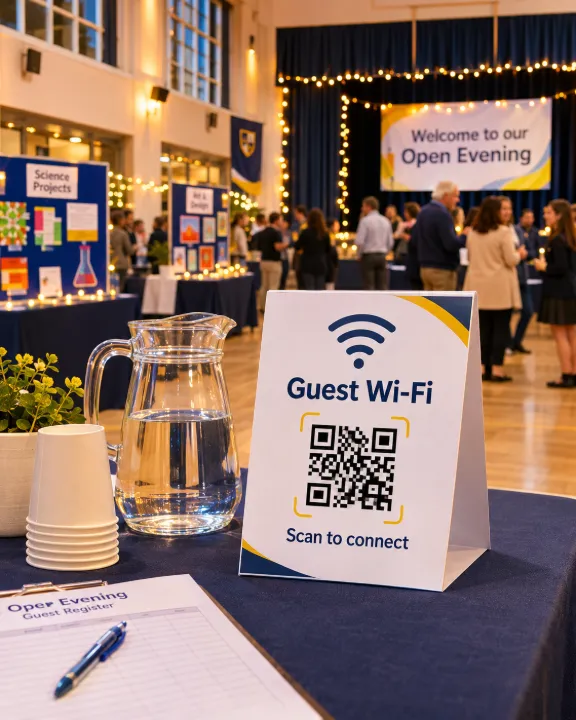
At open days, conferences and parents' evenings, visitors often need to get online. A Wi-Fi QR code connects them to your guest network without sharing the password out loud. Keep guest Wi-Fi separate from the network students and staff use.
Where to use it
Put each code where students, parents or visitors need it: the form at the door, the video on the worksheet, the map at the gate.
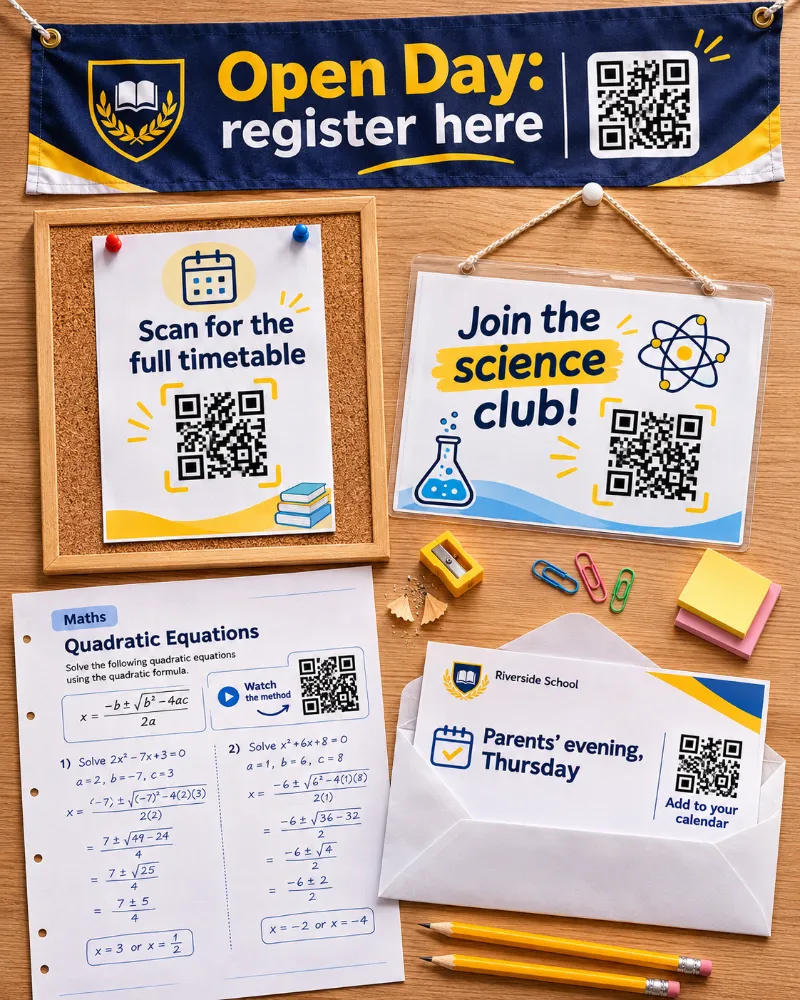
Registers visitors for tours and talks on the spot.
Opens a club sign-up or a quick exit survey.
Plays a short explanation of the method.
Opens the full timetable, menu or reading list.
Opens the course page or application form.
Adds the parents' evening or trip date to the calendar.
Opens the building in the maps app.
Connects visitors to the guest Wi-Fi.
Make a short form with only the details you need, such as name, email and the session they want to attend.
Open the Google Form QR code generator and paste the form's link. Sign in for free to save it as a dynamic code.
Add your school colours and logo, and a frame that says "Scan to register". Make it large enough to scan from a few steps away.
Download SVG for printing, test the printed code with a few phones, and check its scans in your dashboard during the event.
Classrooms and campuses have their own needs: young users, shared devices and strict privacy rules.
Only link to approved platforms, and only collect the personal data you really need, especially from children.
Not every student has a phone, and some schools don't allow them in class. Keep a printed or classroom-computer alternative.
"Scan for the video" or "Scan to sign up" tells students what to expect, and helps them avoid scanning unknown codes.
On a worksheet, about 2 × 2 cm (0.8 × 0.8 in) is enough. On a banner or a slide at the front of a lecture hall, make the code much larger.
Point the same printed poster at next term's timetable or next year's open day form, instead of printing new posters.
Keep each class's or event's codes in their own folder in your dashboard, so they are easy to find and update.
Common uses are linking worksheets to explanation videos, putting reading lists and timetables on the noticeboard, opening quick quizzes or exit surveys, and sending parents to trip forms or calendar dates. Each code opens one resource in a single scan.
Usually not. The built-in camera on most iPhone and Android phones scans QR codes. Tablets and laptops with a camera can also scan them, or use our QR code scanner in the browser.
A Google Form QR code can collect names at the start of a class or event, which works for informal sign-ins. It isn't an attendance system: a photo of the code can be shared, so for official registers use your school's own system.
Yes, if they only open pages your school has approved and you collect as little personal data as possible. Label each code so students know what it opens, and teach them to only scan codes from trusted sources.
Yes, with a dynamic code such as a PDF, video, website or Google Form QR code. Change the file or link in your dashboard and the printed code opens the new content. You need a free account, created by signing in with Google.
Create a registration or information page, or a Google Form, then make a dynamic QR code that opens it. Print it large on banners and signs with a label such as "Scan to register", and add a location QR code for directions to each building.
Yes. The bulk QR code generator creates up to 25 codes at once, for example one per class or room. Save them in folders in your dashboard to keep them organised.
Yes. You can create and download QR codes for free. Sign in with Google for free to save dynamic codes, edit them after printing and see their scan statistics.
Start with one sign-up form or handout, then add codes for videos, maps and dates. Sign in for free to change the links after printing and see how often they are scanned.