

WhatsApp QR Code Generator
Select Your QR Code
WhatsApp QR Code Generator
QR Code Name


Preview
Create a QR Code for WhatsApp
Are you looking for a faster way to connect on WhatsApp? Use our free WhatsApp QR Code Generator. It helps to create a fully customizable QR code that instantly directs to WhatsApp chat - be it for personal use, business profiles, or marketing campaigns. No signup, no cost, just instant connection.
Introduction to QRCodeChamp's WhatsApp QR Code.
QRCodeChamp offers a WhatsApp QR Code generator that is a smarter and easier way to help people chat with you in just one scan. Whether you have a small business, are a creator, service provider, or someone who wants quick connections, this tool is made for you.
With 100% customization options, you can enjoy it for free. Of course, you don't need any tech skills. Our tool helps you create a WhatsApp QR code in just seconds. Wanna know how?
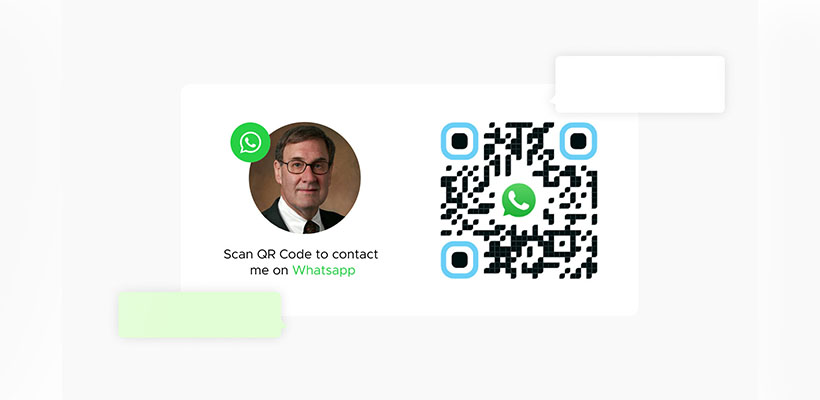
How to Use Our WhatsApp QR Code (Step-by-step)?
Wondering how to create a WhatsApp QR Code? Don’t worry! With a few clicks, you can get your QR code, get set, go!
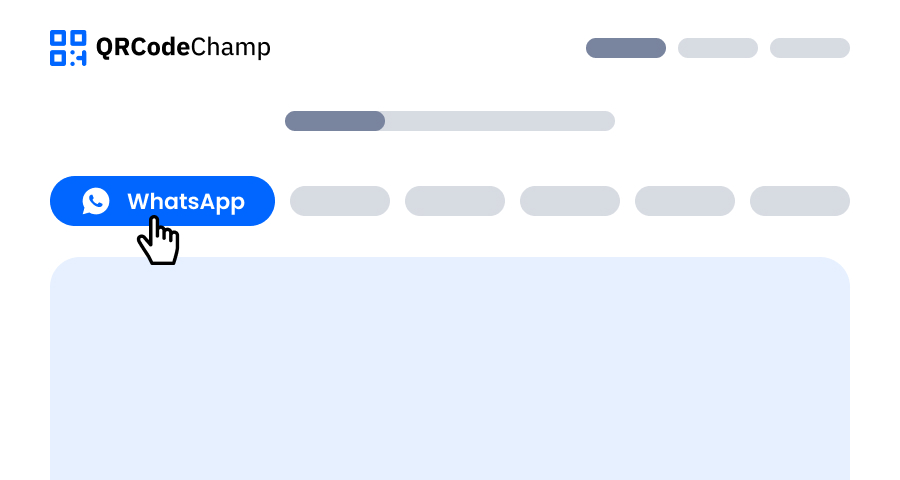
Step 1: Visit QRCodeChamp and Go to the WhatsApp QR Code
Open our QRCodeChamp editor and select the WhatsApp QR Code option to start creating your WhatsApp-based QR code.
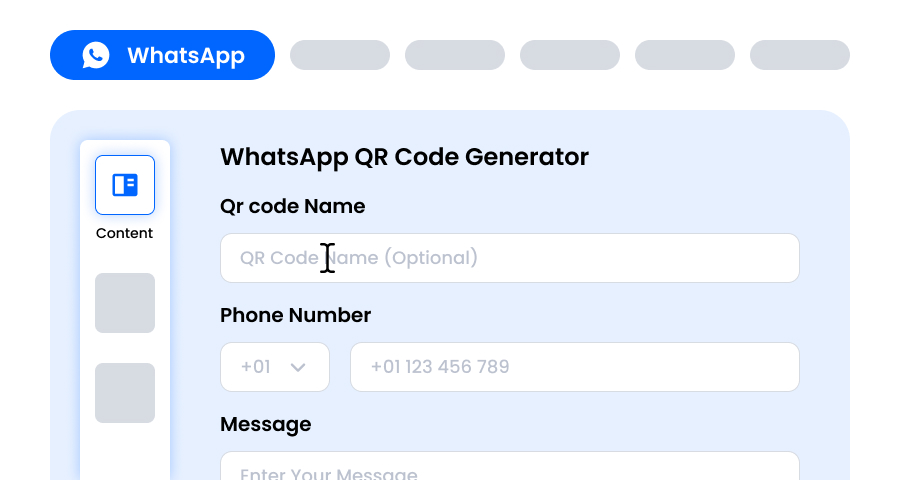
Step 2: Enter WhatsApp Details and Pre-Filled Message
In the input field, enter the WhatsApp QR Code name if you want, as it is optional. Now enter your full WhatsApp number (Don’t forget the country code) and add a pre-filled message that pops up when someone scans your WhatsApp QR code (make it easy for them to start the chat instantly). And you can go to the next step to touch up your WhatsApp QR code to make it catchy.
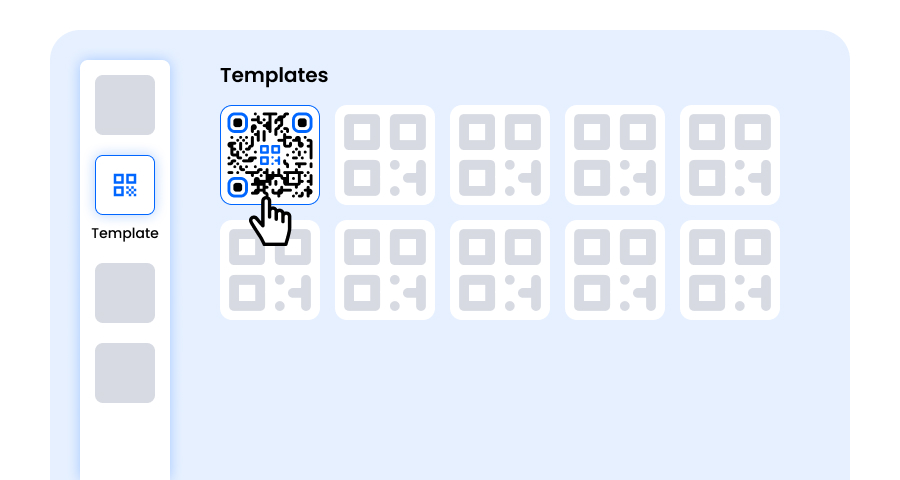
Step 3: Choose a Template for WhatsApp QR Code to Match Your Style and Purpose
Once your dynamic WhatsApp QR code is generated, head to the customization section and browse through the pre-designed templates. Select one that reflects the purpose of your WhatsApp campaign—whether it’s for marketing, events, promotions, or personal branding. The right template instantly gives your WhatsApp QR code a professional and eye-catching look.
Step 4: Select the Shape to Create a Unique WhatsApp QR Code Design
Make your WhatsApp QR code stand out by experimenting with different shapes for the dots and corners. You can choose rounded edges for a modern feel, sharp corners for a sleek, techy vibe, or creative styles to match your audience’s preferences. The shape you pick can add a subtle but powerful branding touch to your WhatsApp QR Code.
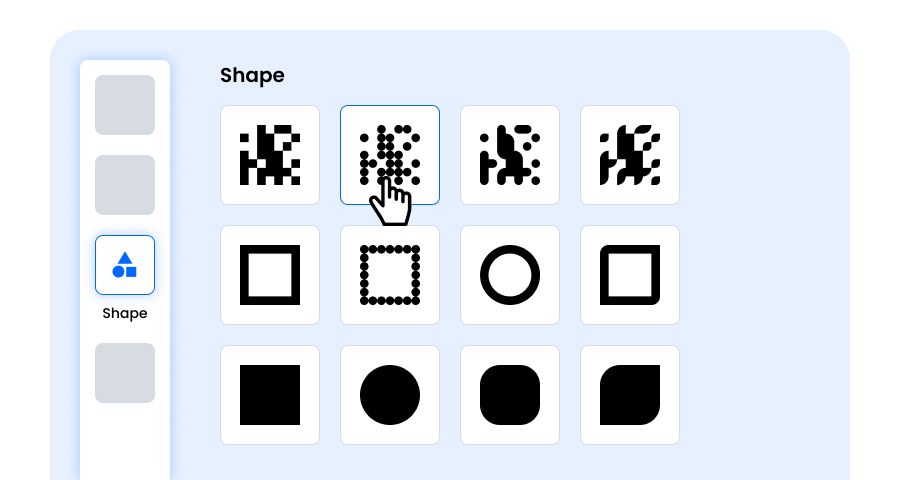
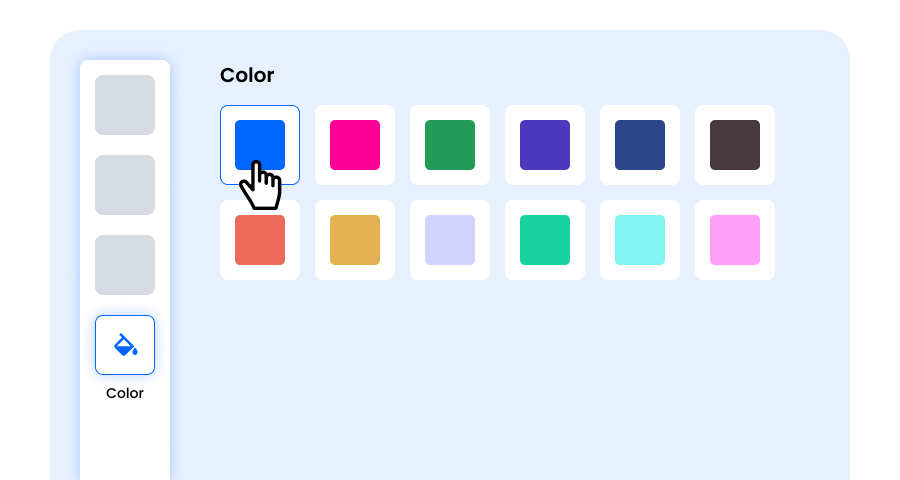
Step 5: Choose Colors to Make Your WhatsApp QR Code Stand Out
Customize the colors of your WhatsApp QR code to match your brand palette, campaign theme, or personal style. You can opt for solid colors for a clean look, gradients for a modern twist, or brand-specific shades to reinforce recognition. Just ensure the contrast remains high enough for easy scanning.
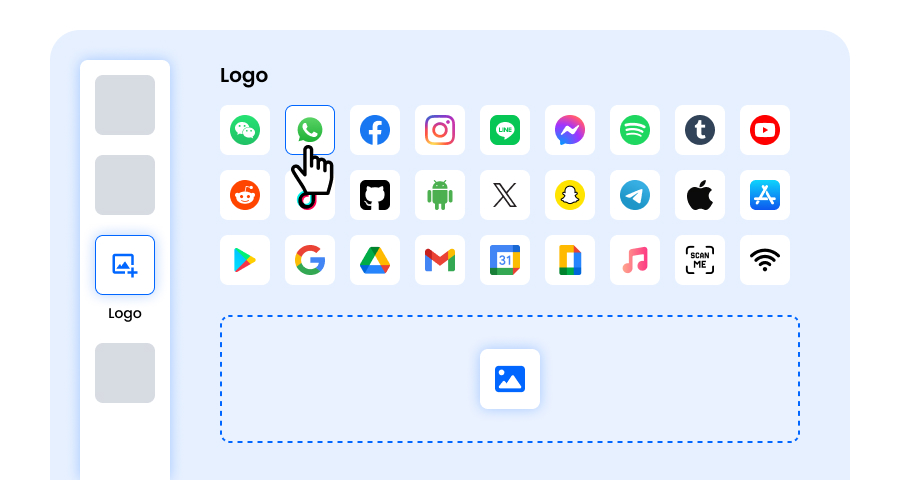
Step 6: Select/add a Logo to Your WhatsApp QR Code to Align With Your Branding
Enhance your WhatsApp QR code by inserting your company logo, product icon, or campaign graphic in the center. A logo not only makes the WhatsApp QR code visually appealing but also strengthens brand recognition and builds trust with users scanning it. Ensure the logo is clear and doesn’t obstruct the QR code’s scannable areas.
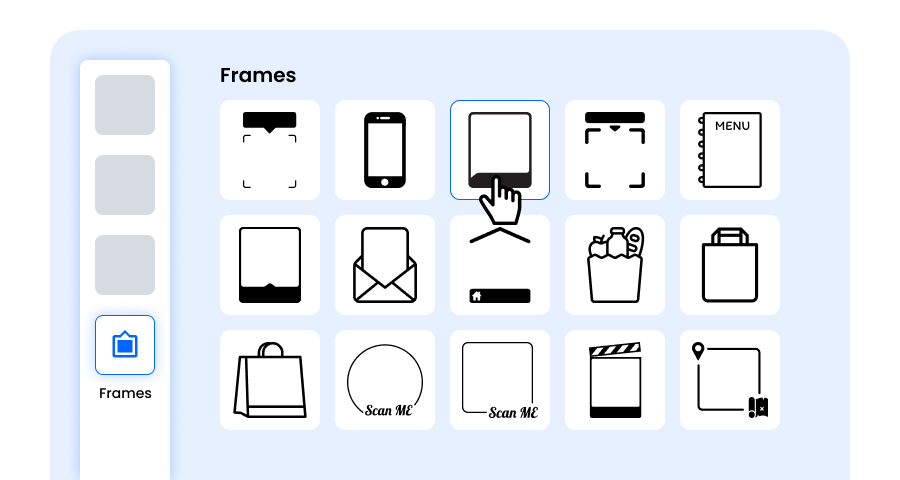
Step 7: Choose the Frame for Your WhatsApp QR as Per Your Choice
Give your WhatsApp QR code a finishing touch by adding a frame. Frames can highlight the QR code and even include short call-to-action texts, such as “Scan Me” or “Visit Now,” encouraging more scans. Select a style and color combination that complements your brand and stands out wherever you display the WhatsApp QR code.
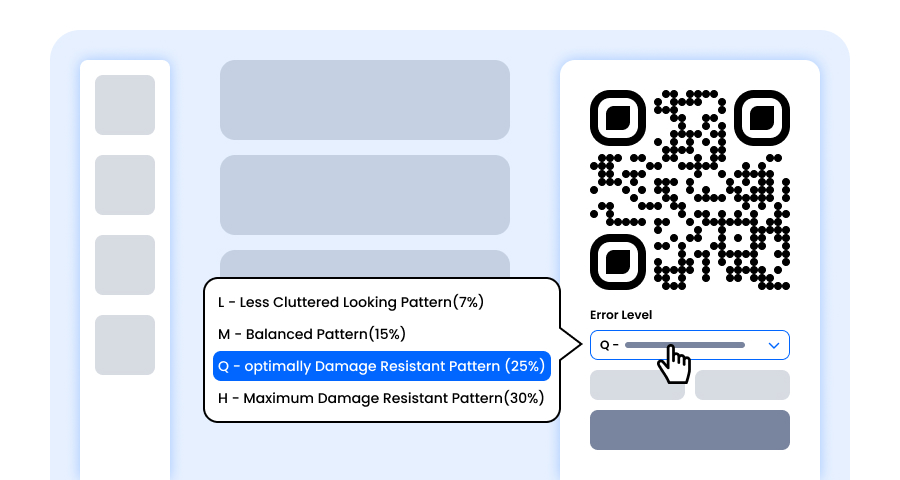
Step 8: Adjust the Error Correction Level of the WhatsApp QR Code for Maximum Scan Reliability
Adjust the error correction level of your WhatsApp QR code to control how well it can still be scanned if part of it gets damaged, blurred, or covered (for example, by a logo).
- L (7%) – Less cluttered look, suitable for simple designs without a logo.
- M (15%) – Balanced pattern for general use.
- Q (25%) – Optimally damage-resistant; works well with small logos.
- H (30%) – Maximum damage resistance; best for larger logos or high-risk display environments.
Choosing the right error level ensures your WhatsApp QR code remains scannable while looking clean and professional
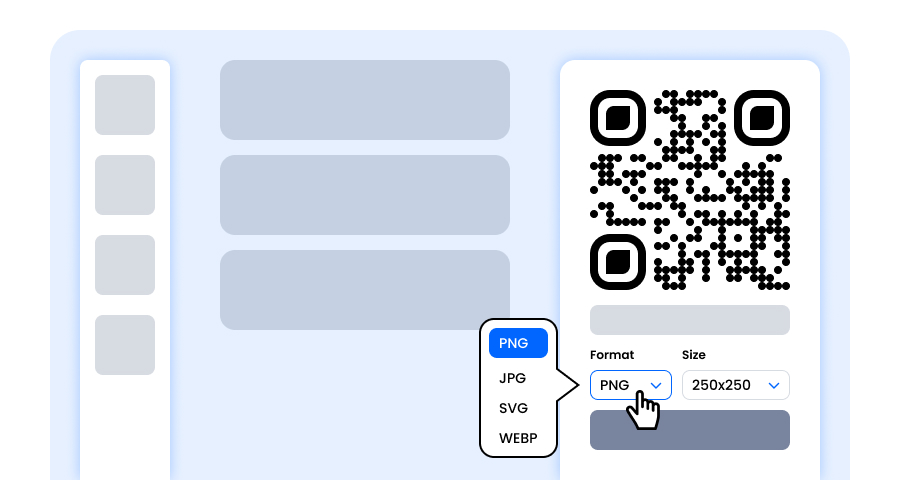
Step 9: Select the Format and Size of the WhatsApp QR Code as Per Your Requirement
Format - Choose the file format—PNG for most uses, JPG for web, or SVG for scalable print. So you can select based on where you’ll use the WhatsApp QR code—digital screens, print materials, or both.
Size - Select the size to match your needs: smaller for business cards or digital use, larger for posters and banners. This ensures your WhatsApp QR code stays sharp and scannable anywhere.
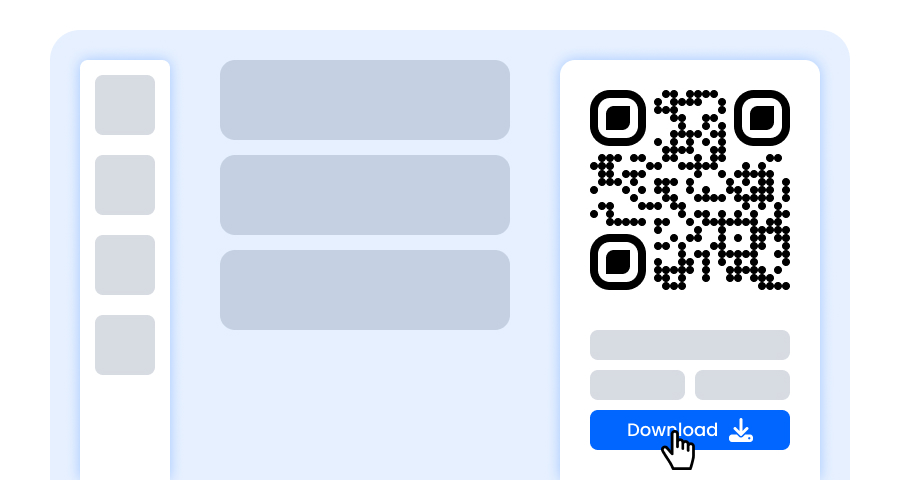
Step 10: Download Your Personalized WhatsApp QR Code
Once you’ve finished customizing your WhatsApp QR code, click the Download button. Save it in your chosen format and size so it’s ready to be printed, shared online, or embedded in your marketing materials.
How to Get More Scans on Your WhatsApp QR Code?
A great point to focus on!
- Customize your QR in the most catchy way
- Add a pre-filled message, so less typing for them, more action for you!
- Always offer a reason to scan
- Share it as much as possible on social media platforms
- Also, share it via email
- Place it at the point of attraction
- Print it on business cards, flyers, or packaging
Practical Usage of a WhatsApp Number QR Code.
Creating a WhatsApp QR has various practical applications you don’t want to miss.
Customer Support Service Chat
Easily allow people to start a WhatsApp chat for quick and instant help or support without needing to find your contact details.
Business Cards
By adding your WhatsApp QR Code to your business cards make easy for people to contact you directly by scanning instead of manually typing your number.
In-Store Bookings & Orders
Customers can easily place orders or book services just by a single scan if you put a WhatsApp QR Code at your store counter.
Event Invitations
If you add a WhatsApp QR code on event invitations, people can easily confirm attendance, or ask questions with just single scan. No hassle!
Networking
Use WhatsApp QR code at conferences or meetups to share your contact details instantly, making follow-ups smarter and easier.
Packaging for Feedback
Adding a WhatsApp QR code to any product packaging helps customers directly review forms, surveys, or feedback pages.
Social Media Sharing
Post a WhatsApp QR code on social channels to drive direct engagement, leads, or customer inquiries.
Quick Appointment Bookings
Adding a WhatsApp QR code on websites, ads, or stores can help users book or schedule appointments or consultations instantly, skipping the long form procedure.
Apart from these, there are endless ways to use it - just address your needs. Why wait. Make it one for you!
Explore More QR Code Generators
URL QR Code
vCard QR Code
Text to QR Code
Wi-Fi QR Code
Email QR Code
Phone Number QR Code
Message QR Code
Social Media QR Code
YouTube QR Code
Spotify QR Code
Google Review QR Code
Google Form QR Code
Snapchat QR Code
Facebook QR Code
Instagram QR Code
TikTok QR Code
LinkedIn QR Code
Video to QR Code
PDF to QR Code
Image QR Code
WhatsApp QR Code Generator FAQs
How to Create a WhatsApp QR Code for a WhatsApp Group?
First, you must be an admin to create a WhatsApp QR Code for a WhatsApp Group. Tap on the WhatsApp group of your choice, copy the ‘Invite via group link’, and enter the link into the above WhatsApp QR code online generator. Now customize your QR code and download it in the format you prefer.
Should I Create a Static or Dynamic WhatsApp QR Code?
Well, it depends on your needs. If you don’t plan to change your WhatsApp number or profile, then a static QR Code is a reliable option, while a dynamic QR Code would be a great option if you want to edit the link anytime, track scans, and even retarget users.
Can I Create a WhatsApp QR Code for a Long URL?
Yes, you can certainly create a QR code WhatsApp for a long URL. However, for fast scanning, you can shorten it and also ensure the URL is valid.
Do WhatsApp QR Codes Expire?
Don’t worry, WhatsApp QR Codes never expire until and unless you change your number or delete your account.
Why is Sharing a WhatsApp QR Code Better Than Giving a WhatsApp Number?
Well, nowadays people prefer to share a WhatsApp QR Code rather than a WhatsApp number, because it is faster, error-free, and seems a more professional way. Also, it reduces the burden to type or save the number, one scan and a quick chat. Also, stores, events, menus, or packaging sectors only prefer this option.
What is the Difference Between a WhatsApp Web QR Code Generator and a WhatsApp QR Code Generator?
Both are completely different. The WhatsApp Web QR code is used for logging into your own WhatsApp on a browser. While WhatsApp QR Code Generator creates a scannable QR code for others to chat with you.