

YouTube QR Code Generator
Select Your QR Code
YouTube QR Code Generator
QR Code Name
Preview
Create a QR Code for YouTube
Have you published something amazing on YouTube, but your links are getting ignored? No more boredom. Turn your video link into a YouTube QR Code using our QR Code Generator that actually grabs the attention of people, let people scan, watch, and subscribe - anytime, anywhere. Yes, it is the most engaging way to share content.
What is the QR Code for YouTube?
A QR Code for YouTube is a unique 2D Scannable QR Code that gives direct access to Specific YouTube Content, such as Videos, channels, playlists, etc., without needing to type it manually.
You can also create a QR code for a YouTube video using QRCodeChamp’s YouTube video QR code generator. It is free and convenient, does not require any software installation, and works on all devices and browsers.
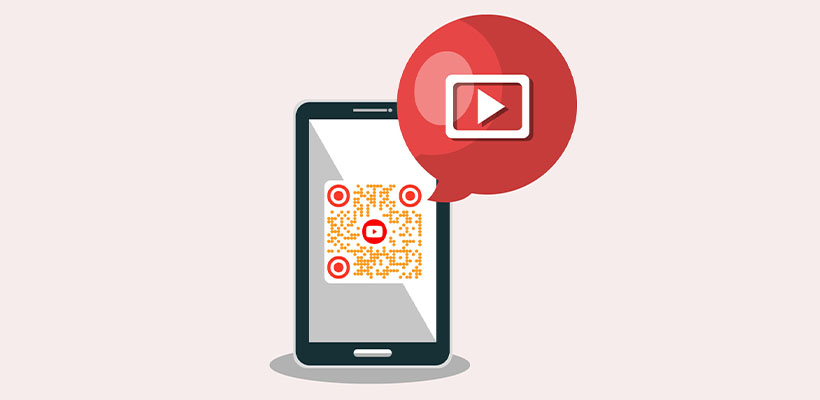
What Are the Benefits of Using a YouTube QR Code?
YouTube QR Code brings you numerous advantages, especially in terms of marketing. Have a look!
- It instantly takes the users to your YouTube content without juggling with URLs.
- Boosts visibility in crowded platforms like YouTube’s 14 B+ video library.
- Encourages instant scanning and viewing as it captures curiosity.
- You can use it on posters, flyers, websites, business cards, and more.
- Looks cleaner and more clickable than plain URLs.
- Looks smart and professionally appealing
How to Create a YouTube QR Code (Step-by-step)?
You can’t even imagine how easy it is to go from a YouTube video to QR code. No need for technical expertise, you just need QRCodeChamp.
Step 1: Visit QRCodeChamp and Go to the YouTube QR Code
Open our QRCodeChamp editor and select the YouTube QR Code option to start creating your YouTube-based QR code.
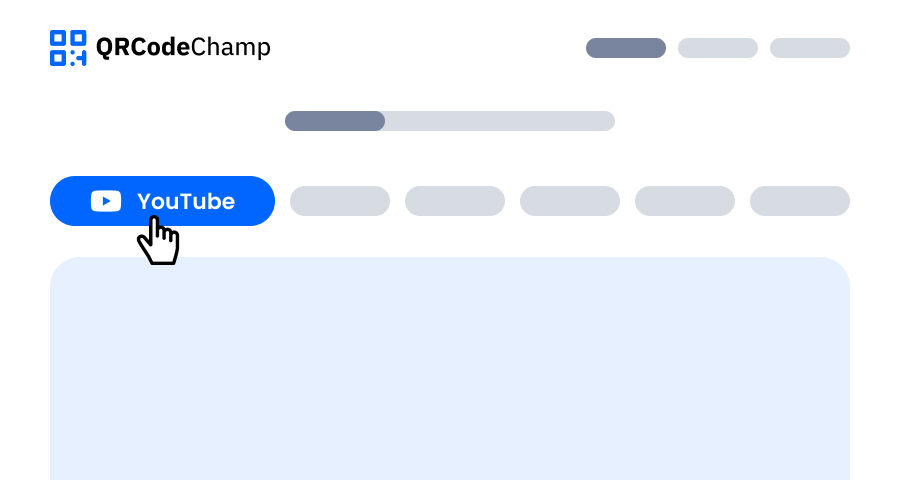
Step 2: Enter Your YouTube Content Link into to Input Section
All you need to do is enter your YouTube video URL in the provided input field. (Optional: You can add a QR code name if you want.) Next, you can go to the next step to touch up your YouTube QR code to make it catchy.

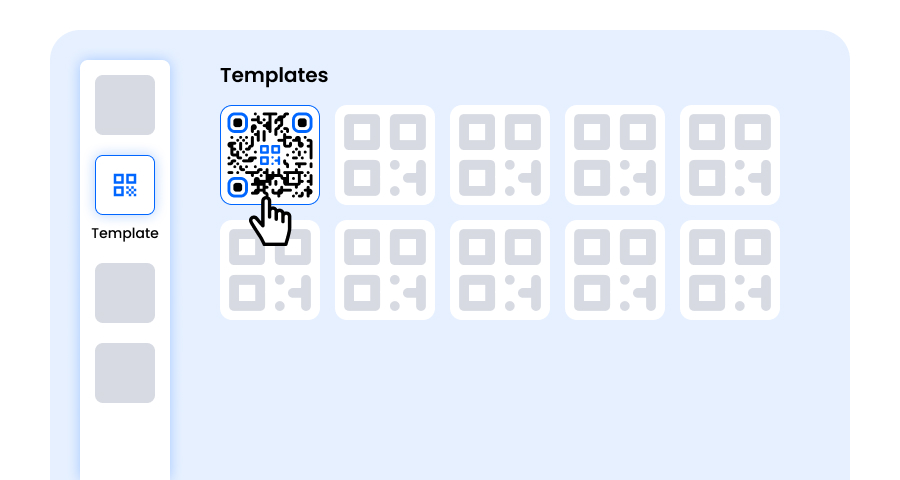
Step 3: Choose a Template for YouTube QR Code to Match Your Style and Purpose
Once your dynamic YouTube QR code is generated, head to the customization section and browse through the pre-designed templates. Select one that reflects the purpose of your YouTube campaign—whether it’s for marketing, events, promotions, or personal branding. The right template instantly gives your YouTube QR code a professional and eye-catching look.
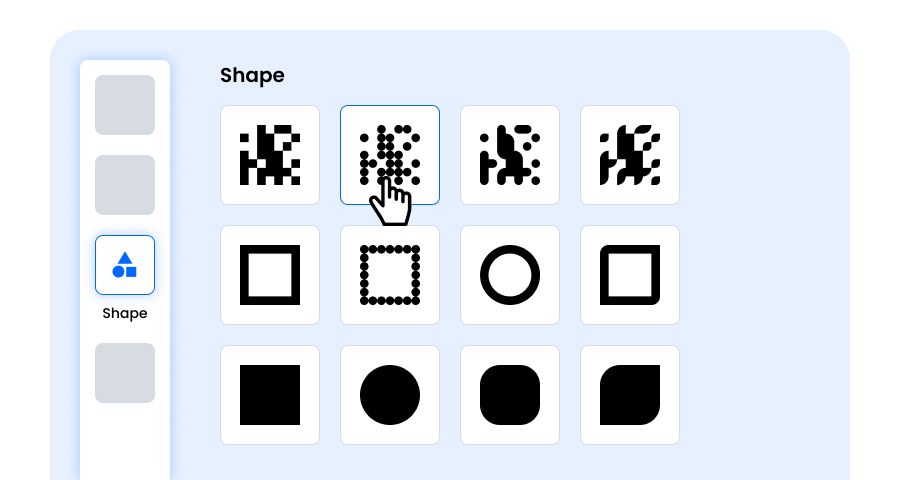
Step 4: Select the Shape to Create a Unique YouTube QR Code Design
Make your YouTube QR code stand out by experimenting with different shapes for the dots and corners. You can choose rounded edges for a modern feel, sharp corners for a sleek, techy vibe, or creative styles to match your audience’s preferences. The shape you pick can add a subtle but powerful branding touch to your YouTube QR Code.
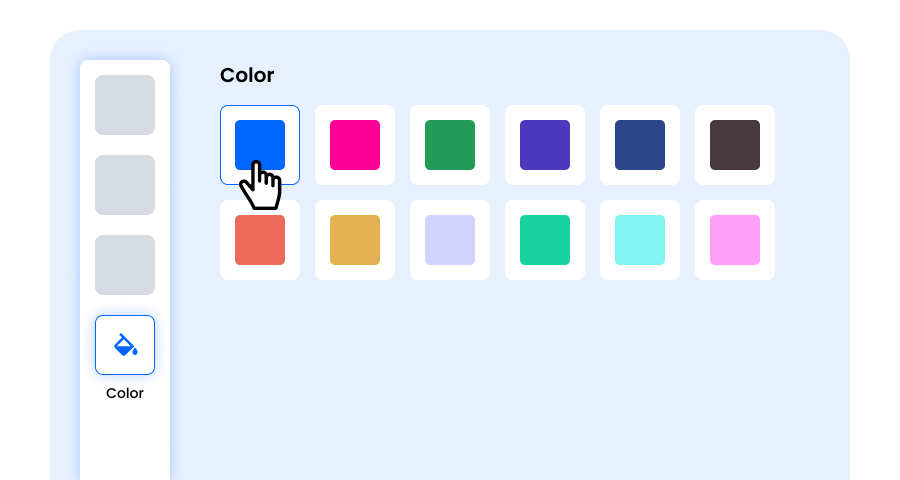
Step 5: Choose Colors to Make Your YouTube QR Code Stand Out
Customize the colors of your YouTube QR code to match your brand palette, campaign theme, or personal style. You can opt for solid colors for a clean look, gradients for a modern twist, or brand-specific shades to reinforce recognition. Just ensure the contrast remains high enough for easy scanning.
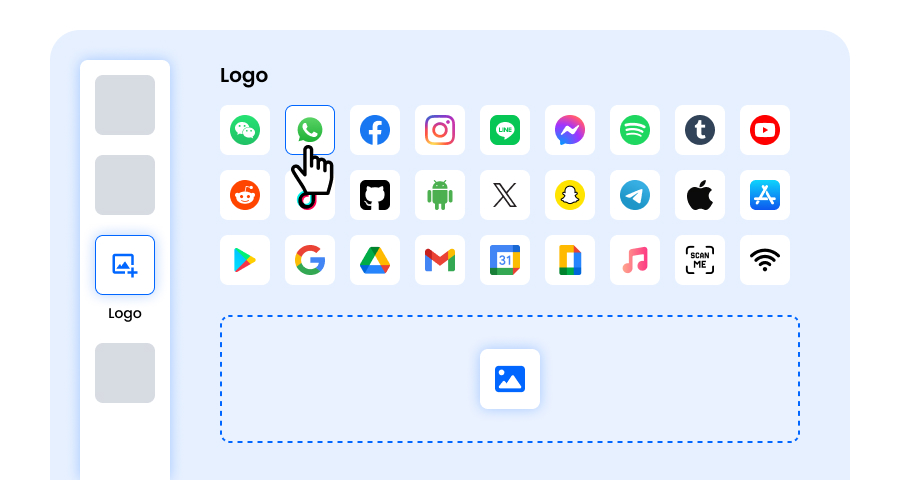
Step 6: Select/add a Logo to Your YouTube QR Code to Align With Your Branding
Enhance your YouTube QR code by inserting your company logo, product icon, or campaign graphic in the center. A logo not only makes the YouTube QR code visually appealing but also strengthens brand recognition and builds trust with users scanning it. Ensure the logo is clear and doesn’t obstruct the QR code’s scannable areas.
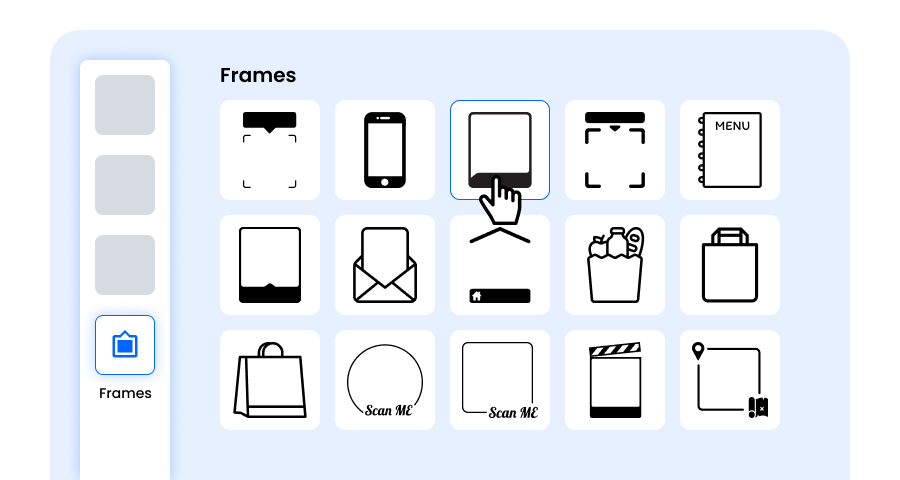
Step 7: Choose the Frame for Your YouTube QR as Per Your Choice
Give your YouTube QR code a finishing touch by adding a frame. Frames can highlight the QR code and even include short call-to-action texts, such as “Scan Me” or “Visit Now,” encouraging more scans. Select a style and color combination that complements your brand and stands out wherever you display the YouTube QR code.
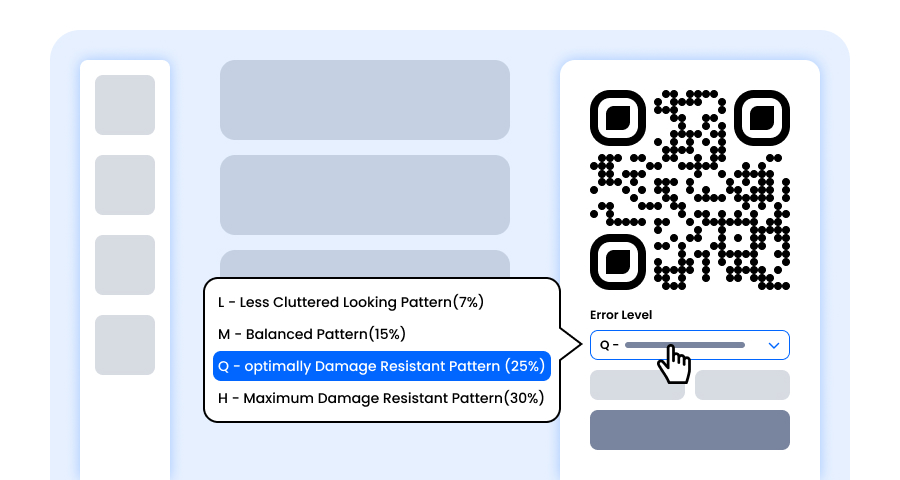
Step 8: Adjust the Error Correction Level of the YouTube QR Code for Maximum Scan Reliability
Adjust the error correction level of your YouTube QR code to control how well it can still be scanned if part of it gets damaged, blurred, or covered (for example, by a logo).
- L (7%) – Less cluttered look, suitable for simple designs without a logo.
- M (15%) – Balanced pattern for general use.
- Q (25%) – Optimally damage-resistant; works well with small logos.
- H (30%) – Maximum damage resistance; best for larger logos or high-risk display environments.
Choosing the right error level ensures your YouTube QR code remains scannable while looking clean and professional
Step 9: Select the Format and Size of the YouTube QR Code as Per Your Requirement
Format - Choose the file format—PNG for most uses, JPG for web, or SVG for scalable print. So you can select based on where you’ll use the YouTube QR code—digital screens, print materials, or both.
Size - Select the size to match your needs: smaller for business cards or digital use, larger for posters and banners. This ensures your YouTube QR code stays sharp and scannable anywhere.
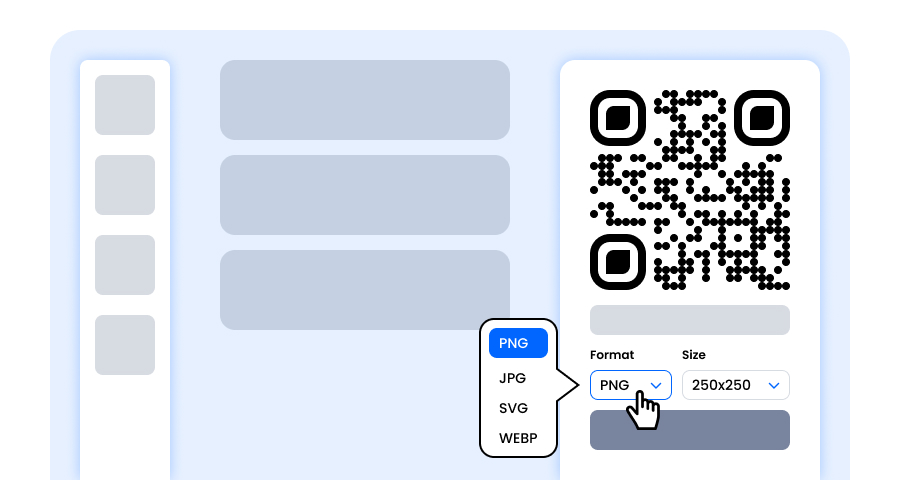
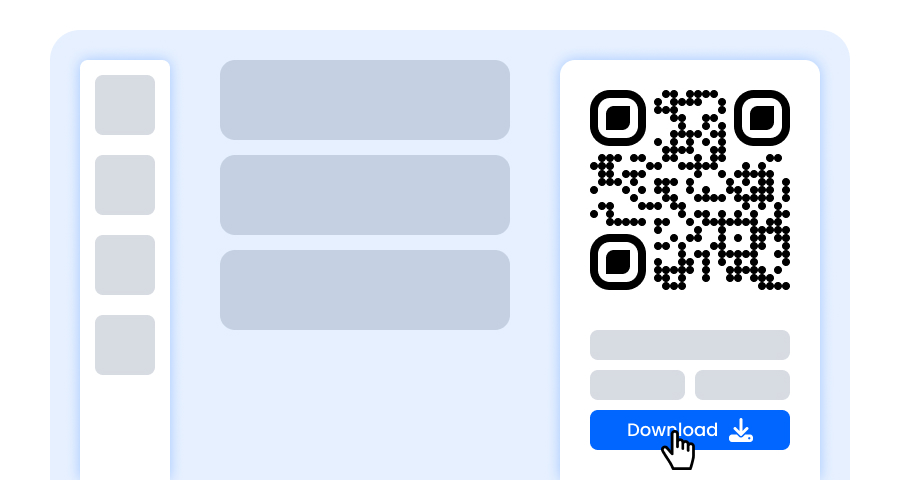
Step 10: Download Your Personalized YouTube QR Code
Once you’ve finished customizing your YouTube QR code, click the Download button. Save it in your chosen format and size so it’s ready to be printed, shared online, or embedded in your marketing materials.
How Do You Promote Your YouTube Channel or Video Using a QR Code?
You need to play smart when it comes to placing the YouTube QR Code.
- Place it on your flyers, posters, or brochures for instant video access.
- Share during events or talks.
- Make a YouTube content link to intros, demos, or live streams.
- You can print it on T-shirts, mugs, or bags for promotion.
- Add it to your email signature or newsletter.
- Post on social media with a CTA like “Scan to watch!”.
- Place on product packaging to show tutorials or reviews.
- The best place to place it - in your store or walk-in places.
- Run ads with the YouTube QR Codes.
Use Cases for a QR Code for YouTube.
Here are some use cases for a QR Code for YouTube.
- Share educational videos
- Virtual home tours for real estate
- Product usage guides on packaging
- Travel guides at tourist spots
- Add to email signatures for easy access
- Quick how-to or tutorial videos
Explore More QR Code Generators
URL QR Code
vCard QR Code
Text to QR Code
Wi-Fi QR Code
Email QR Code
Phone Number QR Code
Message QR Code
Social Media QR Code
Spotify QR Code
Google Review QR Code
Google Form QR Code
WhatsApp QR Code
Snapchat QR Code
Facebook QR Code
Instagram QR Code
TikTok QR Code
LinkedIn QR Code
Video to QR Code
PDF to QR Code
Image QR Code
YouTube Video QR Code Generator FAQs
Can I Use the YouTube Link QR Code Generator for Free?
Yes, you can generate a YouTube channel QR code for absolutely free. QRCodeChamp offers a generator for a YouTube link to QR code free of charge.
Should I Create a Static or Dynamic QR Code for a YouTube Channel?
It counts on your needs, like if you don’t want to change or edit the URL of YouTube, then you can choose Static QR Code, but for changing the YouTube URL, you must generate a dynamic one.
Is It Possible to Change the YouTube Video Link in the QR Code?
Well, it depends on the type of QR Code you have generated. If you’re using a dynamic QR Code, then you can change the YouTube Video URL without changing the QR Code. However, in the case of a Static QR Code, you cannot do the same.
Where Can I Put My YouTube QR Code?
You can make a smart use of QR Code for your YouTube channel by placing it on the flyers, posters, product packaging, T-shirts & mugs, event banners, business cards, social media posts, store display, or even on emails and websites.