

PNG QR Code Generator
Select Your QR Code
PNG QR Code Generator
QR Code Name
Preview
QR Code Generator PNG
Need a crisp QR code image for your website, print, or design, or want to share a PNG picture with a single scan? Use our free PNG QR code generator to upload a PNG image and turn it into a scannable QR code, then download your QR code as a high-quality PNG with a transparent background if you like.
What is a PNG QR Code?
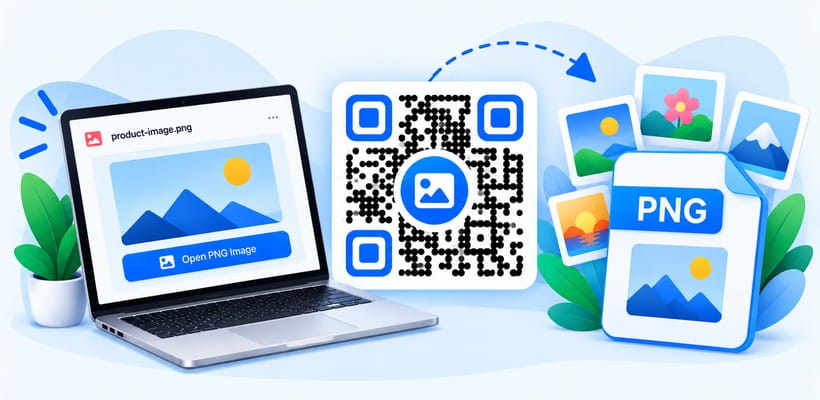
A PNG QR code is a scannable code that links to a PNG image you upload, such as a poster, infographic, logo, certificate, or product photo. When someone scans it, the PNG opens on their phone in full quality, ready to view or save. The QR code itself can also be downloaded as a PNG file, the most popular image format for websites, documents, and printing. With QRCodeChamp, you can create a PNG QR code for free and customize it to match your brand.
How to Convert a PNG to QR Code (Step-by-step)?
Here is how to make a QR code from PNG images and generate a QR code PNG file with QRCodeChamp.
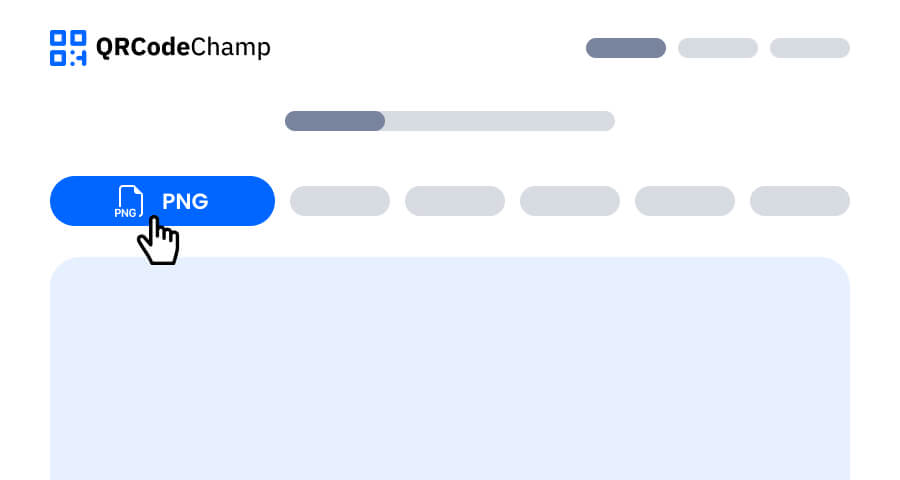
Step 1: Visit QRCodeChamp and Go to the PNG QR Code
Open the QRCodeChamp editor and select the PNG option to start using our PNG QR code generator.
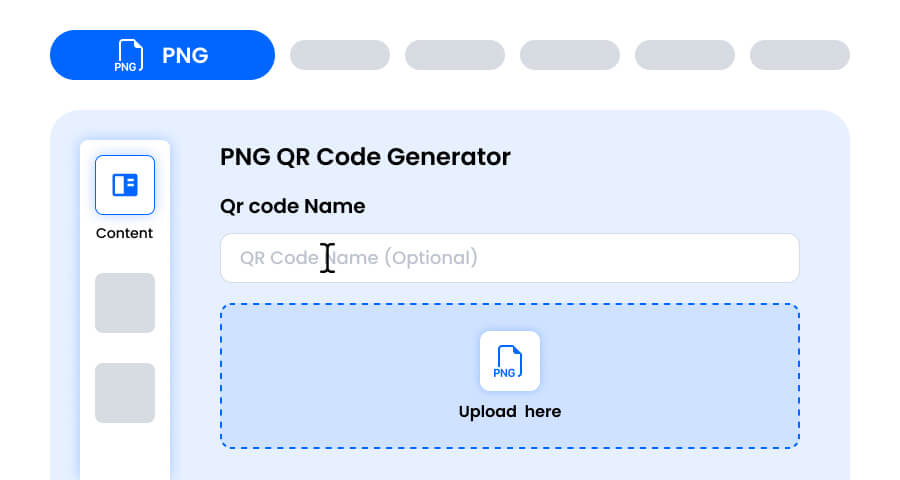
Step 2: Enter the QR Code Name and Upload Your PNG Image
Enter a QR code name if you want, as it is optional. Then upload your PNG image by dragging it into the upload box or browsing your device, within the maximum file size shown in the upload box. Once uploaded, the QR code links to your PNG automatically.
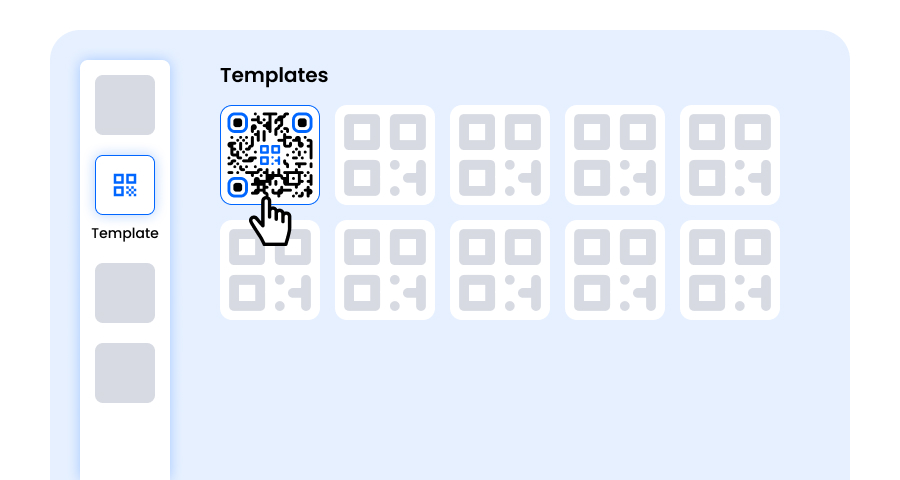
Step 3: Choose a Template for PNG QR Code to Match Your Style and Purpose
Once your PNG QR code is generated, head to the customization section and browse through the pre-designed templates. Pick one that suits where the code will be used, such as a poster, product label, website banner, or business card.
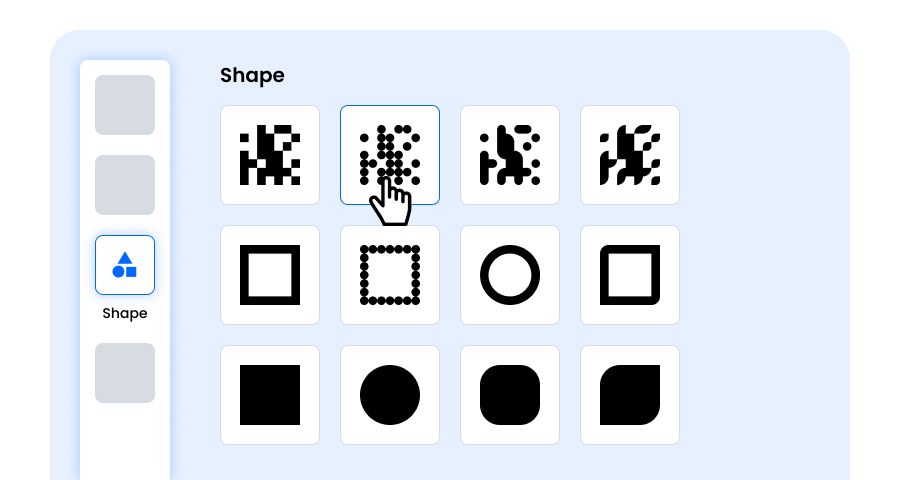
Step 4: Select the Shape to Create a Unique PNG QR Code Design
Make your PNG QR code stand out by experimenting with different shapes for the dots and corners. Choose rounded edges for a friendly feel, sharp corners for a clean look, or creative styles that match your brand.
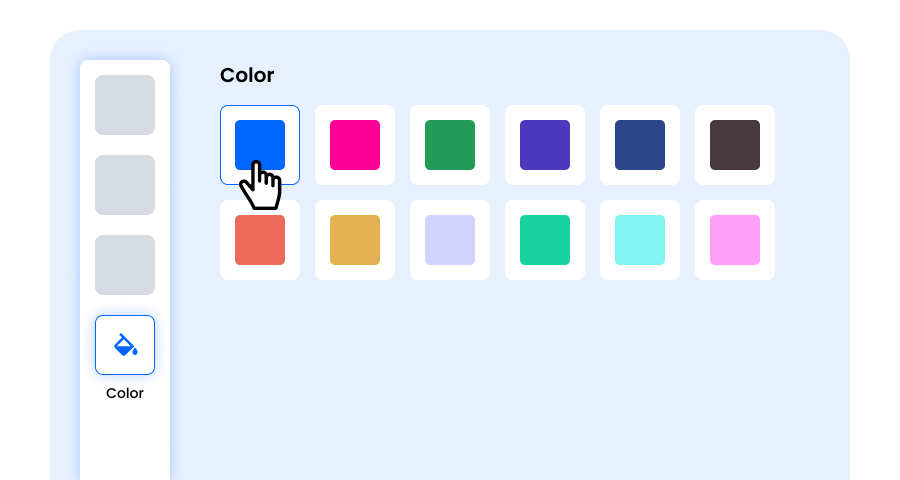
Step 5: Choose Colors or a Transparent Background for Your PNG QR Code
Customize the colors of your PNG QR code to match your brand. Turn on Transparent background to get a transparent PNG QR code that blends into any design, slide, or website. Just keep the contrast high enough for easy scanning.
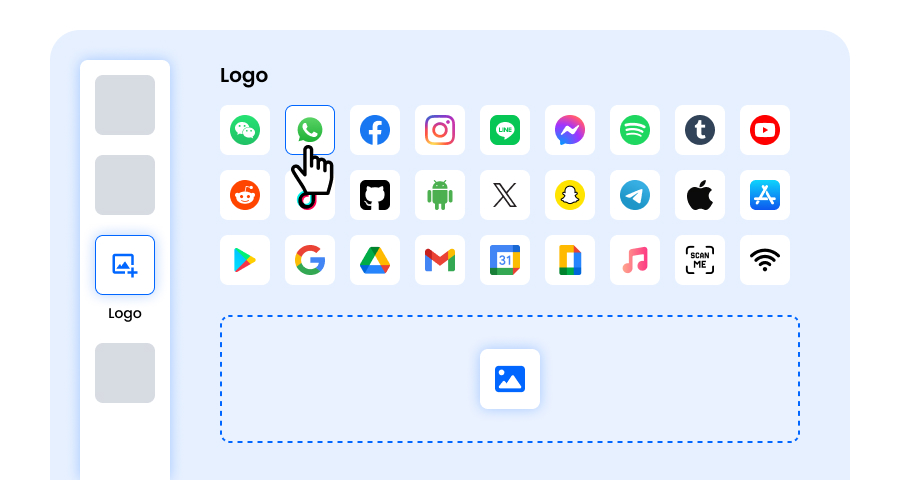
Step 6: Select/add a Logo to Your PNG QR Code to Align With Your Branding
Add your logo in the center of the QR code. Uploading a logo PNG with a transparent background gives the cleanest result. A logo makes your QR code easy to recognize and builds trust with people scanning it. Make sure the logo does not cover the scannable areas.
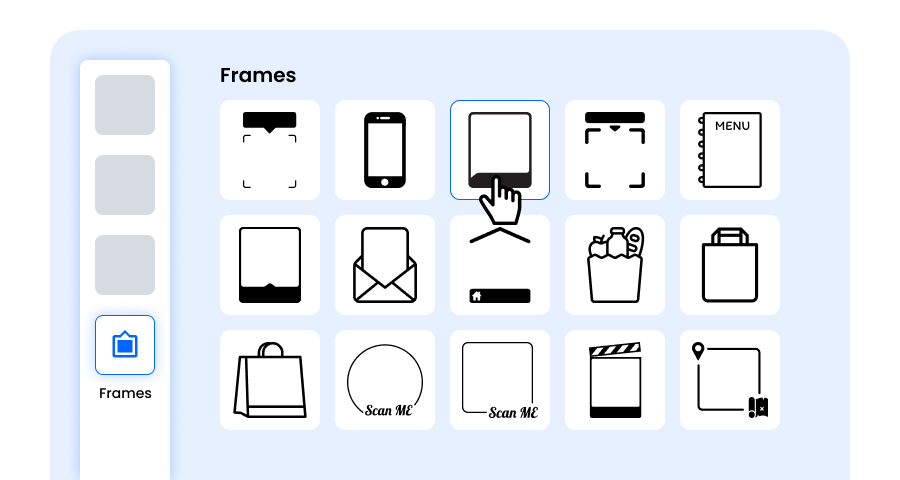
Step 7: Choose the Frame for Your PNG QR as Per Your Choice
Give your PNG QR code a finishing touch by adding a frame with a short call to action, such as “Scan to View” or “See the Image”. A clear frame tells people what they get when they scan and encourages more scans.
Step 8: Adjust the Error Correction Level of the PNG QR Code for Maximum Scan Reliability
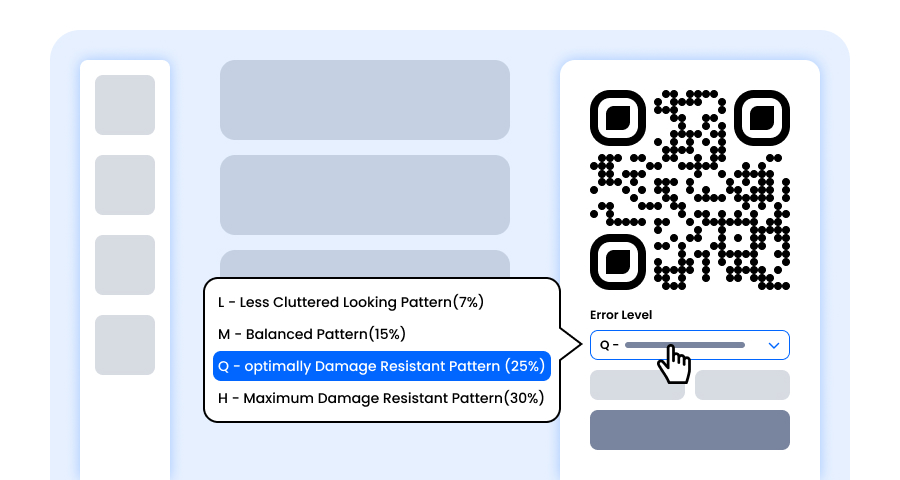
Adjust the error correction level of your PNG QR code to control how well it can still be scanned if part of it gets damaged, blurred, or covered (for example, by a logo).
- L (7%) – Less cluttered look, suitable for simple designs without a logo.
- M (15%) – Balanced pattern for general use.
- Q (25%) – Optimally damage-resistant; works well with small logos.
- H (30%) – Maximum damage resistance; best for larger logos or high-risk display environments.
Choosing the right error level ensures your PNG QR code remains scannable while looking clean and professional
Step 9: Select PNG Format and the Size of Your QR Code
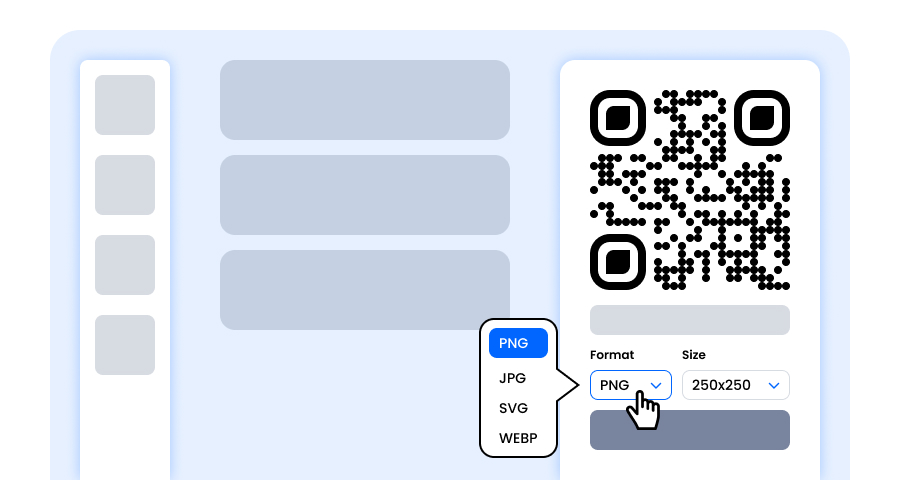
Format - Choose PNG for a sharp image that works almost everywhere and supports a transparent background. JPG is also available for web use, and SVG for scalable print.
Size - Select the size to match your needs: smaller for business cards, labels, or websites, larger for posters, banners, and packaging. This ensures your PNG QR code stays sharp and scannable anywhere.
Step 10: Download Your QR Code as a PNG
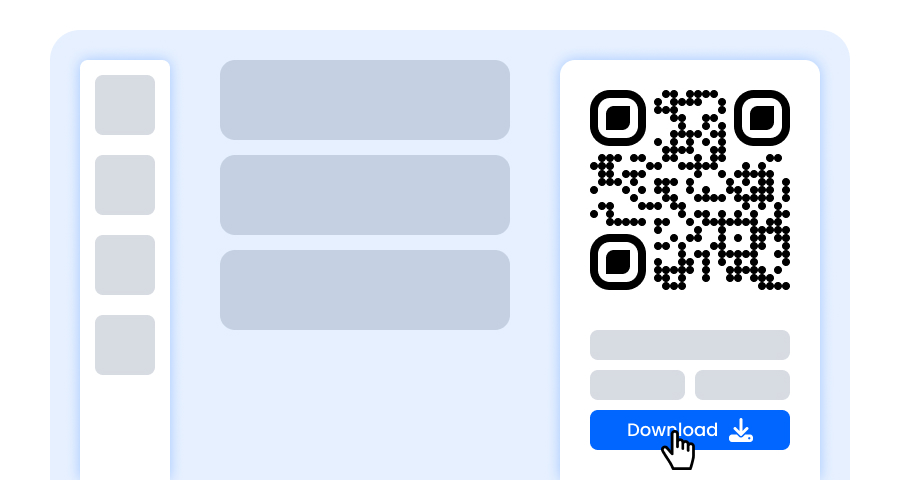
Once you’ve finished customizing, click the Download button. Your QR code is saved as a PNG file in your chosen size, ready to print, share online, or add to your designs.
How to Create a Transparent PNG QR Code?
Our transparent PNG QR code generator lets you remove the white background so your QR code sits cleanly on any color or photo:
- Create your QR code in any QR type, such as a URL, PNG, or vCard.
- Open the color settings and turn on Transparent background.
- Choose dark dots if your design is light, or light dots if it is dark, so the code stays easy to scan.
- Select PNG as the download format and download your QR code.
QR Code Generator With Logo PNG
Want your brand on the code? Upload your logo PNG in the logo section, and our QR code maker places it in the center of your code. A logo PNG with a transparent background looks best, and a higher error correction level (Q or H) keeps the code easy to scan.
Have a JPG, GIF, WEBP, or other picture instead of a PNG? Use our image to QR code generator to share any image format with a QR code.
What Are the Benefits of Using a Free PNG QR Code Generator?
Looking for a free QR code generator PNG tool or a simple PNG QR code maker? QRCodeChamp lets you generate PNG QR codes for free and download every QR code as a PNG file.
- Share PNG images instantly with one scan
- Download any QR code as a sharp PNG file
- Transparent background option for clean designs
- Add your own logo PNG to the center of the code
- Free to create with unlimited downloads
- Full customization with colors, shapes, and frames
Where Can You Use a PNG QR Code?
Create a PNG QR code and use it anywhere you want to share images or place a clean QR code.
- Websites, blogs, and online stores
- Posters, flyers, and brochures
- Product packaging and labels
- Presentations, documents, and email signatures
- Art exhibitions and portfolios to share full-size artwork
- Certificates, menus, and infographics
Explore More QR Code Generators
URL QR Code
vCard QR Code
Text to QR Code
Wi-Fi QR Code
Email QR Code
Phone Number QR Code
Message QR Code
Social Media QR Code
YouTube QR Code
Spotify QR Code
Google Review QR Code
Google Form QR Code
WhatsApp QR Code
Snapchat QR Code
Facebook QR Code
Instagram QR Code
TikTok QR Code
LinkedIn QR Code
Video to QR Code
PDF to QR Code
Image QR Code
Location QR Code
Event QR Code
Calendar QR Code
Zoom Meeting QR Code
Google Meet QR Code
Crypto Payment QR Code
File QR Code
Audio QR Code
Google Sheets QR Code
Google Docs QR Code
Excel QR Code
Dropbox QR Code
Etsy QR Code
iTunes QR Code
PPTX QR Code
PayPal QR Code
QR Code Generator PNG FAQs
How Do I Convert a PNG to QR Code?
Open QRCodeChamp’s PNG QR code generator, upload your PNG image, customize the design, and click Download. When someone scans the QR code, your PNG image opens on their phone.
How Do I Download My QR Code as a PNG?
After creating your QR code, select PNG as the download format, choose the size, and click Download. Every QR type on QRCodeChamp can be downloaded as a PNG.
Can I Create a Transparent PNG QR Code?
Yes. Turn on Transparent background in the color settings and download your QR code as a PNG. The background is removed so the code fits on any design.
Can I Add a Logo PNG to My QR Code?
Yes. Upload your logo in the logo section and it appears in the center of your QR code. A logo PNG with a transparent background gives the cleanest look.
Is the PNG QR Code Generator Free?
Yes. QRCodeChamp is a free PNG QR code generator with unlimited downloads and full customization, including colors, shapes, logos, and frames.