
LinkedIn QR Code Generator
Select Your QR Code
LinkedIn QR Code Generator
QR Code Name
Preview
Create QR Code For LinkedIn Profile
LinkedIn is the best way to connect. But taking ID, searching the relevant ID, and then sending the connection request might be a reason for lost leads. A LinkedIn QR Code removes all these roadblocks, and your connections are just a QR code scan away. All thanks to QRCodeChamp!
What is a LinkedIn QR Code?
A LinkedIn QR Code is a scannable QR code that eliminates all the traditional hassle that is involved with connecting with someone. A LinkedIn QR code helps you develop a QR code that people can scan for your LinkedIn profile.
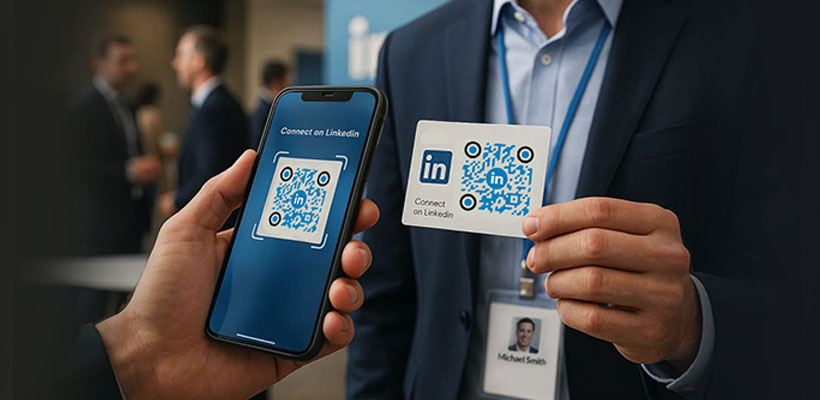
How to Get a LinkedIn QR Code Using LinkedIn QR Code Generator (Step-by-step)?
Let’s help you generate LinkedIn QR code with easy steps.
Step 1: Visit QRCodeChamp and Go to the LinkedIn QR Code
Open our QRCodeChamp editor and select the LinkedIn QR Code option to start creating your LinkedIn-based QR code.

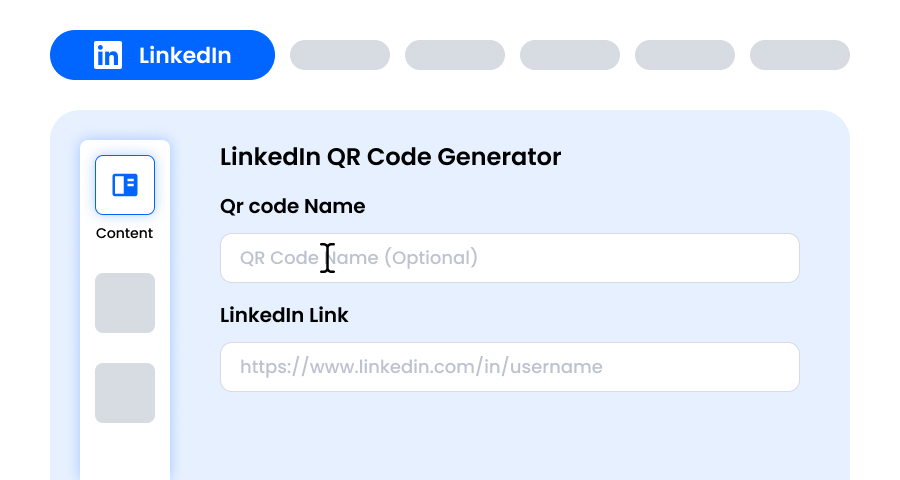
Step 2: Add Your LinkedIn Profile Link
Enter your full LinkedIn link in the given input box to generate your unique LinkedIn QR code. This ensures that whoever scans your LinkedIn QR code will be taken to your LinkedIn profile or whatever content link you added, making it super easy for people to add you instantly without manually searching your name. You can also add other LinkedIn content links. No hassle!
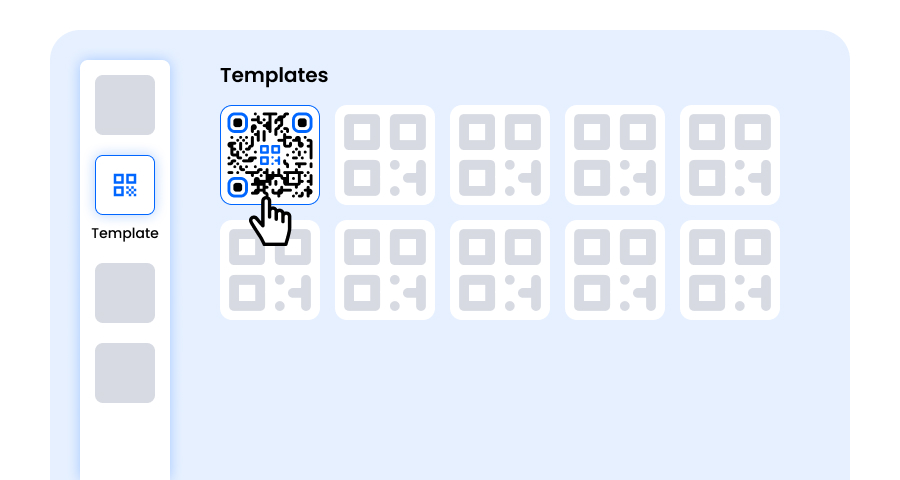
Step 3: Choose a Template for LinkedIn QR Code to Match Your Style and Purpose
Once your dynamic LinkedIn QR code is generated, head to the customization section and browse through the pre-designed templates. Select one that reflects the purpose of your LinkedIn campaign—whether it’s for marketing, events, promotions, or personal branding. The right template instantly gives your LinkedIn QR code a professional and eye-catching look.
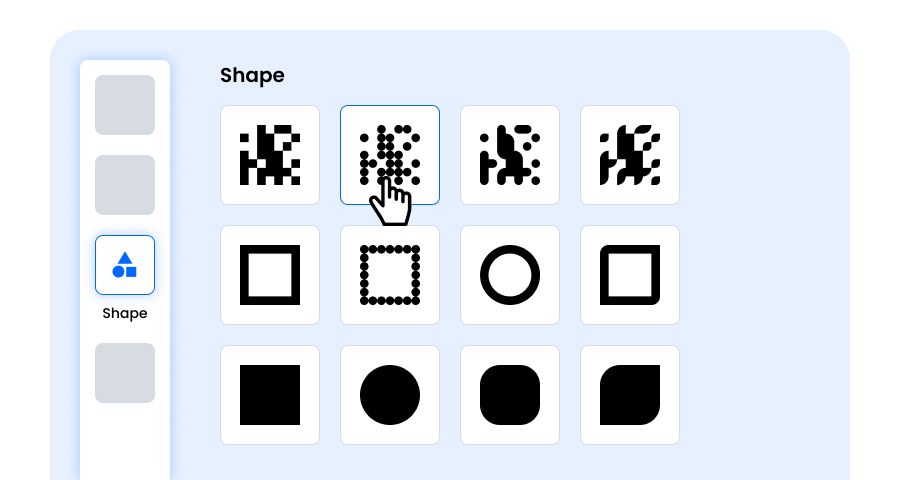
Step 4: Select the Shape to Create a Unique LinkedIn QR Code Design
Make your LinkedIn QR code stand out by experimenting with different shapes for the dots and corners. You can choose rounded edges for a modern feel, sharp corners for a sleek, techy vibe, or creative styles to match your audience’s preferences. The shape you pick can add a subtle but powerful branding touch to your LinkedIn QR Code.
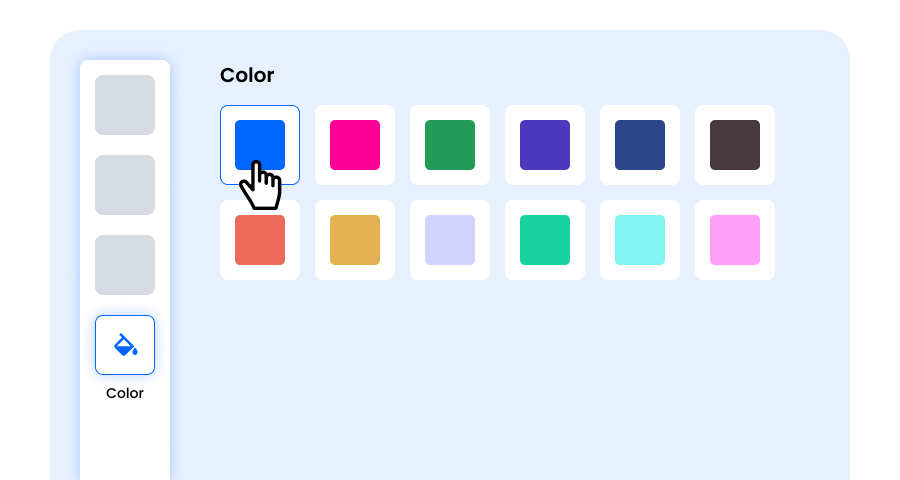
Step 5: Choose Colors to Make Your LinkedIn QR Code Stand Out
Customize the colors of your LinkedIn QR code to match your brand palette, campaign theme, or personal style. You can opt for solid colors for a clean look, gradients for a modern twist, or brand-specific shades to reinforce recognition. Just ensure the contrast remains high enough for easy scanning.
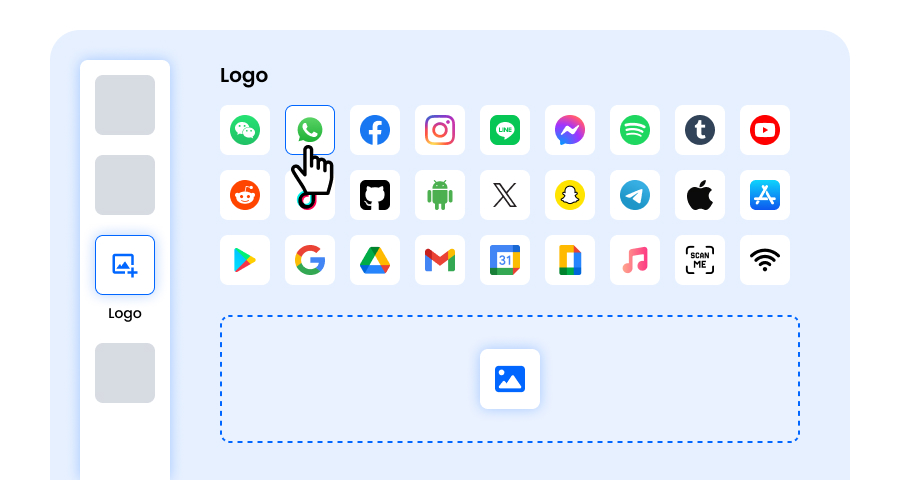
Step 6: Select/add a Logo to Your LinkedIn QR Code to Align With Your Branding
Enhance your LinkedIn QR code by inserting your company logo, product icon, or campaign graphic in the center. A logo not only makes the LinkedIn QR code visually appealing but also strengthens brand recognition and builds trust with users scanning it. Ensure the logo is clear and doesn’t obstruct the QR code’s scannable areas.
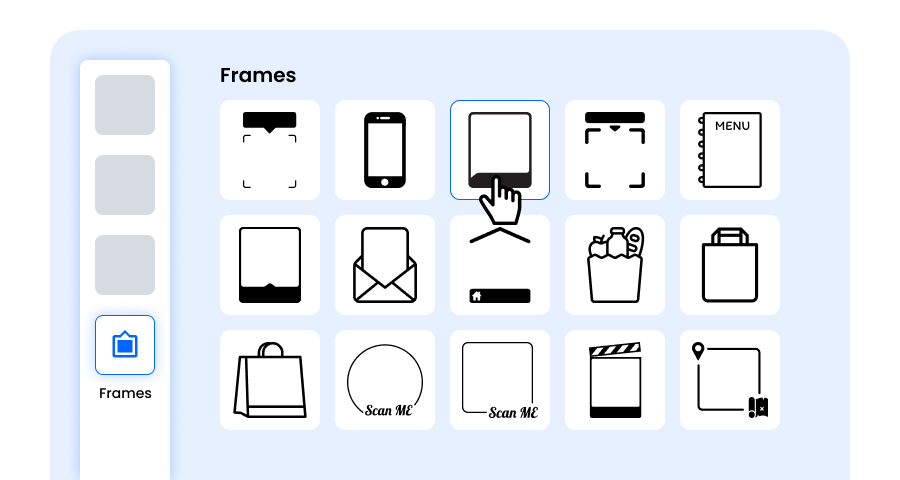
Step 7: Choose the Frame for Your LinkedIn QR as Per Your Choice
Give your LinkedIn QR code a finishing touch by adding a frame. Frames can highlight the QR code and even include short call-to-action texts, such as “Scan Me” or “Visit Now,” encouraging more scans. Select a style and color combination that complements your brand and stands out wherever you display the LinkedIn QR code.
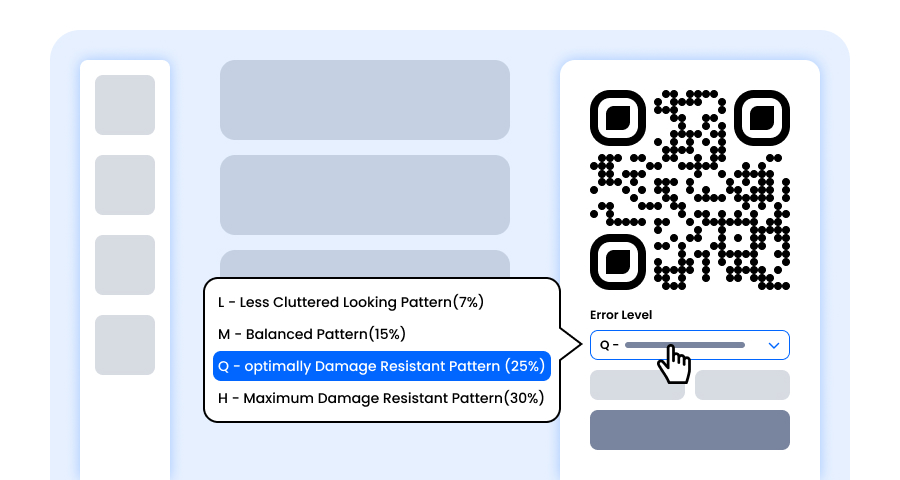
Step 8: Adjust the Error Correction Level of the LinkedIn QR Code for Maximum Scan Reliability
Adjust the error correction level of your LinkedIn QR code to control how well it can still be scanned if part of it gets damaged, blurred, or covered (for example, by a logo).
- L (7%) – Less cluttered look, suitable for simple designs without a logo.
- M (15%) – Balanced pattern for general use.
- Q (25%) – Optimally damage-resistant; works well with small logos.
- H (30%) – Maximum damage resistance; best for larger logos or high-risk display environments.
Choosing the right error level ensures your LinkedIn QR code remains scannable while looking clean and professional.
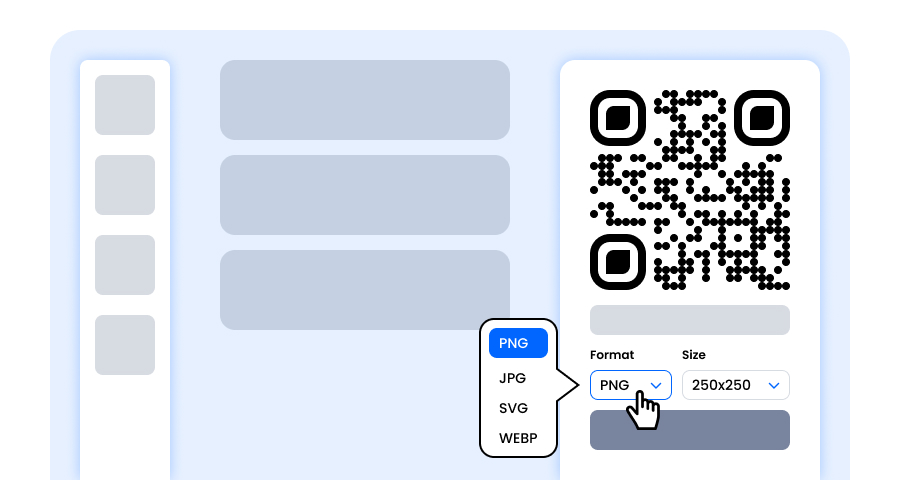
Step 9: Select the Format and Size of the LinkedIn QR Code as Per Your Requirement
Format - Choose the file format—PNG for most uses, JPG for web, or SVG for scalable print. So you can select based on where you’ll use the LinkedIn QR code—digital screens, print materials, or both.
Size - Select the size to match your needs: smaller for business cards or digital use, larger for posters and banners. This ensures your LinkedIn QR code stays sharp and scannable anywhere.
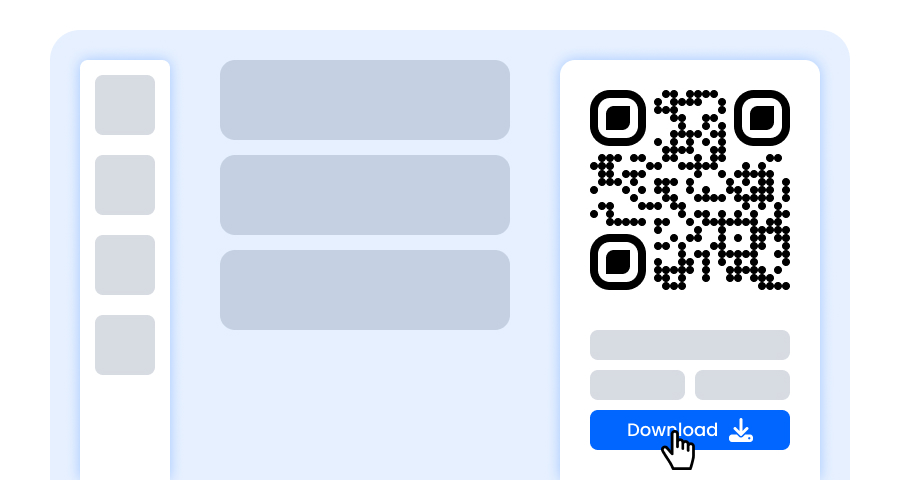
Step 10: Download Your Personalized LinkedIn QR Code
Once you’ve finished customizing your LinkedIn QR code, click the Download button. Save it in your chosen format and size so it’s ready to be printed, shared online, or embedded in your marketing materials.
Why Should I Use a LinkedIn QR Code Generator?
A LinkedIn QR Code generator gives additional features such as changing the size, colors, template, and format of the QR Code. So, a QR Code that meets your requirements can be made using QRCodeChamp. That too is free of cost.
Advantages of Using QR Code for LinkedIn.
Benefits of using a LinkedIn QR code are:
- Remove all the complexity of finding the profile and engaging with spellings
- Instant connection with the desired profile
- Works on any device and lets you connect in no time
- Also can be used for marketing, even in offline campaigns
- It is also trackable; a user can keep track of the number of people who visited using the QR code
Explore More QR Code Generators
URL QR Code
vCard QR Code
Text to QR Code
Wi-Fi QR Code
Email QR Code
Phone Number QR Code
Message QR Code
Social Media QR Code
YouTube QR Code
Spotify QR Code
Google Review QR Code
Google Form QR Code
WhatsApp QR Code
Snapchat QR Code
Facebook QR Code
Instagram QR Code
TikTok QR Code
Video to QR Code
PDF to QR Code
Image QR Code
LinkedIn QR Code Generator FAQs
Will My QR Code for LinkedIn Shop Expire?
No, when generating a Static LinkedIn QR from QRCodeChamp, it never expires; a dynamic one may expire.
Is This a Free QR Code Generator for LinkedIn?
Yes, the QR CodeChamp’s QR generator is absolutely free.
Can I Customise My LinkedIn QR Code?
Yes, you can customise your LinkedIn Profile QR Code in QRCodeChamp as you like. It offers various advanced customisation options such as colour, shape, template, logo, frame, size, etc.
Should I Create a Static or Dynamic LinkedIn QR Code?
If you don’t have to change the LinkedIn URL shortly, then you should create a Static LinkedIn QR Code. However, if you have to change it, a dynamic QR Code is a better option.
Can I Put a LinkedIn QR Code on My Resume?
Yes, you can put a LinkedIn QR Code on your resume.