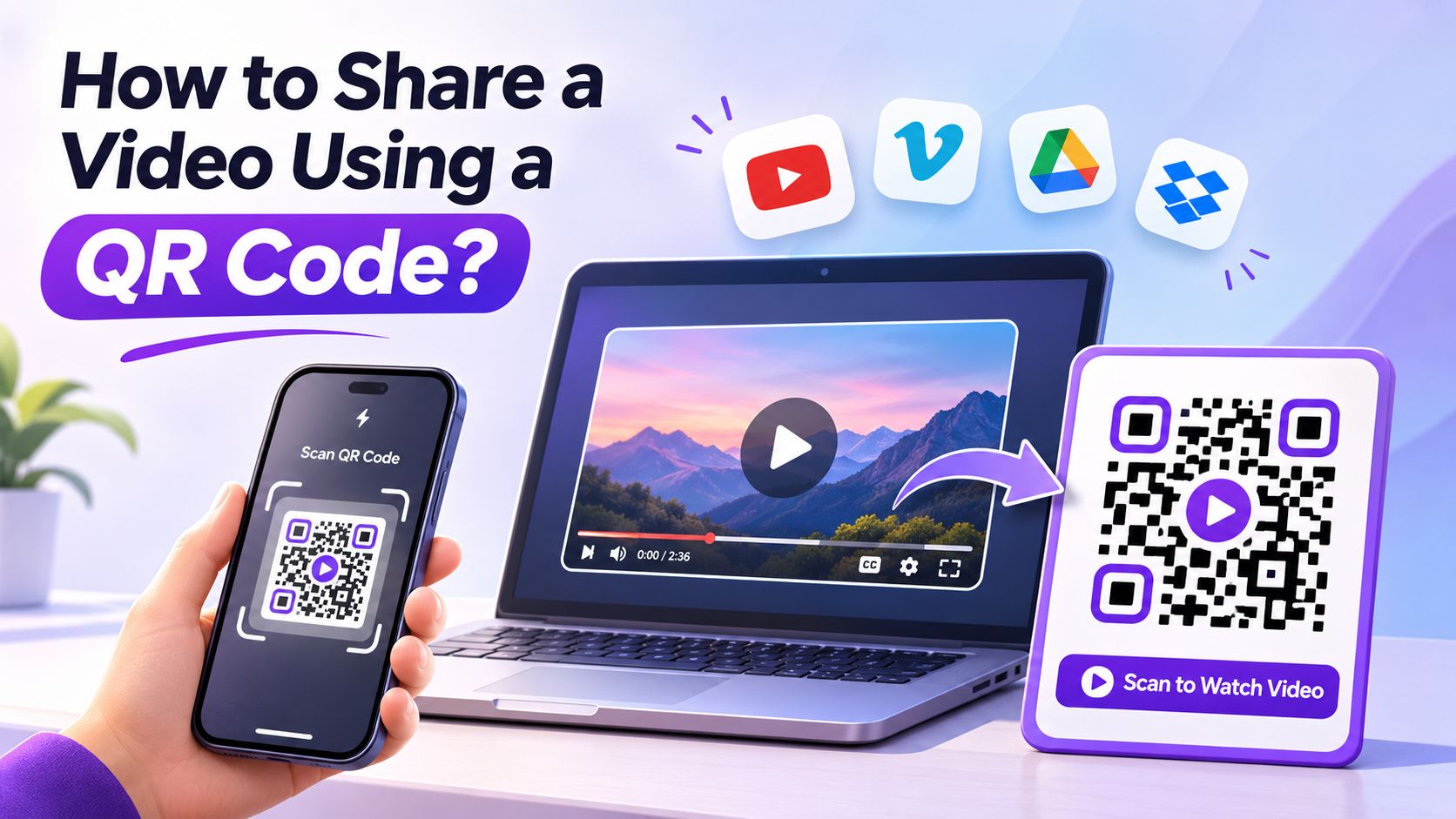

To share a video using a QR code, upload the video to a hosting platform, copy its share link, and turn that link into a QR code. When someone scans the code, the video opens on their phone. A QR code can’t hold the video file itself, because QR codes store a small amount of data. What it stores is the address where the video lives.
That one detail answers most questions about how to turn a video into a QR code. The rest of this guide covers choosing a host, getting the right link, and making sure the video plays well after the scan.
Why the Video Has to Be Online First
A QR code holds at most a few thousand characters of data. A one-minute phone video is many megabytes. So every video QR code works the same way: the code holds a link, and the link opens a video stored somewhere online.
This is good news. You can replace a long, hard-to-type URL with a single scan, and the video streams at full quality from its host.
Where to Host Your Video
The host you choose decides who can watch and how the video looks on a phone.
YouTube or Vimeo
These are best for public or semi-public videos. YouTube’s “Unlisted” setting lets anyone with the link watch, while keeping the video out of search results. Avoid “Private,” because people who scan the code won’t be able to play it.
Google Drive, Dropbox, or OneDrive
These are handy for internal or one-off videos. Set sharing to “Anyone with the link can view,” or scanners will hit a sign-in or access-request screen.
Your Own Website
This option gives you full control over the page around the video. It’s useful for product demos where you also want a “Buy” button or contact details.
How to Turn a Video Into a QR Code
- Upload the video to your chosen host and set its visibility so the right people can watch.
- Copy the share link. Open the video in a private browser window first to confirm it plays without signing in.
- Open the video QR code generator on QRCodeChamp and paste the link into the “Video Link” field. Naming the code is optional.
- Customize the design. You can choose a template, dot shape, colors, logo and a frame with a short call to action such as “Scan to Watch.”
- Pick the error correction level. Level Q or H works better if you add a logo.
- Download in PNG, JPG, SVG or WEBP. Use SVG for print so the code stays sharp at any size.
- Test the code with an iPhone and an Android phone before you print or publish it.
If your video is on YouTube, the YouTube QR code generator is built for YouTube links specifically.
Practical Ways to Use Video QR Codes
Product packaging: A code on the box links to a setup or assembly video, so customers don’t need a long paper manual.
Real estate: A code on a “For Sale” sign opens a walkthrough tour that people can watch from the sidewalk.
Events and invitations: Wedding invitations can link to a save-the-date video. Conference badges can link to a speaker’s intro clip.
Classrooms: Teachers can add codes to worksheets that link to short explanation videos students watch at home.
Restaurants and retail: A code on a menu or shelf tag shows how a dish is made or how a product works.
Tips for a Better Viewing Experience
Keep it short. People usually scan while standing or on the move. Videos under two minutes tend to work best for marketing. Longer tutorials are fine when viewers expect them.
Think about sound. Many people watch in public with the sound off. Captions or on-screen text help your message land anyway.
Check mobile playback. Some hosts play videos inline on phones. Others open an app or a download prompt. Test the actual link on a phone before you commit.
Decide static or dynamic up front. A static QR code points to one link forever. If the video might move or be replaced, a dynamic QR code lets you change the destination and see scan counts without reprinting.
Print it large enough. As a general rule, keep the printed code at least 2 cm (about 0.8 inches) wide, and bigger for posters viewed from a distance.
Conclusion
Sharing a video with a QR code comes down to three steps: host the video, copy a link anyone can open, and turn that link into a code. Get the visibility settings right and test the scan on real phones. That way, every person who points their camera at your code lands straight on the video.