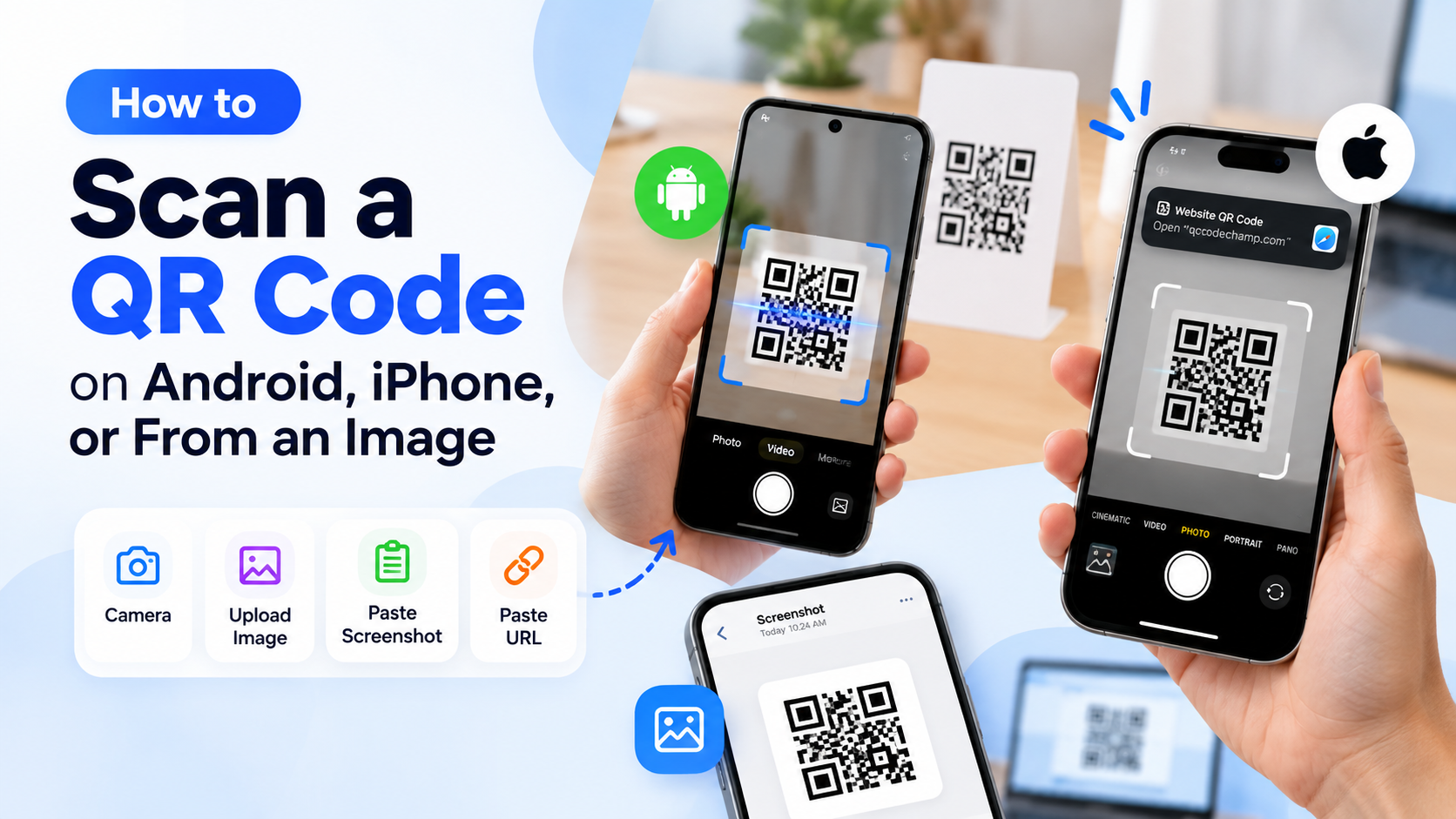

QR codes are everywhere today. You can find them on restaurant menus, product packaging, posters, tickets, business cards, websites, and more. Scanning one is usually quick, but the method can depend on the phone you’re using and where the QR code is located.
If you’ve never scanned a QR code before, the process is simple. In most cases, your phone’s camera can do the job. If the QR code is already saved as a screenshot, photo, or downloaded image, you can scan the image directly instead.
How Do You Scan a QR Code?
The easiest way to scan a QR code is with your phone’s camera.
Open the Camera app and point it at the QR code. Keep the entire code visible on your screen and hold your phone steady for a moment. You normally don’t need to take a picture.
Once your phone recognizes the code, a notification or link should appear. Tap it to open the information stored inside the QR code.
If nothing happens, try moving your phone slightly closer or farther away. Make sure the QR code is clear, well-lit, and fully visible.
How to Scan a QR Code on Android
If you’re wondering how to scan a QR code on Android, start with the Camera app. Most modern Android phones can recognize QR codes without requiring another application.
Point your camera toward the code and wait for it to be detected. Your phone should display a notification or link that you can tap.
The exact experience can vary between Android devices. Samsung, Google Pixel, OnePlus, Xiaomi, and other phones may have slightly different camera interfaces.
If your camera doesn’t recognize the code, Google Lens is another option. It can recognize QR codes and show you the information stored inside them.
How to Scan a QR Code on iPhone
How to scan a QR code on iPhone is just as simple.
Open the iPhone Camera app and use the rear camera. Point it at the QR code and wait for your phone to recognize it. You don’t need to take a photo.
When the code is detected, a notification will appear on the screen. Tap it to open the link or view the information.
You can also use Apple’s Code Scanner through Control Center if it is available on your device.
So, if you’re wondering how to scan a QR code with iPhone, the Camera app is normally the quickest option.
How to Scan a QR Code From an Image
If you already have a QR code saved as an image, an online QR code scanner can be a convenient option.
For example, QRCodeChamp’s QR Code Scanner Online lets you choose between several scanning methods:
- Camera — scan a QR code that’s in front of you.
- Upload Image — select an image from your device.
- Paste Screenshot — paste a screenshot you’ve already copied.
- Paste URL — provide the URL of an image containing a QR code.
This is particularly useful when the QR code isn’t physically available to scan.
You can upload a photo, screenshot, or downloaded image and let the scanner read the QR code from it.
How to Scan a QR Code From a Screenshot
Screenshots are one of the most common situations where an image-based scanner can be useful.
For example, you might take a screenshot of a QR code from a website or receive one through a messaging app. Instead of displaying the screenshot on another device, you can scan the image directly.
With an online QR code scanner, you can upload the screenshot or paste it directly if the scanner supports clipboard images. This saves time and means you don’t need a second phone just to display the QR code.
QRCodeChamp’s scanner includes a Paste Screenshot option, making it convenient when the QR code is already copied to your clipboard.
Why Isn’t My QR Code Scanning?
Sometimes a QR code won’t scan on the first attempt. This doesn’t necessarily mean the code is broken.
A dirty camera lens, poor lighting, glare, a blurry image, or a QR code that is too small can make recognition difficult.
Try cleaning your camera lens and improving the lighting. If you’re scanning an image, make sure the QR code isn’t heavily blurred, cropped, or distorted.
If the QR code is already saved as an image, switching from camera scanning to an image-based scanner may solve the problem.
Scan a QR Code Online
If you already have a QR code as a screenshot, photo, or downloaded image, you don’t need to find another phone just to scan it.
QRCodeChamp’s QR Code Scanner lets you scan using your camera, image upload, screenshot, or image URL.
This gives you flexibility to choose the method that fits your situation. You can scan a physical QR code with your camera or read one that’s already stored on your device.
Final Thoughts
QR code scanning doesn’t have to be complicated. For most physical QR codes, your phone’s camera is the quickest option.
When the QR code is already inside a screenshot, photo, or downloaded image, an online QR code scanner can be much more convenient.
Whether you’re trying to scan a QR code on Android, scan a QR code on iPhone, or find out how to scan a QR code on your phone, the important thing is to use the method that matches where the QR code is.
Once you know the difference, scanning a QR code takes only a few seconds.